

Customize Valve Callouts
Updated on: March 17, 2026
Quick video
- The Irrigation Valve Callout Source Block Drawings
- Editing Our Default Callout Styles
- Adding New Callouts
- Creating a Schedule Symbol
- Related Webinars
- Troubleshooting
Like other callouts, valve callouts are placed as blocks. You can customize our valve callout blocks to meet your standards.
Looking for instructions for placing valve callouts in your drawings? See our Valve Callouts page.
Attention: Do you have customized valve callout styles?
We've changed our valve callout styles as of March 2026, updating them to dynamic blocks. These blocks can be quite delicate, and you 'll need to use extreme caution if you choose to edit them. Take care to review our documentation on modifying these updated valve callouts if you plan to do so.
The Irrigation Valve Callout Source Block Drawings
The irrigation valve callout source block files are located in the folder LandFX/Blocks/Graphics/Irrigation/Callouts. Their filenames start with LAFX-VALVECO. See our documentation on our valve callout block and sub-block file names for more information.
You'll see a Right (R) and Left (L) version for each of our valve callout styles. However, with our update of the valve callouts to dynamic blocks in March 2026, the callouts now only need the -L callout (along with the standard VALVECO# and VALVECO#X blocks). So if you need to do any modifications to the shape of the callout, you'd only need to do them in the -L file.
As with our other cloud-based blocks, you won't see these source files in this location until you've placed valve callouts in a drawing for the first time. Once you've placed a callout in a particular style, the source files for that style will download to this location automatically, and you'll be able to edit them.


The Metric styles are named and numbered similarly to their Imperial counterparts, except the file names will include the marker -M- for metric. You'll see an L version of each metric style as well.
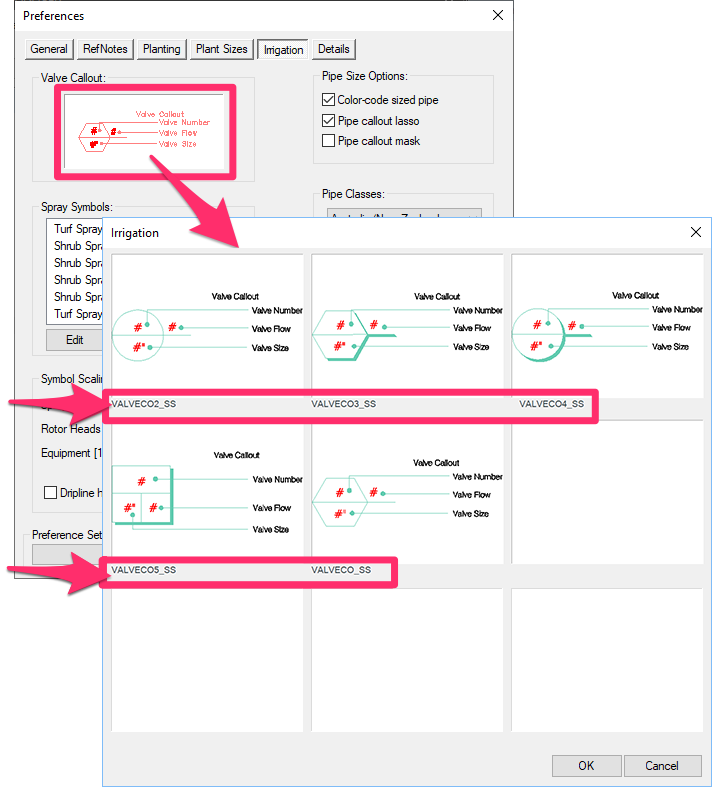
These callout styles correspond with the callout styles that are available from the Irrigation Preferences.
Note that the name of each of these styles matches the name of that style's source drawing. So if you've made edits to the style VALVECO2, you'll select the callout style of the same name here, and that style will appear in your drawings when you place valve callouts.
Editing Our Default Valve Callout Styles
We recommend using our default valve callout styles as templates for creating your customized valve callout styles rather than creating your custom callout blocks from scratch. For details on editing our default valve callout styles, see our documentation on modifying our updated valve callouts.
Adding New Callouts
If you want to add new callouts, we recommend using an existing callout to modify, but just do a Save As and keep the naming consistent with our default naming structure (we use VALVECO1 - VALVECO8, so start numbering after this for anything custom.
Because valve callouts are now dynamic blocks, do not use our Save Block tool to save your customized valve callouts. Save Block is unable to save the correct properties to keep dynamic blocks. Opening an existing callout and doing a Save As is the only way to keep your customized valve callouts functioning correctly.
The easiest method for creating a new label type is to open an existing label that closely matches your layout goal. All text is an attribute, so don’t change it. Instead, change the font style or physical size of the font to meet your preferences or office standards.
Want to add or edit attributes? See our Attribute Definitions for Valve Callouts page.

Note that the LandFX/Blocks/Graphics/Irrigation/Callouts folder contains three files for each callout block:
- A DWG file (.dwg) file (the actual callout block drawing)
- An AutoCAD slide (.sld) file (the thumbnail slide for the callout)
- An XML (.xml) (allows the system to read the block and slide files)
Open the DWG source file for the Left (L) version of the callout you want to edit.
Make the necessary changes, then use our Save Block tool to save the new block.
When you save the block, don't forget to follow the block naming conventions described above.
Creating a Schedule Symbol
If you add a Valve Callout, or revise an existing one, the new callout will also require you to create a schedule symbol. This symbol will appear in the Irrigation Schedule, showing aspects of the callout such as the locations of the valve number, valve size, and flow.
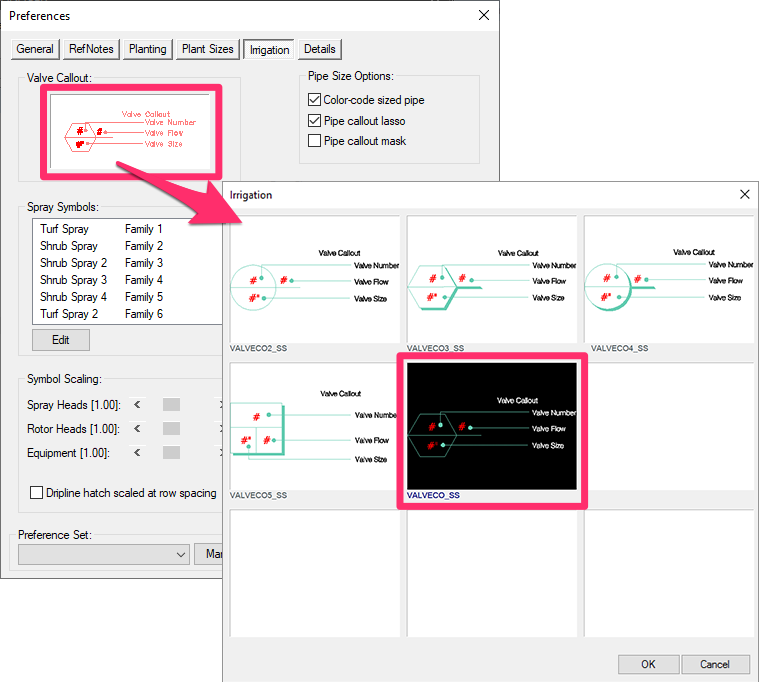
You'll also need to create a schedule symbol in order to see and select your customized valve callout in the Irrigation Preferences, as pictured below.
Here's how to create a schedule symbol:
1. Go to the folder LandFX\Blocks\Graphics\Irrigation\schedule_symbols.
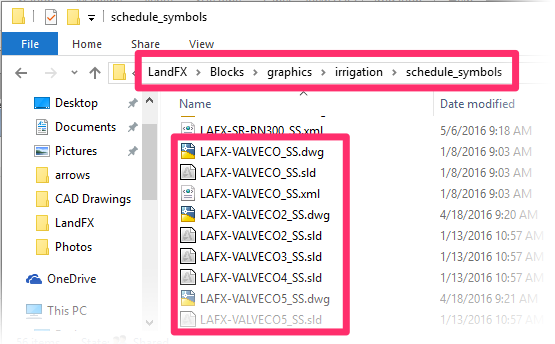
2. From this folder, open one of the Schedule Block files used to represent the valve callouts in the Irrigation Schedule.
These files are named according to the following format: LAFX-VALVECO(number)_SS.dwg. For example, the file LAFX-VALVECO1_SS.dwg contains the Schedule Symbol for Valve Callout 1.
Each of these blocks includes an appropriate insertion point for the schedule, as well as labeled descriptions of the locations of the Valve Number, Valve Flow, and Valve Size.
3. Bring in your revised valve callout, and replace the existing one.
4. (only necessary if you've created your own callout style) Using the Save Block tool, save this new drawing into the Schedule_Symbols folder, named LAFX-VALVECO(number)_SS to match the number of the valve callout it represents.
Skip this step if you are customizing and overwriting one of our default callout styles.
5. You'll then create a thumbnail slide for your valve callout.
If Save Block does not create an acceptable slide automatically, of if you need to reshoot the thumbnail slide for any reason, use our Best Practices for Creating the Thumbnail Slide to create a slide manually.
Related Webinars
- Irrigation Customization: We cover the Irrigation Preferences, including what to consider as you’re setting up your office standards, and what will and won’t change on the fly when you modify these settings, as well as customizing irrigation symbols. (1 hr 2 min)
- Dotting Your Irrigation I's: Each client will have different styles and requirements, but the concept is the same: You should feel comfortable matching any client’s standards. We'll show you how. (1 hr 1 min)
- Working With Blocks: Take a broad look into the role of blocks within Land F/X and how to integrate your personal set of blocks into our system. (1 hour 4 min)
- Customizing Irrigation – What You Need to Know: Join us for a discussion on the "need-to-knows" of making the software work with your office standards. We'll show you the different ways you can customize, and you'll pick up some valuable tips for setting up the software to meet your office standards. (1 hr 1 min)