Land F/X
  • Portal
  • Products
    • Detail F/X
      • Product
      • Features
      • Trial
      • Purchase
    • Planting F/X
      • Product
      • Features
      • Trial
      • Purchase
    • Irrigation F/X
      • Product
      • Features
      • Trial
      • Purchase
    • F/X CAD
    • Plugin for Revit®
    • Plugin for SketchUp®
    • Plugin for Rhino®
    • Site & Hardscape
    • Lighting
    • Manufacturer Connection
    • Academic
    • Purchase
  • Support
    • Knowledge Base
    • Documentation
    • Submit Ticket
    • Updates
    • Forum
    • Install
  • Videos
    • Power Tips
    • Webinars
    • Podcasts
  • Who We Are
    • Contact Us
    • Careers
    • Gallery
    • News
Land F/X
  • Portal
  • Products
    • Detail F/X
      • Product
      • Features
      • Trial
      • Purchase
    • Planting F/X
      • Product
      • Features
      • Trial
      • Purchase
    • Irrigation F/X
      • Product
      • Features
      • Trial
      • Purchase
    • F/X CAD
    • Plugin for Revit®
    • Plugin for SketchUp®
    • Plugin for Rhino®
    • Site & Hardscape
    • Lighting
    • Manufacturer Connection
    • Academic
    • Purchase
  • Support
    • Knowledge Base
    • Documentation
    • Submit Ticket
    • Updates
    • Forum
    • Install
  • Videos
    • Power Tips
    • Webinars
    • Podcasts
  • Who We Are
    • Contact Us
    • Careers
    • Gallery
    • News
  1. Home
  2. Knowledge Base
  3. Admin
  4. Files, Folders, Projects & Data
  5. Grant Read-Write Permissions for the LandFX Folder (Single User)

    []

    Grant Read-Write Permissions for the LandFX Folder (Single User)

    Updated on: May 16, 2022

    Issue

    You need to grant yourself (or another user) read/write permissions for the LandFX folder on the C: drive.

    Looking for a way to share the LandFX folder on a network or office server? Please see our instructions for sharing the LandFX folder on your network.


    Solution


    Grant Permissions to the LandFX Folder

    1. Open the C: drive on your (or the user's) computer. Right-click the LandFX folder.

    Important: Make sure you're giving yourself permissions for the LandFX folder that's directly on the C: drive (C:/LandFX) – not the folder C:/Progam Files/LandFX.
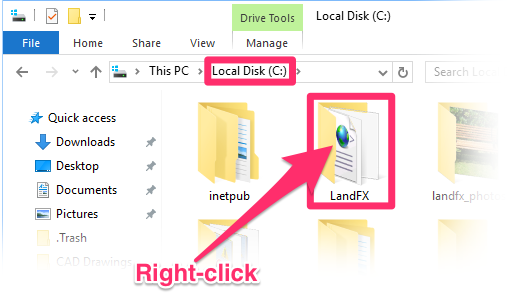
     
    Right-clicking LandFX folder on C drive


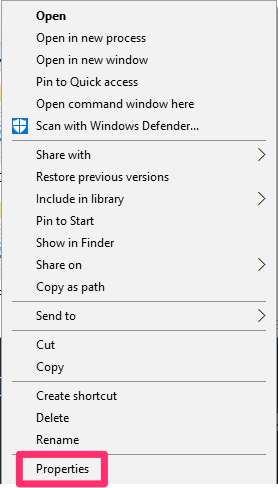
    Properties menu option
    2. Select Properties from the menu that opens.


    3. The Properties dialog box will open.


    Select the Security tab, and click Edit.
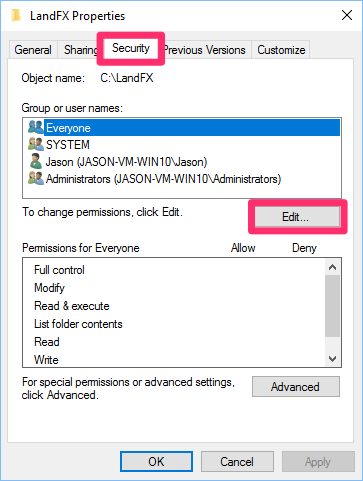
    Properties dialog box, Security tab, Edit button


    Permissions dialog box

    4. The Permissions dialog box will open.


    Under Group or User Names, select Everyone.

    Don't see the Everyone option here?

    Here's what to do >

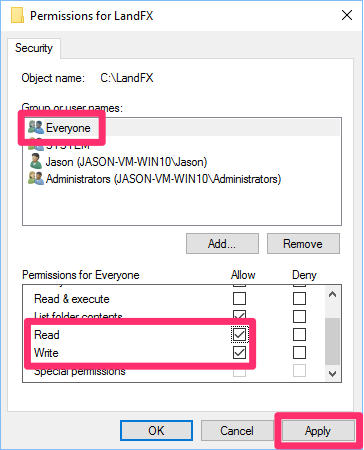
    Check the boxes in the Allow column to the right of Read and Write.

    If these boxes were already checked when you opened this screen, your computer already has read-write permissions to the LandFX folder.

    Click Apply to apply your changes. Then click OK.


    5. Back in the Properties dialog box, verify that both the Read and Write entries have check marks in the Allow column.


    Click Apply, then click OK.
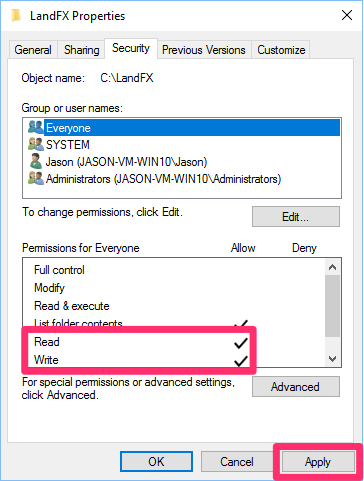
    Properties dialog box, granting Read and Write permissions


    You've successfully granted permissions for the LandFX folder.


    Add the Everyone Option to the Permissions Dialog Box (If Necessary)


    If you don't see the option for Everyone in the Permissions for LandFX dialog box (Step 4 above), you can easily add it by following the steps below.
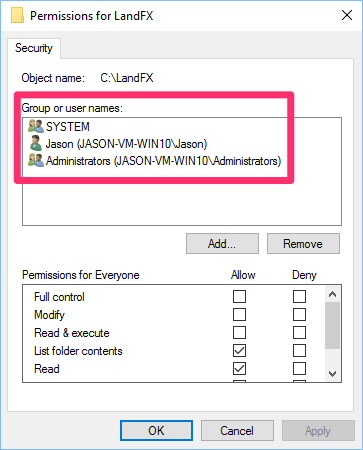
    Everyone option for permissions


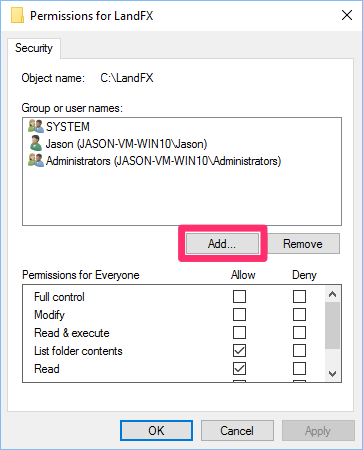
    Permissions for LandFX dialog box, Add button
    Still in the Permissions for LandFX dialog box, click Add.


    The Select User or Groups dialog box will open.


    Type Everyone in the text field as pictured to the right. Click OK.
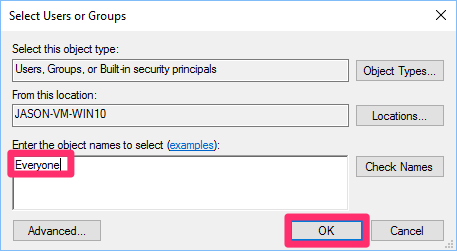
    Select User or Groups dialog box, adding Everyone to the text field


    You should now see an Everyone option in both the Properties and Permissions dialog boxes for your LandFX folder, and you can proceed with the permission steps above.
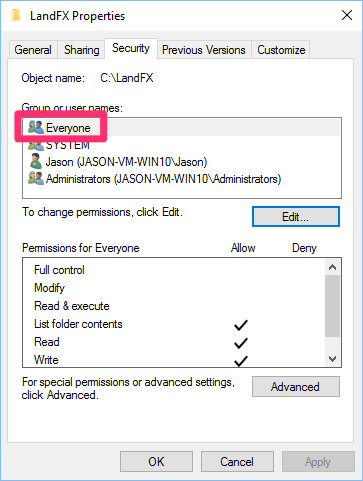
     

    Everyone option included in Properties dialog box
    Everyone option included in Permissions dialog box


    Contact

    • Land F/X
    • PMB 351 3940 Broad St. STE 7
      San Luis Obispo, CA 93401
    • +1 805-541-1003
    Email Logo Facebook Logo Instagram Logo LinkedIn Logo
    Land F/X Logo

    Our software tailors AutoCAD®, Revit®, SketchUp®, and Rhino® to the needs of landscape architects, irrigation designers, and other professionals. We automate your most tedious tasks and ensure accuracy, giving you more time to design.

    • Portal
    • Products
    • Support
    • Videos
    • Who We Are