

Land F/X
  • Portal
  • Products
    • Detail F/X
      • Product
      • Features
      • Trial
      • Purchase
    • Planting F/X
      • Product
      • Features
      • Trial
      • Purchase
    • Irrigation F/X
      • Product
      • Features
      • Trial
      • Purchase
    • F/X CAD
    • Plugin for Revit®
    • Plugin for SketchUp®
    • Plugin for Rhino®
    • Site & Hardscape
    • Lighting
    • Manufacturer Connection
    • Academic
    • Purchase
  • Support
    • Knowledge Base
    • Documentation
    • Submit Ticket
    • Updates
    • Forum
    • Install
  • Videos
    • Power Tips
    • Webinars
    • Podcasts
  • Who We Are
    • Contact Us
    • Careers
    • Gallery
    • News
Land F/X
  • Portal
  • Products
    • Detail F/X
      • Product
      • Features
      • Trial
      • Purchase
    • Planting F/X
      • Product
      • Features
      • Trial
      • Purchase
    • Irrigation F/X
      • Product
      • Features
      • Trial
      • Purchase
    • F/X CAD
    • Plugin for Revit®
    • Plugin for SketchUp®
    • Plugin for Rhino®
    • Site & Hardscape
    • Lighting
    • Manufacturer Connection
    • Academic
    • Purchase
  • Support
    • Knowledge Base
    • Documentation
    • Submit Ticket
    • Updates
    • Forum
    • Install
  • Videos
    • Power Tips
    • Webinars
    • Podcasts
  • Who We Are
    • Contact Us
    • Careers
    • Gallery
    • News
  1. Home
  2. Knowledge Base
  3. Admin
  4. Menus & Ribbons
  5. How to Get the Latest Land F/X Ribbons & Menus

    Letter Drive Reverts to the Old File Path After You Update the Support File Search Path

    Updated on: November 28, 2022

    Issue

    You updated the AutoCAD Support File Search Path to a different drive letter, but it reverted to the old path after you restarted AutoCAD or F/X CAD.


    For example, you may have changed the drive letter from C to L, as pictured to the right, but it reverted back to C after you restarted.
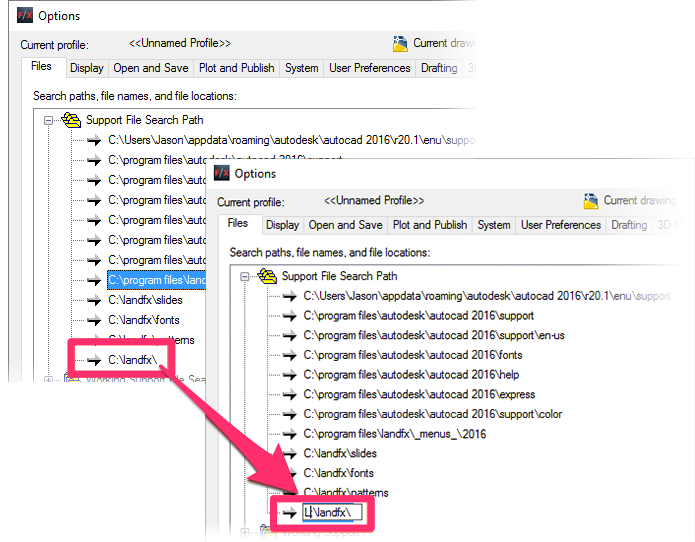
    Drive letter changes


    Cause

    A setting in your Windows Registry keys (reg keys) may be reverting the drive back to the old letter.


    Solution

    1. Follow our steps to open and edit the reg keys.


    2. Open the following reg key:

    \HKEY_LOCAL_MACHINE\SOFTWARE\Ecografx\Land F/X\InstallPath


    3. Edit the registry key, changing it to the correct letter.


    4. Open CAD, and ensure that the drive letter is correct in the Support File Search Path. Then follow our steps to save your workspace.

    If you ever need to change the letter drive again in the future, you will likely need to follow these steps again.

    Contact

    • Land F/X
    • PMB 351 3940 Broad St. STE 7
      San Luis Obispo, CA 93401
    • +1 805-541-1003
    Email Logo Facebook Logo Instagram Logo LinkedIn Logo
    Land F/X Logo

    Our software tailors AutoCAD®, Revit®, SketchUp®, and Rhino® to the needs of landscape architects, irrigation designers, and other professionals. We automate your most tedious tasks and ensure accuracy, giving you more time to design.

    • Portal
    • Products
    • Support
    • Videos
    • Who We Are