Linetypes for CalTrans Standards That Use Shapes Instead of DGN
Updated on: April 25, 2022
Issue
You’re working on a landscape design for a California Department of Transportation (CalTrans) project and are having issues related to using DGN linetypes. You're being provided these linetypes, likely embedded in an existing drawing, and need to use them to match CalTrans style standards. Examples of issues you may be experiencing include:
- Fonts not displaying correctly
- You are unable to attach Xrefs, or Xrefs are detaching from your drawing
- Excessively large file sizes
Missing SHX warnings:
You, or other users with whom you've shared your drawing file, may also be seeing a Missing SHX error related to one or more of the following SHX files:
- LAFX001WAVEDASH.shx
- LAFX002TWOSHORTDASHES.shx
- LAFX003SQUIGGLE.shx
- LAFX004SQUIGGLEREVERSE.shx
- LAFX005THREESHORTDASHES.shx
- LAFX006ONEDASH.shx
- LAFX007SPACETWODASHES.shx
- LAFX008DIAMONDSOLID.shx
- LAFX009DIAMONDBLANK.shx
- LAFX010SQUAREFILLED.shx
- LAFX011RECTANGLEFILLED.shx
- LAFX012DOUBLELINE.shx
- LAFX013ENDPOSTS.shx
- LAFX014DOUBLELINE2.shx
- LAFX015TRIANGLEFILLED.shx
- LAFX016TRIANGLEBLANK.shx
- LAFX017LONGRECTANGFILLED.shx
- LAFX020THREELINES.shx
If this is your issue, skip to step 1B of the solution below and load those SHX files into either the folder LandFX/fonts or any other folder referenced in your Support File Search Paths.
Our typical solutions for the issues you're experiencing involve purging the DGN linetypes from the drawing. To help you resolve the issues you're encountering while still meeting CalTrans guidelines in AutoCAD, we've assembled the most commonly used linetypes from those provided as shape-style linetypes.
Because of the time required to create shape files and linetypes, the CalTrans linetypes included below are only those that Land F/X users have needed to conform their plans to CalTrans standards in AutoCAD.
Solution
Step 1: Download the linetypes and SHX files.
Download the following files and save them where indicated.
1A. Use the following link to download the Caltrans linetypes file.
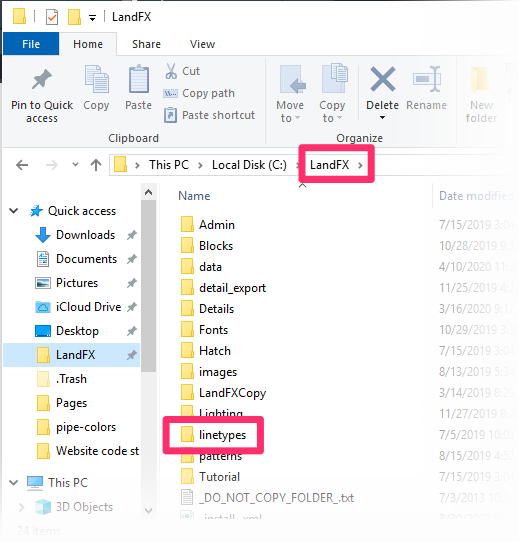
Save the downloaded file, LAFX-CALTRANS-LINETYPES.lin, into the folder LANDFX/linetypes.
Note: If you have a Multi-User Land F/X installation, your LandFX folder will be on a server or in a shared online location, rather than on your C: drive. How to find your LandFX folder
1B. Use the following link to download the CalTrans SHX files.

Double-click the downloaded zip file, CalTrans LAFX SHX Files.zip, to unzip it.
Open the resulting folder, and save all the SHX files within that folder into the folder LANDFX/fonts.
Note: Take care to place these filed directly inside the LandFX/fonts folder – not inside another folder within that folder.
Optional: Here are some samples of these linetypes, which you can download as DWG and PDF files for reference if you want. These downloads are not necessary for the steps on this page – they're just meant as references.
Step 2: Load the CALLOUT LIGHT Land F/X Text Style into your drawing.
2A. Open the Land F/X Text Manager:

F/X Site ribbon, Text button

Graphics toolbar, Fonts button

F/X Site menu, Fonts button
or type *FX_Fonts in the Command line
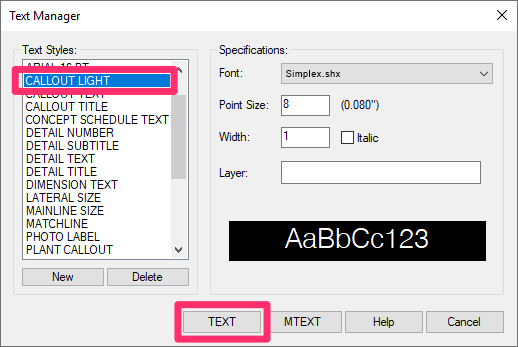
2B. Select the CALLOUT LIGHT style, then click the Text button and type some text into your drawing.
This step will load the CALLOUT LIGHT style into your drawing.
Important notes:
- These linetypes are optimized for the simplex.shx font. We highly recommend setting your CALLOUT LIGHT Text Style to that font. How to configure a Land F/X Text Style
- As an alternative, you can create a new Text Style, set it to simplex.shx, and then edit the LAFX-CALTRANS-LINETYPES.lin file to change all references to CALLOUT LIGHT to your font name. You'll need to be extremely careful when editing a LIN file - an incorrect edit can break a linetype.
- A known bug in some versions of AutoCAD has caused CAD to crash if a linetype uses a True Type font, which is why we're suggesting simplex.shx.
Step 3: Load the CalTrans linetypes.
3A. Type LT in the Command line and press Enter.
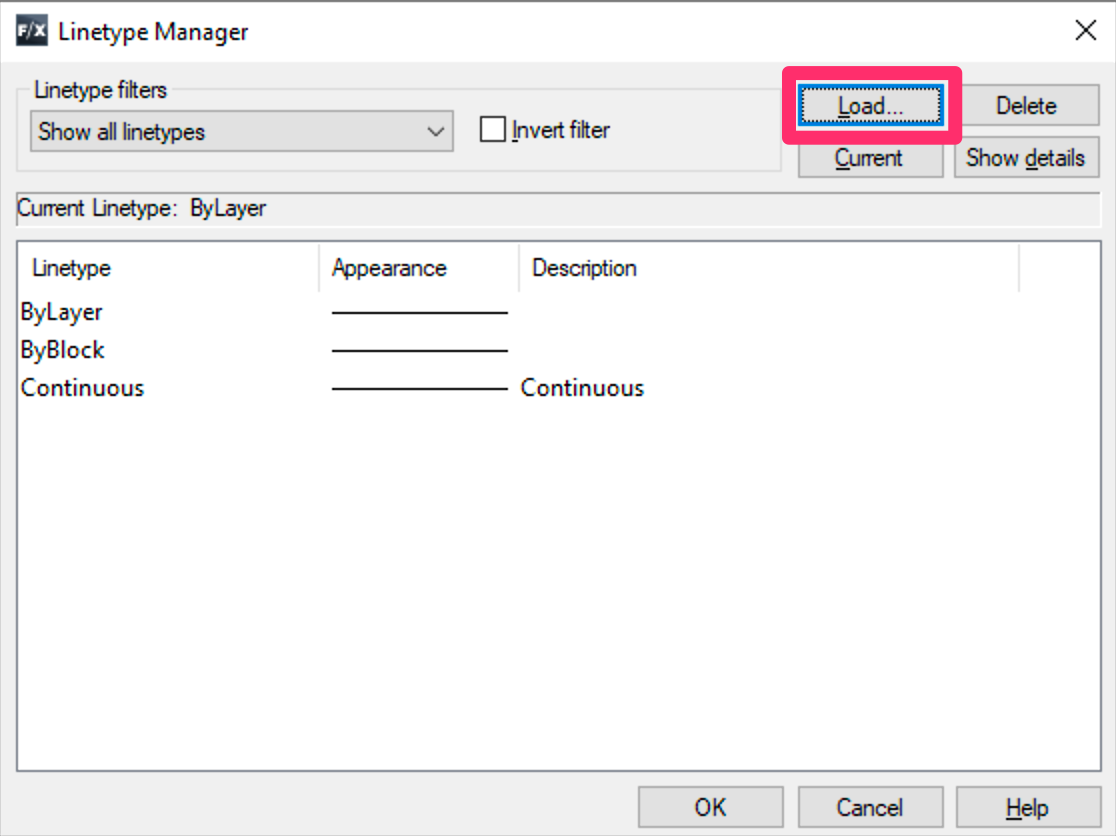
3B. The Linetype Manager will open.
Click Load.
3C. The Load or Reload Linetypes dialog box will open.
Click File.
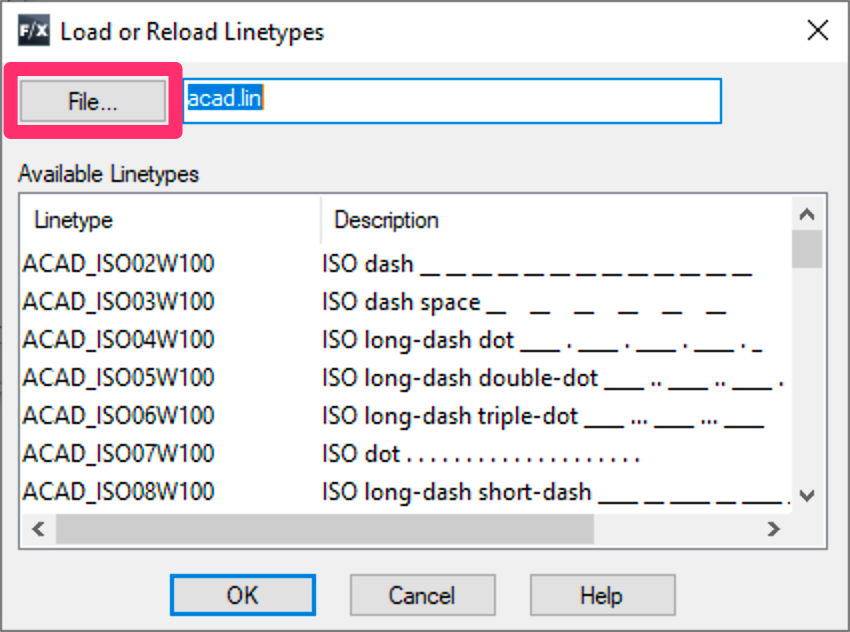

3D. Open the folder LandFX/linetypes.
Select the file LAFX-CALTRANS-LINETYPES.lin in that location, then click Open.
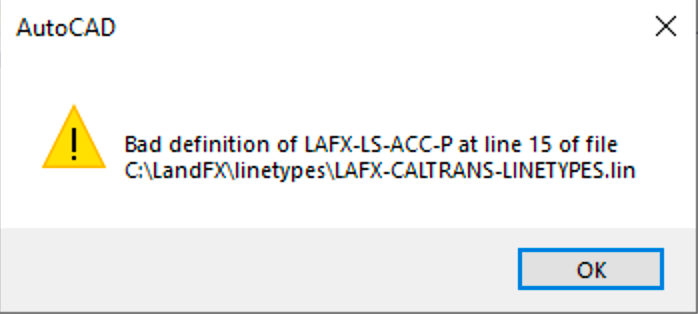
If you see a Bad definition of LAFX-XX-XXX-X at line ## of file… error, you either haven’t loaded the CALLOUT LIGHT Text Style in this drawing or didn’t place the SHX files in the folder LandFX/fonts. If haven't completed these steps, you'll see several of these warnings in a row.
In this case, go back and repeat those steps.

3E. You'll see a list of all the available linetypes.
Select them all (or just the linetypes you need) and click OK.
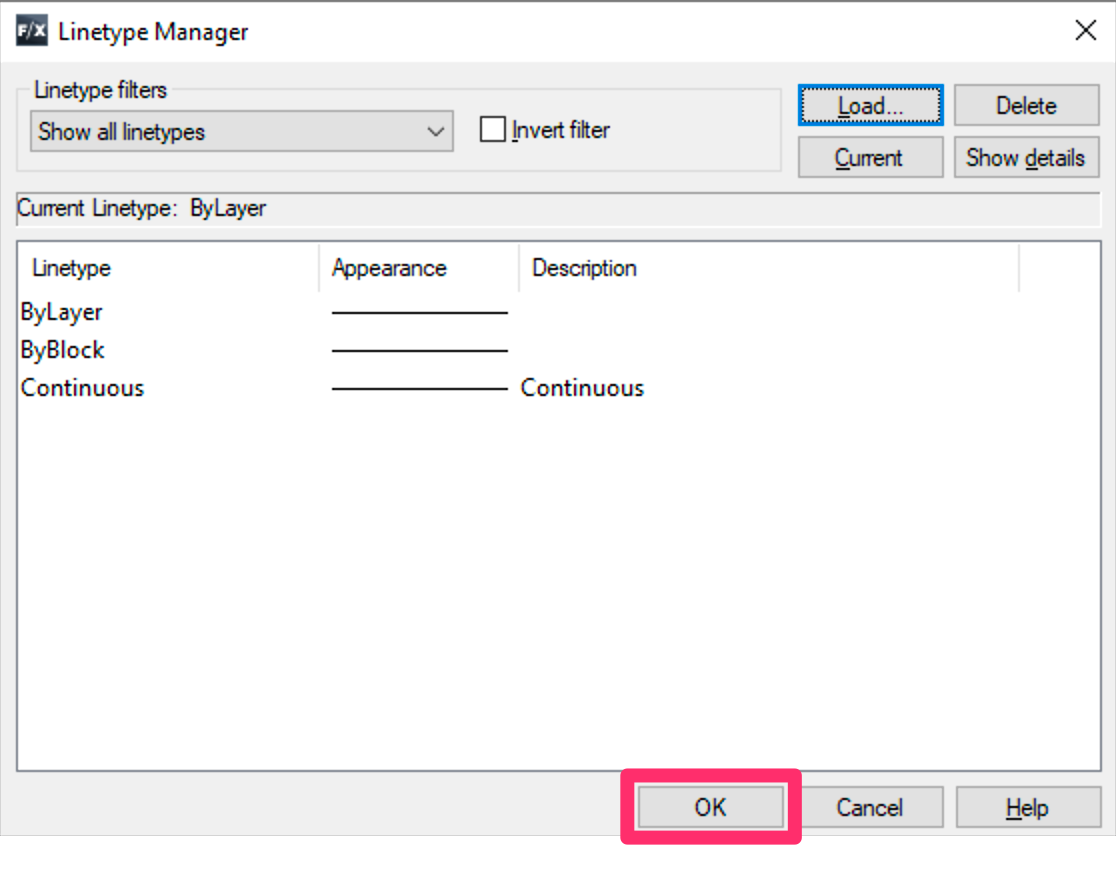
3F. Click OK in the Linetype Manager window.
You can now assign these linetypes to any layer or line.
Because these linetypes are scaled to have a Linetype Scale (LTSCALE) of 1 in a decimal feet drawing, they will conform correctly to changes in the LTSCALE. More about LTSCALE