

Land F/X
  • Portal
  • Products
    • Detail F/X
      • Product
      • Features
      • Trial
      • Purchase
    • Planting F/X
      • Product
      • Features
      • Trial
      • Purchase
    • Irrigation F/X
      • Product
      • Features
      • Trial
      • Purchase
    • F/X CAD
    • Plugin for Revit®
    • Plugin for SketchUp®
    • Plugin for Rhino®
    • Site & Hardscape
    • Lighting
    • Manufacturer Connection
    • Academic
    • Purchase
  • Support
    • Knowledge Base
    • Documentation
    • Submit Ticket
    • Updates
    • Forum
    • Install
  • Videos
    • Power Tips
    • Webinars
    • Podcasts
  • Who We Are
    • Contact Us
    • Careers
    • Gallery
    • News
Land F/X
  • Portal
  • Products
    • Detail F/X
      • Product
      • Features
      • Trial
      • Purchase
    • Planting F/X
      • Product
      • Features
      • Trial
      • Purchase
    • Irrigation F/X
      • Product
      • Features
      • Trial
      • Purchase
    • F/X CAD
    • Plugin for Revit®
    • Plugin for SketchUp®
    • Plugin for Rhino®
    • Site & Hardscape
    • Lighting
    • Manufacturer Connection
    • Academic
    • Purchase
  • Support
    • Knowledge Base
    • Documentation
    • Submit Ticket
    • Updates
    • Forum
    • Install
  • Videos
    • Power Tips
    • Webinars
    • Podcasts
  • Who We Are
    • Contact Us
    • Careers
    • Gallery
    • News
  1. Home
  2. Knowledge Base
  3. Site & Details
  4. Hatches
  5. Knowledge Base
  6. Site & Details
  7. Text & Annotation
  8. Site Dimension Tools Not Functioning Properly (Length Not Showing)

    Site Dimension Tools Not Functioning Properly (Length Not Showing)

    Updated on: May 18, 2022

    Issue

    You placed a dimension using one of the Dimension tools on our F/X Site ribbon, and the dimension isn't appearing correctly.
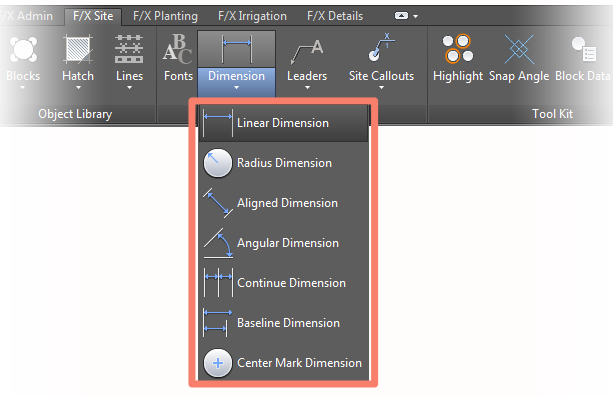


    Dimension appearing incorrectly


    For example, the text in the dimension may be turning into a slash (/) symbol.
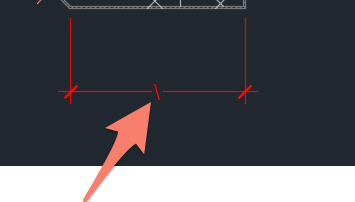
     

    Text in dimension turned into slash symbol


    The dimension may also be coming in exploded – that is, as a series of separate objects – rather than a block, as it should.


    Dimension exploded

    Are your dimensions simply not looking the way you want them to, but the dimensions themselves are coming in correctly? (That is, you see the correct text rather than a slash, and the dimension itself is coming in as a block as it should?) If so, you may simply need to set your Dimension Style (DimStyle) to meet your preferences. See our Dimension Styles (DimStyles) documentation.


    Cause

    An AutoCAD system variable called DIMASSOC may be set incorrectly to 0 in your drawing.


    Solution

    Type DIMASSOC in the Command line, and press Enter.


    When prompted to set a value, type 2 and press Enter. This setting will prevent the dimensions from exploding and changing to a slash.


    Delete and purge the problematic dimension, and place the same dimension again. It should now come in as a contiguous block, and the text should appear correctly, as pictured below.
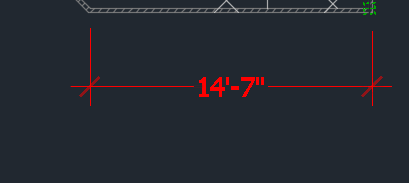
     

    Dimension appears correctly

    Contact

    • Land F/X
    • PMB 351 3940 Broad St. STE 7
      San Luis Obispo, CA 93401
    • +1 805-541-1003
    Email Logo Facebook Logo Instagram Logo LinkedIn Logo
    Land F/X Logo

    Our software tailors AutoCAD®, Revit®, SketchUp®, and Rhino® to the needs of landscape architects, irrigation designers, and other professionals. We automate your most tedious tasks and ensure accuracy, giving you more time to design.

    • Portal
    • Products
    • Support
    • Videos
    • Who We Are