Land F/X
  • Portal
  • Products
    • Detail F/X
      • Product
      • Features
      • Trial
      • Purchase
    • Planting F/X
      • Product
      • Features
      • Trial
      • Purchase
    • Irrigation F/X
      • Product
      • Features
      • Trial
      • Purchase
    • F/X CAD
    • Plugin for Revit®
    • Plugin for SketchUp®
    • Plugin for Rhino®
    • Site & Hardscape
    • Lighting
    • Manufacturer Connection
    • Academic
    • Purchase
  • Support
    • Knowledge Base
    • Documentation
    • Submit Ticket
    • Updates
    • Forum
    • Install
  • Videos
    • Power Tips
    • Webinars
    • Podcasts
  • Who We Are
    • Contact Us
    • Careers
    • Gallery
    • News
Land F/X
  • Portal
  • Products
    • Detail F/X
      • Product
      • Features
      • Trial
      • Purchase
    • Planting F/X
      • Product
      • Features
      • Trial
      • Purchase
    • Irrigation F/X
      • Product
      • Features
      • Trial
      • Purchase
    • F/X CAD
    • Plugin for Revit®
    • Plugin for SketchUp®
    • Plugin for Rhino®
    • Site & Hardscape
    • Lighting
    • Manufacturer Connection
    • Academic
    • Purchase
  • Support
    • Knowledge Base
    • Documentation
    • Submit Ticket
    • Updates
    • Forum
    • Install
  • Videos
    • Power Tips
    • Webinars
    • Podcasts
  • Who We Are
    • Contact Us
    • Careers
    • Gallery
    • News
  1. Home
  2. Knowledge Base
  3. Planting
  4. Plant Labels
  5. Plant Photo Callout Images Missing

    []

    Plant Labels Coming In Away From Plants, In Wrong Location, and/or Not Appearing Correctly

    Updated on: August 03, 2022

    Issue

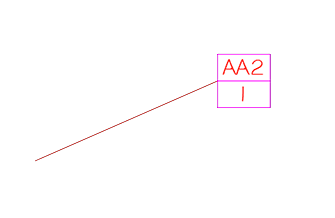
    When you try to label a plant in your drawing, the label, leader, or arrow is coming in incorrectly.


    The label may be coming in at an incorrect location, away from the plant – or even off the site entirely.


    Plant label coming in at incorrect location


    The arrow may be extending in a strange direction from the leader line, or missing entirely.


    Plant label leader arrow bent in a strange direction
    Plant label leader arrow missing from leader


    The label itself may also simply not look right.


    Cause

    The plant you're trying to label may have a Z elevation set to it. If so, this setting is interfering with the label's ability to "read" the correct location of the plant. As a result, the label comes in a the incorrect location.


    In addition, your current Dimension Style (DimStyle) may be set to Annotative, which can also cause this type of issue.


    Solution

    Step 1: Correct the elevation

    Type Properties (or just Prop) in the Command line, and press Enter. The Properties palette will open.


    Now click the plant you're trying to label.


    The plant's properties will be listed in the Properties panel. Check the Position Z setting. If you see any number besides 0 here, the plant has an incorrect Z elevation.

    Properties panel, Position Z setting


    Properties panel, change Position Z setting to 0

    Change the Position Z setting to 0.


    Now try to label the plant again. The label should now come in correctly.


    Repeat these steps for any other plants in your drawing that are causing the issue.


    Step 2: Check for a DVIEW twist

    Labels still appearing incorrectly? You might have a DVIEW Twist applied. (A DVIEW Twist is an incorrect rotation in your view of your drawing.)


    Follow our steps to remove a DVIEW Twist from your drawing.


    Step 3: Set the current Dimension Style (DimStyle) to Standard

    Labels still don't look right? It's time to check whether your current DimStyle is set to Annotative, which could also be causing the problem. Open the Dimension Style Manager:


    Manage ribbon, DimStyle button

    AutoCAD Manage ribbon, DimStyle button
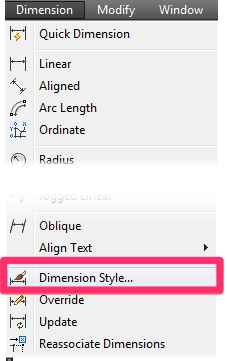


    Dimension menu

    CAD Dimension menu, Dimension Style option


    or type DimStyle in the Command line


    The Dimension Style Manager will open.


    Select Standard in the Styles pane, then click Set Current.

    Dimension Style Manager, Styles pane, Standard option, Set Current button


    Close the Dimension Style Manager. you should now be able to place labels normally.

    Plant labels still acting or appearing strangely? You may simply need to redefine your plant label blocks. See our Redefine Block documentation for further information.

    Contact

    • Land F/X
    • PMB 351 3940 Broad St. STE 7
      San Luis Obispo, CA 93401
    • +1 805-541-1003
    Email Logo Facebook Logo Instagram Logo LinkedIn Logo
    Land F/X Logo

    Our software tailors AutoCAD®, Revit®, SketchUp®, and Rhino® to the needs of landscape architects, irrigation designers, and other professionals. We automate your most tedious tasks and ensure accuracy, giving you more time to design.

    • Portal
    • Products
    • Support
    • Videos
    • Who We Are