

Land F/X
  • Portal
  • Products
    • Detail F/X
      • Product
      • Features
      • Trial
      • Purchase
    • Planting F/X
      • Product
      • Features
      • Trial
      • Purchase
    • Irrigation F/X
      • Product
      • Features
      • Trial
      • Purchase
    • F/X CAD
    • Plugin for Revit®
    • Plugin for SketchUp®
    • Plugin for Rhino®
    • Site & Hardscape
    • Lighting
    • Manufacturer Connection
    • Academic
    • Purchase
  • Support
    • Knowledge Base
    • Documentation
    • Submit Ticket
    • Updates
    • Forum
    • Install
  • Videos
    • Power Tips
    • Webinars
    • Podcasts
  • Who We Are
    • Contact Us
    • Careers
    • Gallery
    • News
Land F/X
  • Portal
  • Products
    • Detail F/X
      • Product
      • Features
      • Trial
      • Purchase
    • Planting F/X
      • Product
      • Features
      • Trial
      • Purchase
    • Irrigation F/X
      • Product
      • Features
      • Trial
      • Purchase
    • F/X CAD
    • Plugin for Revit®
    • Plugin for SketchUp®
    • Plugin for Rhino®
    • Site & Hardscape
    • Lighting
    • Manufacturer Connection
    • Academic
    • Purchase
  • Support
    • Knowledge Base
    • Documentation
    • Submit Ticket
    • Updates
    • Forum
    • Install
  • Videos
    • Power Tips
    • Webinars
    • Podcasts
  • Who We Are
    • Contact Us
    • Careers
    • Gallery
    • News
  1. Home
  2. Knowledge Base
  3. Planting
  4. Placing Plants
  5. How to Exclude Internal Objects from a Groundcover While Also Using Exclude Shrubs

    []

    How to Exclude Internal Objects from a Groundcover While Also Using Exclude Shrubs

    Updated on: May 26, 2022

    Issue

    You want to use our Exclude Shrubs tool with a groundcover, but you also want to exclude interior objects such as boulders or stepping stones using the Multiple option.

    The Multiple option is not available when Exclude Shrubs is active, so you'll need to complete an extra few steps to exclude the interior objects.


    Solution

    To exclude a groundcover hatch from interior objects in addition to your individual shrubs, you'll need to create boundaries for the internal objects after placing your groundcover with Exclude Shrubs active.


    In this example, we'll place a groundcover hatch in the simple planting area pictured to the right, excluding the hatch from the shrubs and the four circular objects in the middle of the area.

    Exclude interior objects from hatch


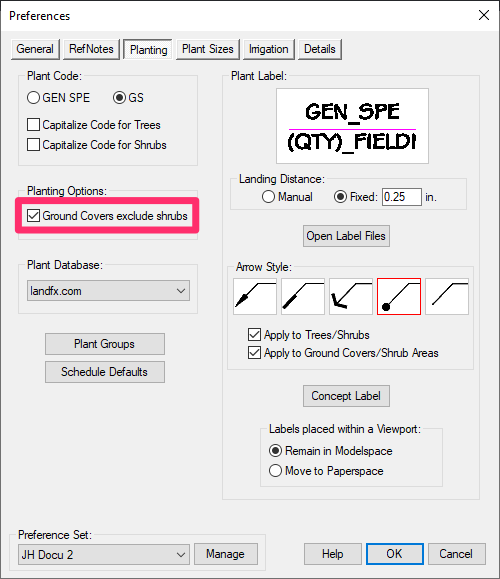
    Planting PReferences screen, Ground Covers Exclude Shrubs option selected

    1. Open the Planting Preferences screen and ensure that the Ground Covers exclude shrubs option is selected.


    2. Place your groundcover in the planting area that includes the shrubs and internal objects you want to exclude from the hatch.


    The hatch will be excluded from the shrubs but not from the internal objects.
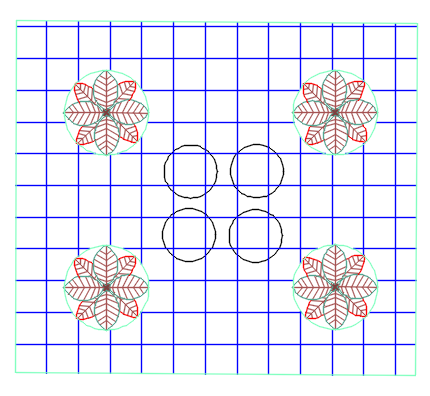
    Hatch excluded from shrubs but not from internal objects


    Click to select hatch pattern

    3. Hover the cursor over any portion of the linework making up the hatch, and click to select the hatch.


    4. The Hatch Editor ribbon will open. Click the Select button.

    Hatch Editor ribbon, Select button


    Select polyline boundaries of internal objects to exclude from hatch

    5. The cursor will turn into a pickbox.


    Use the pickbox to select the polyline boundaries of each internal object you want to exclude from the hatch, one by one.


    6. Press Enter when finished selecting all the internal objects you want to exclude from the hatch.


    The hatch will be excluded from the internal objects.


    HAtch excluded from internal objects


    7. Click Close Hatch Editor.

    Hatch Editor ribbon, Close Hatch Editor button


    Hatch linework excluded from the internal objects in addition to the individual shrub

    8. The hatch editor will close, and the hatch linework will be excluded from the internal objects in addition to the individual shrubs.


    The quantity of plants represented by the hatch will be reduced appropriately, and will be reflected in your labels and Plant Schedule.

    Repeat these steps for each additional planting area where you want to exclude the hatch from individual shrubs and internal objects.

    Contact

    • Land F/X
    • PMB 351 3940 Broad St. STE 7
      San Luis Obispo, CA 93401
    • +1 805-541-1003
    Email Logo Facebook Logo Instagram Logo LinkedIn Logo
    Land F/X Logo

    Our software tailors AutoCAD®, Revit®, SketchUp®, and Rhino® to the needs of landscape architects, irrigation designers, and other professionals. We automate your most tedious tasks and ensure accuracy, giving you more time to design.

    • Portal
    • Products
    • Support
    • Videos
    • Who We Are