

Land F/X
  • Portal
  • Products
    • Detail F/X
      • Product
      • Features
      • Trial
      • Purchase
    • Planting F/X
      • Product
      • Features
      • Trial
      • Purchase
    • Irrigation F/X
      • Product
      • Features
      • Trial
      • Purchase
    • F/X CAD
    • Plugin for Revit®
    • Plugin for SketchUp®
    • Plugin for Rhino®
    • Site & Hardscape
    • Lighting
    • Manufacturer Connection
    • Academic
    • Purchase
  • Support
    • Knowledge Base
    • Documentation
    • Submit Ticket
    • Updates
    • Forum
    • Install
  • Videos
    • Power Tips
    • Webinars
    • Podcasts
  • Who We Are
    • Contact Us
    • Careers
    • Gallery
    • News
Land F/X
  • Portal
  • Products
    • Detail F/X
      • Product
      • Features
      • Trial
      • Purchase
    • Planting F/X
      • Product
      • Features
      • Trial
      • Purchase
    • Irrigation F/X
      • Product
      • Features
      • Trial
      • Purchase
    • F/X CAD
    • Plugin for Revit®
    • Plugin for SketchUp®
    • Plugin for Rhino®
    • Site & Hardscape
    • Lighting
    • Manufacturer Connection
    • Academic
    • Purchase
  • Support
    • Knowledge Base
    • Documentation
    • Submit Ticket
    • Updates
    • Forum
    • Install
  • Videos
    • Power Tips
    • Webinars
    • Podcasts
  • Who We Are
    • Contact Us
    • Careers
    • Gallery
    • News
  1. Home
  2. Knowledge Base
  3. Planting
  4. Plant Schedules
  5. Custom Plant Symbols Rotated Incorrectly in the Plant Schedule

    Custom Plant Symbols Rotated Incorrectly in the Plant Schedule

    Updated on: October 12, 2022

    Issue

    Your customized tree or shrub symbols are appearing in the Plant Schedule at an incorrect rotation.

    Are your plants rotated at a strange angle as placed in your drawing but not in the Plant Schedule? If so, here's what to do.
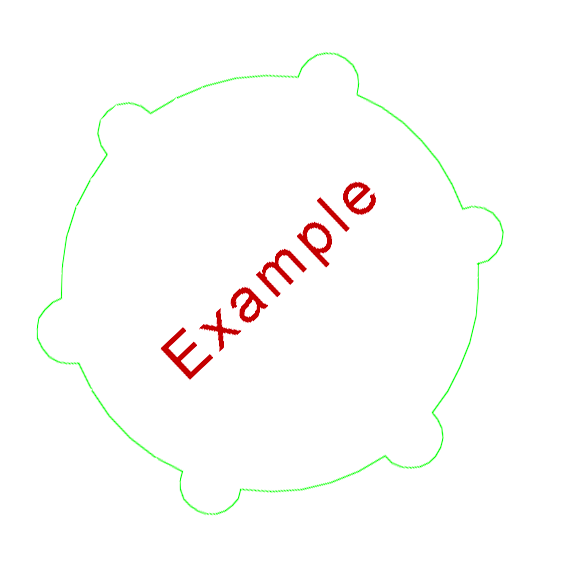
    Plant symbol appearing in Plant Schedule at an incorrect rotation


    Cause

    Custom blocks are scaled uniformly, so the Y scale is likely being entered for these blocks' rotation.


    Solution

    To address this issue, complete the following steps for each plant symbol block that is rotated incorrectly in the Plant Schedule.


    1. Select the tree or shrub placed in your drawing, then type BEDIT in the Command line and press Enter.


    Edit Block Definition dialog box

    2. Click OK in the Edit Block Definition dialog box to open the Block Editor.


    3. The Block Editor will open. Verify that nothing is selected.


    4. Type PROP in the Command line and press Enter to open the Properties panel.


    In the Block section of the Properties panel, open the Scale Uniformly menu and set it to No.
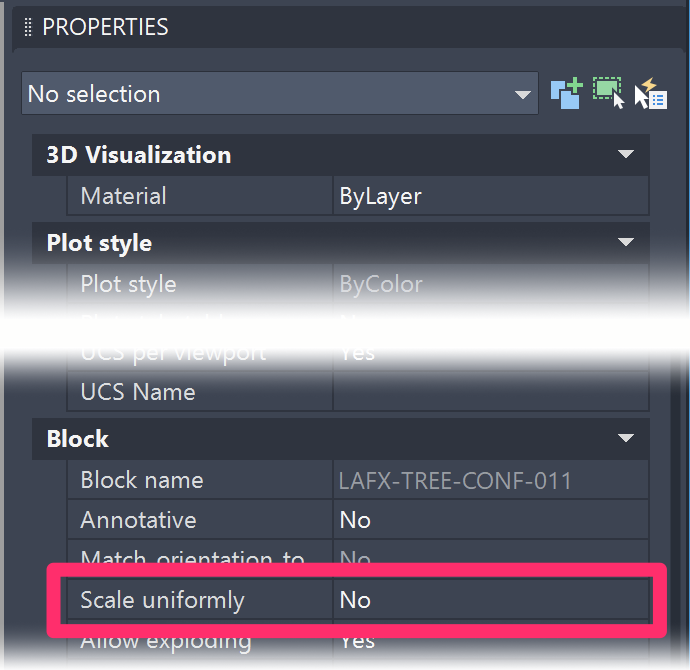
    Properties panel, Scale Uniformly setting set to No


    5. In the Block Editor ribbon, click Save Block.

     

    Edit Block Definition dialog box


    Repeat these steps for each plant whose symbol is appearing in the schedule at an incorrect rotation. Then delete the current Plant Schedule and place a new one.


    Plant symbol appearing in Plant Schedule at the correct rotation

    The plant(s) should now appear in the schedule at the correct rotation.

    You'll need to re-save these block definitions to the files in the folder LandFX/blocks/graphics/Plants.

    Contact

    • Land F/X
    • PMB 351 3940 Broad St. STE 7
      San Luis Obispo, CA 93401
    • +1 805-541-1003
    Email Logo Facebook Logo Instagram Logo LinkedIn Logo
    Land F/X Logo

    Our software tailors AutoCAD®, Revit®, SketchUp®, and Rhino® to the needs of landscape architects, irrigation designers, and other professionals. We automate your most tedious tasks and ensure accuracy, giving you more time to design.

    • Portal
    • Products
    • Support
    • Videos
    • Who We Are