Land F/X
  • Portal
  • Products
  • Support
  • Videos
  • Who We Are
  • Trial
  • Purchase
Land F/X
  • Portal
    • Dashboard
    • Account
    • Licenses
    • Data
    • Support
  • Products
    • Detail F/X
      • Product
      • Features
      • Trial
      • Purchase
    • Planting F/X
      • Product
      • Features
      • Trial
      • Purchase
    • Irrigation F/X
      • Product
      • Features
      • Trial
      • Purchase
    • F/X CAD
    • Plugin for Revit®
    • Plugin for SketchUp®
    • Plugin for Rhino®
    • Site & Hardscape
    • Lighting
    • Manufacturer Connection
    • Academic
    • Purchase
  • Support
    • Knowledge Base
    • Documentation
    • Submit Ticket
    • Updates
    • Forum
    • Install
  • Videos
    • Power Tips
    • Webinars
    • Podcasts
  • Who We Are
    • Contact Us
    • Careers
    • Gallery
    • News
  1. Documentation
  2. Admin Overview
  3. F/X Admin Tools
  4. Redefine Block

https://www.landfx.com/images/docs/_ribbons-newer/admin-ribbon/print-layers.png

Print Layers

Our Print Layers tool automatically creates a quick reference to the layers in use within your current DWG drawing set.

Print Layers Overview

Open our Print Layers tool:
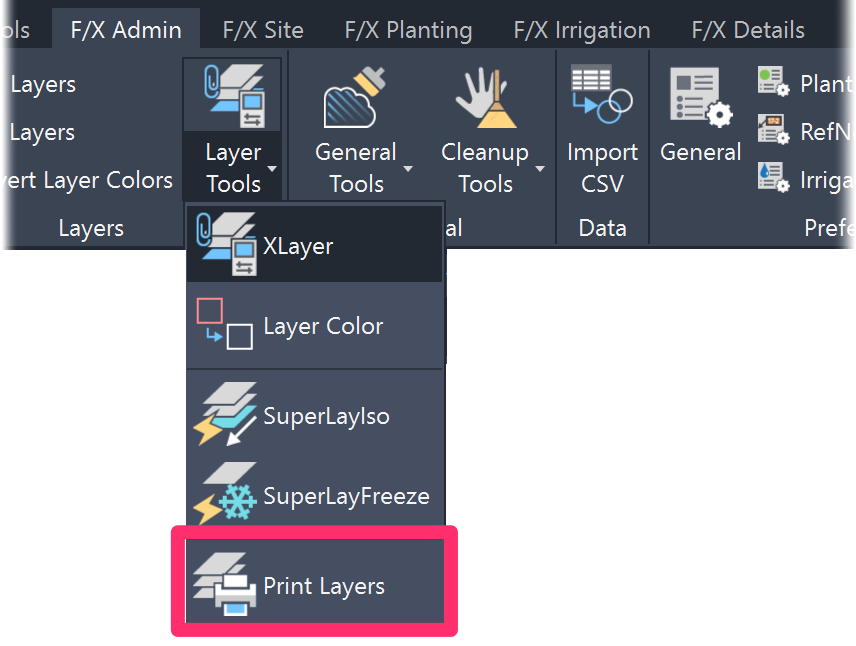


F/X Site ribbon, Print Layers flyout


F/X Admin ribbon, Print Layers flyout
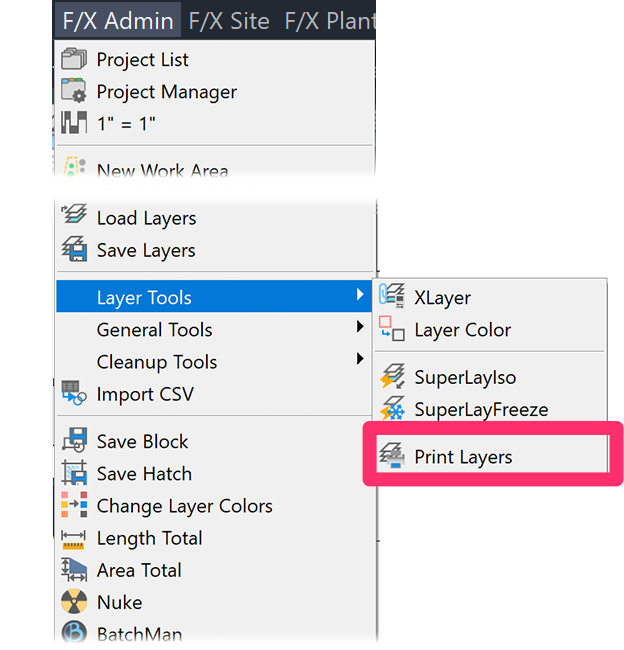
F/X Admin menu


F/X Admin pull-down menu


or type PRINTLAYERS in the Command line


You'll see the following message: This will create additional layout tabs in this drawing listing all active layers. Continue?


Click Yes to generate your output of printed layers.

This will create additional layout tabs in this drawing listing all active layers. Continue? message


The tool will automatically create a Paper Space layout tab in your drawing, named Layers, that lists the layers currently in use, along with the names, colors, linetypes, lineweights, and plotting status of each layer. You can then print these layouts with your plot style for a quick visual reference of how each layer will appear on an exported PDF or printed sheet of paper.
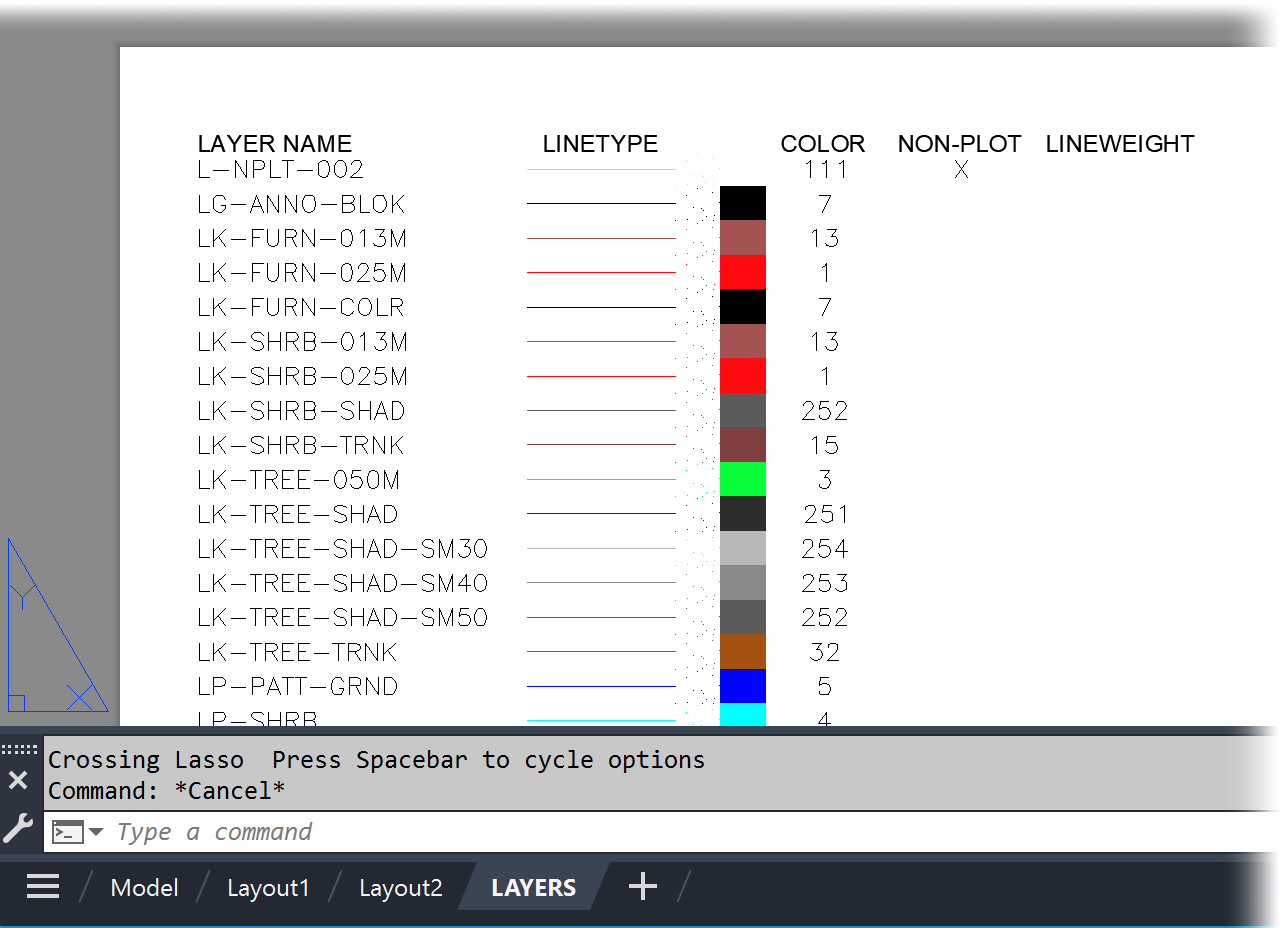


Example output from Print Layers

Here's an example of an output in Paper Space from our Print Layers tool, where the Layers tab lists all layers used in the current draeing, along with their linetype, color, nonplot status, and, if applicable, lineweight.

Contact

  • Land F/X
  • PMB 351 3940 Broad St. STE 7
    San Luis Obispo, CA 93401
  • +1 805-541-1003
Email Logo Facebook Logo Instagram Logo LinkedIn Logo
Land F/X Logo

Our software tailors AutoCAD®, Revit®, SketchUp®, and Rhino® to the needs of landscape architects, irrigation designers, and other professionals. We automate your most tedious tasks and ensure accuracy, giving you more time to design.

  • Portal
  • Products
  • Support
  • Videos
  • Who We Are