Land F/X
  • Portal
  • Products
    • Detail F/X
      • Product
      • Features
      • Trial
      • Purchase
    • Planting F/X
      • Product
      • Features
      • Trial
      • Purchase
    • Irrigation F/X
      • Product
      • Features
      • Trial
      • Purchase
    • F/X CAD
    • Plugin for Revit®
    • Plugin for SketchUp®
    • Plugin for Rhino®
    • Site & Hardscape
    • Lighting
    • Manufacturer Connection
    • Academic
    • Purchase
  • Support
    • Knowledge Base
    • Documentation
    • Submit Ticket
    • Updates
    • Forum
    • Install
  • Videos
    • Power Tips
    • Webinars
    • Podcasts
  • Who We Are
    • Contact Us
    • Careers
    • Gallery
    • News
Land F/X
  • Portal
  • Products
    • Detail F/X
      • Product
      • Features
      • Trial
      • Purchase
    • Planting F/X
      • Product
      • Features
      • Trial
      • Purchase
    • Irrigation F/X
      • Product
      • Features
      • Trial
      • Purchase
    • F/X CAD
    • Plugin for Revit®
    • Plugin for SketchUp®
    • Plugin for Rhino®
    • Site & Hardscape
    • Lighting
    • Manufacturer Connection
    • Academic
    • Purchase
  • Support
    • Knowledge Base
    • Documentation
    • Submit Ticket
    • Updates
    • Forum
    • Install
  • Videos
    • Power Tips
    • Webinars
    • Podcasts
  • Who We Are
    • Contact Us
    • Careers
    • Gallery
    • News
  1. Home
  2. Knowledge Base
  3. 3D Rendering
  4. Revit Issues & Info
  5. Knowledge Base
  6. 3D Rendering
  7. Adding, Placing & Editing Plants in Revit®
  8. Revit®: Edit Tree and Shrub 3D Material Colors

    []

    Revit®: Edit Tree and Shrub 3D Material Colors

    Updated on: April 29, 2025

    The October 2023 update to our Revit library brings new families with the ability to customize the 3D view billboard material colors.


    Each symbol type (Trees: conifer, deciduous, diagrammatic, evergreen, palm; Shrubs: diagrammatic, grass, mounding, perennial, spreading, tropical, upright) has its own standard material for the canopy and the trunk.


    These billboards are set to coarse and medium detail level, and the colors will appear in the shaded, consistent colors and realistic visual styles. However, keep in mind that most designers will use the fine detail level for the realistic visual style, as that level contains an actual RPC.
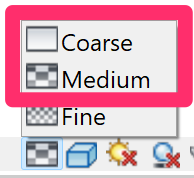
     

    Coarse and Medium menu options
    Shaded menu option


    To edit the colors, open the Revit material browser:


    Manage ribbon in Revit, Materials button


    Manage ribbon, Materials button


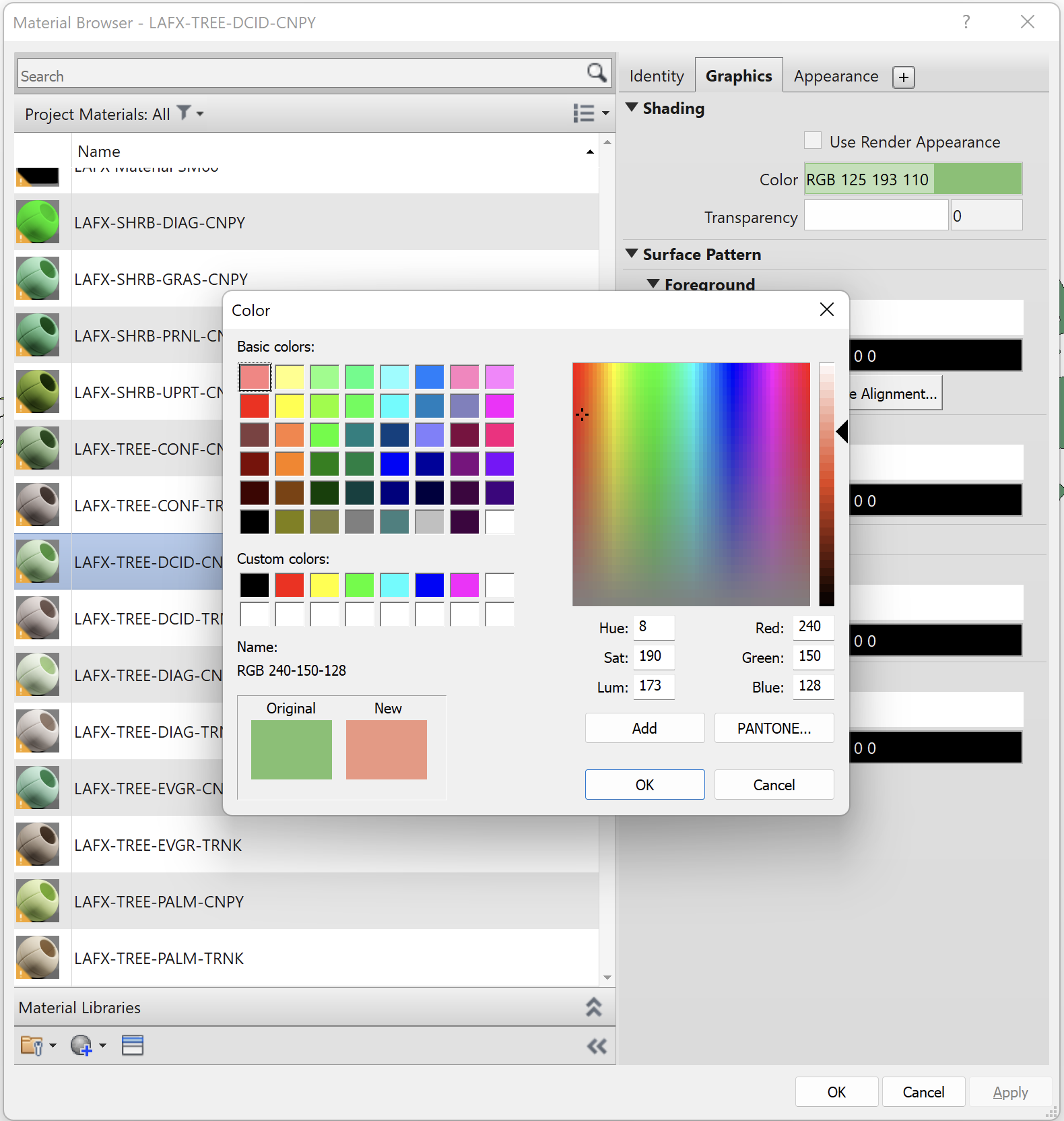
    Navigate to LAFX-, and select the material you'd like to change.


    Under Shading, click the color bar.
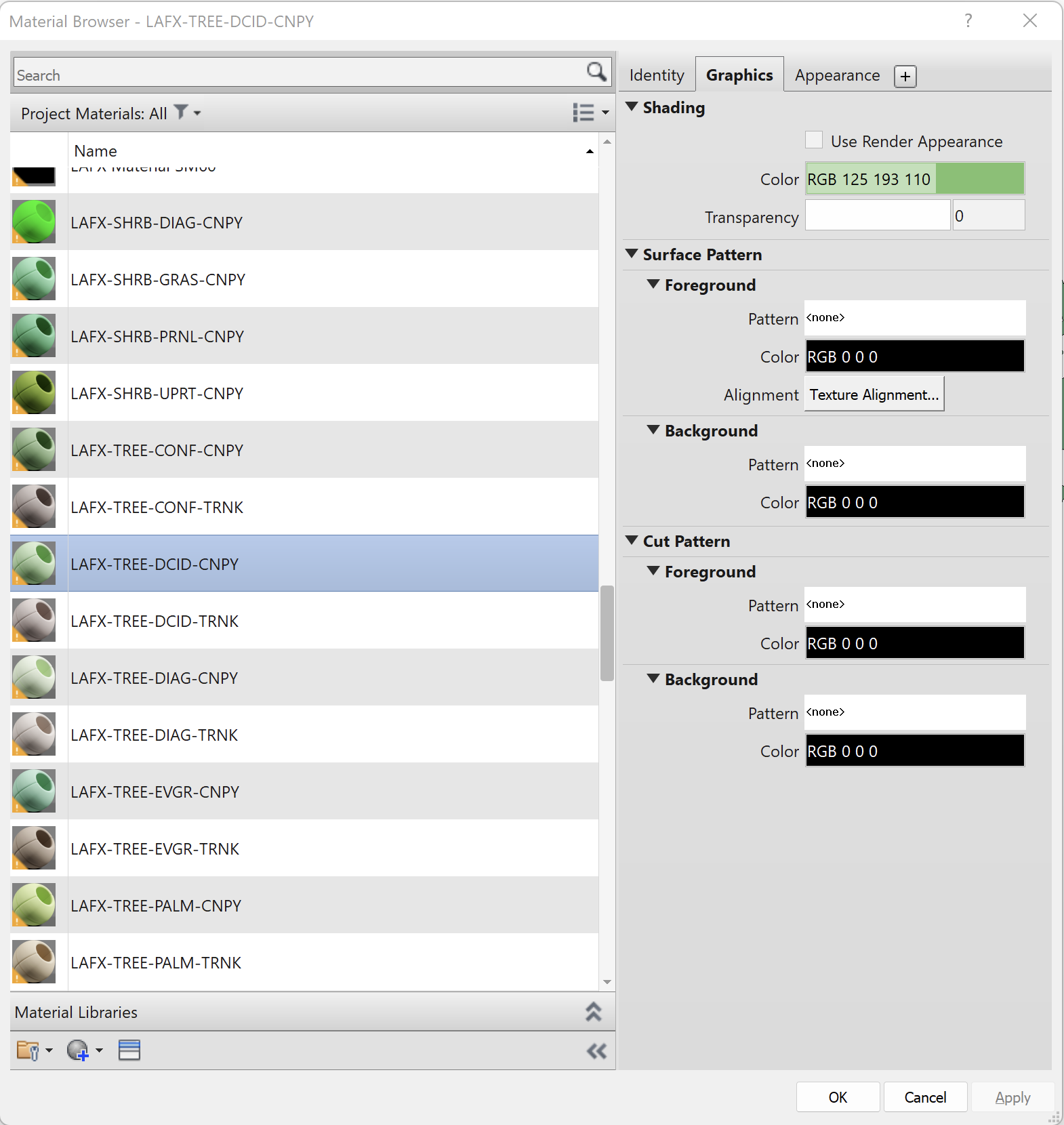
    Material Browser in Revit


    Color dialog box in Revit

    Choose the color you'd like, click OK, then click Apply or OK again.


    If your families are all gray, you may have old families. Find out how to switch to the new ones.


    Material Browser in Revit showing gray families


    Some families also have flower color materials. These materials are family-specific, adding the family number at the end.


    Material Browser in Revit showing flower color materials


    Revit® is a restricted trademark of Autodesk®.

    Contact

    • Land F/X
    • PMB 351 3940 Broad St. STE 7
      San Luis Obispo, CA 93401
    • +1 805-541-1003
    Email Logo Facebook Logo Instagram Logo LinkedIn Logo
    Land F/X Logo

    Our software tailors AutoCAD®, Revit®, SketchUp®, and Rhino® to the needs of landscape architects, irrigation designers, and other professionals. We automate your most tedious tasks and ensure accuracy, giving you more time to design.

    • Portal
    • Products
    • Support
    • Videos
    • Who We Are