

Land F/X
  • Portal
  • Products
    • Detail F/X
      • Product
      • Features
      • Trial
      • Purchase
    • Planting F/X
      • Product
      • Features
      • Trial
      • Purchase
    • Irrigation F/X
      • Product
      • Features
      • Trial
      • Purchase
    • F/X CAD
    • Plugin for Revit®
    • Plugin for SketchUp®
    • Plugin for Rhino®
    • Site & Hardscape
    • Lighting
    • Manufacturer Connection
    • Academic
    • Purchase
  • Support
    • Knowledge Base
    • Documentation
    • Submit Ticket
    • Updates
    • Forum
    • Install
  • Videos
    • Power Tips
    • Webinars
    • Podcasts
  • Who We Are
    • Contact Us
    • Careers
    • Gallery
    • News
Land F/X
  • Portal
  • Products
    • Detail F/X
      • Product
      • Features
      • Trial
      • Purchase
    • Planting F/X
      • Product
      • Features
      • Trial
      • Purchase
    • Irrigation F/X
      • Product
      • Features
      • Trial
      • Purchase
    • F/X CAD
    • Plugin for Revit®
    • Plugin for SketchUp®
    • Plugin for Rhino®
    • Site & Hardscape
    • Lighting
    • Manufacturer Connection
    • Academic
    • Purchase
  • Support
    • Knowledge Base
    • Documentation
    • Submit Ticket
    • Updates
    • Forum
    • Install
  • Videos
    • Power Tips
    • Webinars
    • Podcasts
  • Who We Are
    • Contact Us
    • Careers
    • Gallery
    • News
  1. Home
  2. Knowledge Base
  3. 3D Rendering
  4. General SketchUp Troubleshooting
  5. Validation Dialog Box Blank After Attempting to Validate Support ID in SketchUp, Rhino, or Revit®

    []

    Validation Dialog Box Blank After Attempting to Validate Support ID in SketchUp, Rhino, or Revit®

    Updated on: April 30, 2025

    Issue


    You clicked the Validate button to validate your Support ID using our plugin for SketchUp, Rhino, or Revit, and the validation dialog box that pops up is blank. You’re unable to validate using your support ID.

    Blank validation box


    Cause

    An Internet setting is interfering with your ability to validate your Support ID.


    Solution


    1. Open your computer's Control Panel, and select Network and Internet.

    Control Panel, Network and Internet option


    2. In the next screen, select Internet Options.


    Control Panel, Internet Options


    Internet Options, Security tab, Custom level button

    3. Select the Security tab, then click the Custom level ... button.


    3. Scroll down to Miscellaneous.


    Under Access data sources across domains, select Enable.


    Click OK to save the change.


    You should now be able to validate your Support ID in SketchUp, Rhino, or Revit.
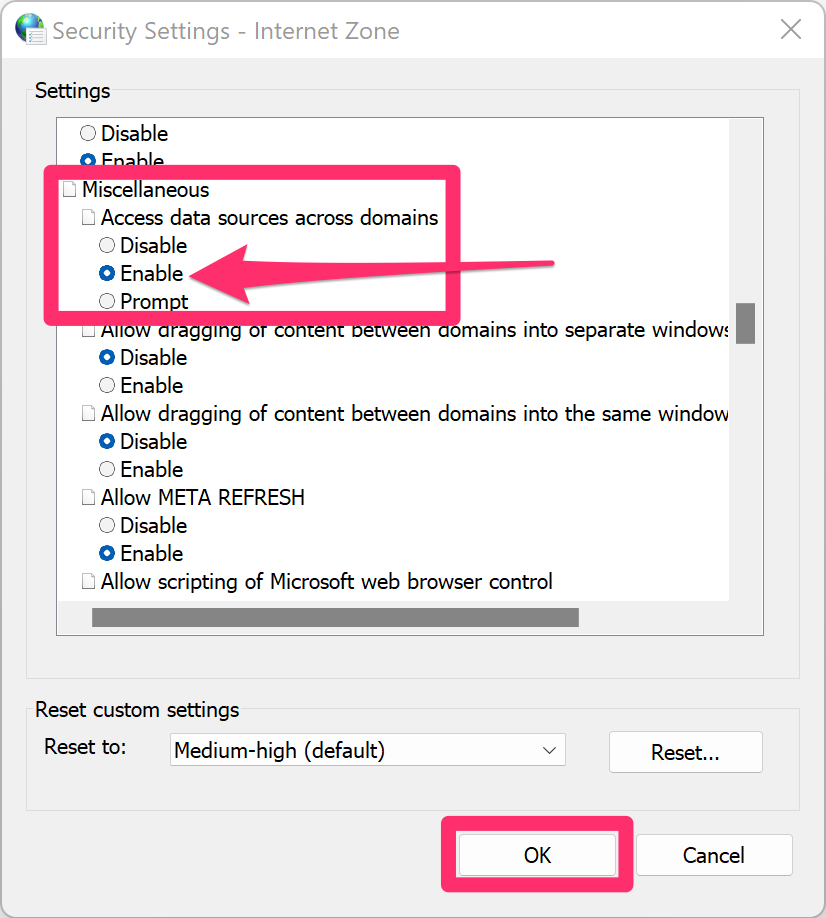
    Security Settings - Internet Zone dialog box, Enable option selected for Access data sources across domains under Miscellaneous


    Revit® is a restricted trademark of Autodesk®.

    Contact

    • Land F/X
    • PMB 351 3940 Broad St. STE 7
      San Luis Obispo, CA 93401
    • +1 805-541-1003
    Email Logo Facebook Logo Instagram Logo LinkedIn Logo
    Land F/X Logo

    Our software tailors AutoCAD®, Revit®, SketchUp®, and Rhino® to the needs of landscape architects, irrigation designers, and other professionals. We automate your most tedious tasks and ensure accuracy, giving you more time to design.

    • Portal
    • Products
    • Support
    • Videos
    • Who We Are