

Security Certificate Error (Opening AutoCAD or F/X CAD)
Issue
When starting AutoCAD or F/X CAD, you saw the following error message:
Security Alert: Revocation information for the security certificate for this site is not available. Do you want to proceed?

Cause
This error message indicates that the third-party revocation information is unavailable for the product you're attempting to open. Essentially, it's an indication that your computer is currently unable to connect to the proper server to verify that you are attempting open legitimate software.
Anything from a minor network outage to an out-of-date database can cause this issue. In other words, it's rarely, if ever, anything to worry about.
Solution
Step 1: Check your connection to our website using the MS Edge browser.
Your first step should be to open the Microsoft Edge browser and navigate to the following two websites:
- landfx.com
- aws.landfx.com
If you still see the error message, you'll know the issue has to do with our website. Our server may be down, for example.
It's essential to complete this step using the MS Edge browser, which our software uses to connect to our website.
This issue most commonly occurs with the Autodesk website or one of its partner sites. It can also originate from our Photo Callout display. If you're not seeing the error message when you navigate to our website, move on to the next step.
Step 2: Investigate the certificate.
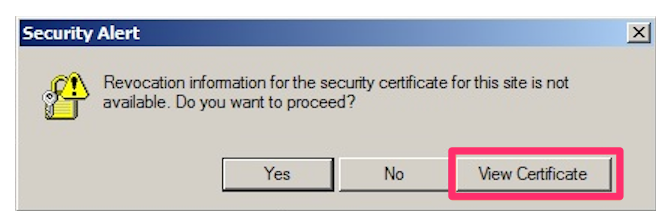
If you're able to connect to landfx.com and awa.landfx.com on the MS Edge browser without seeing the error message, your next step should be to click Verify Certificate in the error message in CAD.
This step will allow you to see which website is causing the issue.
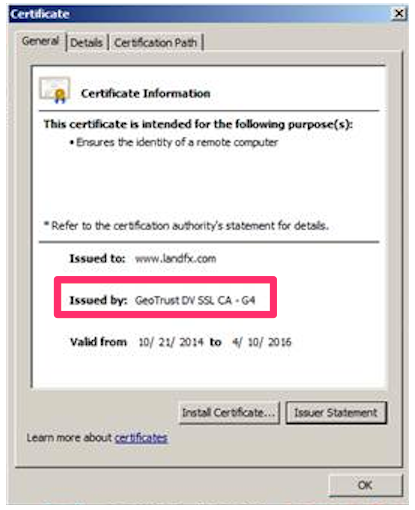
The Certificate dialog box will open. You can find the issuer of the certificate next to the words Issued by.
At this point, you can choose to:
- Navigate to the site listed here to investigate that site, or
- If confident about the validity of the listed site, click Yes in the error message to proceed
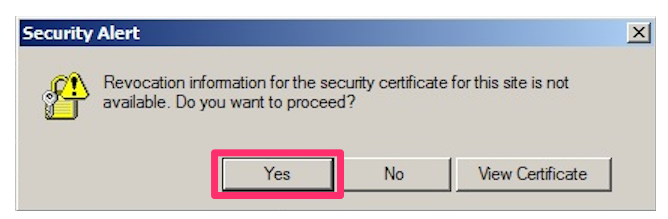
If you choose to click Yes at this point, you'll most commonly just be addressing the issue of displaying a photo from a third-party website. No personal data or anything else could possibly be compromised by simply clicking Yes at this point. Because an SSL certificate will be both in issue and in use, this network traffic will be secure. The only minor risk hinges on the extremely unlikely possibility that:
- This web site is now compromised, and
- The revocation service is mysteriously inaccessible at the same time
Step 3: Verify that the Windows Certificate Update is installed.
If you're unable to verify the validity of the website listed in the Certificate dialog box or are not comfortable clicking Yes in the error message at this point, your next step should be to ensure that you've installed all available Windows updates that handle certificates.
Of specific importance is the Update for Root Certificates. Make sure this option is turned on in your Group Policy settings. (The path to your Group Policy settings will vary depending on your version of Windows.)

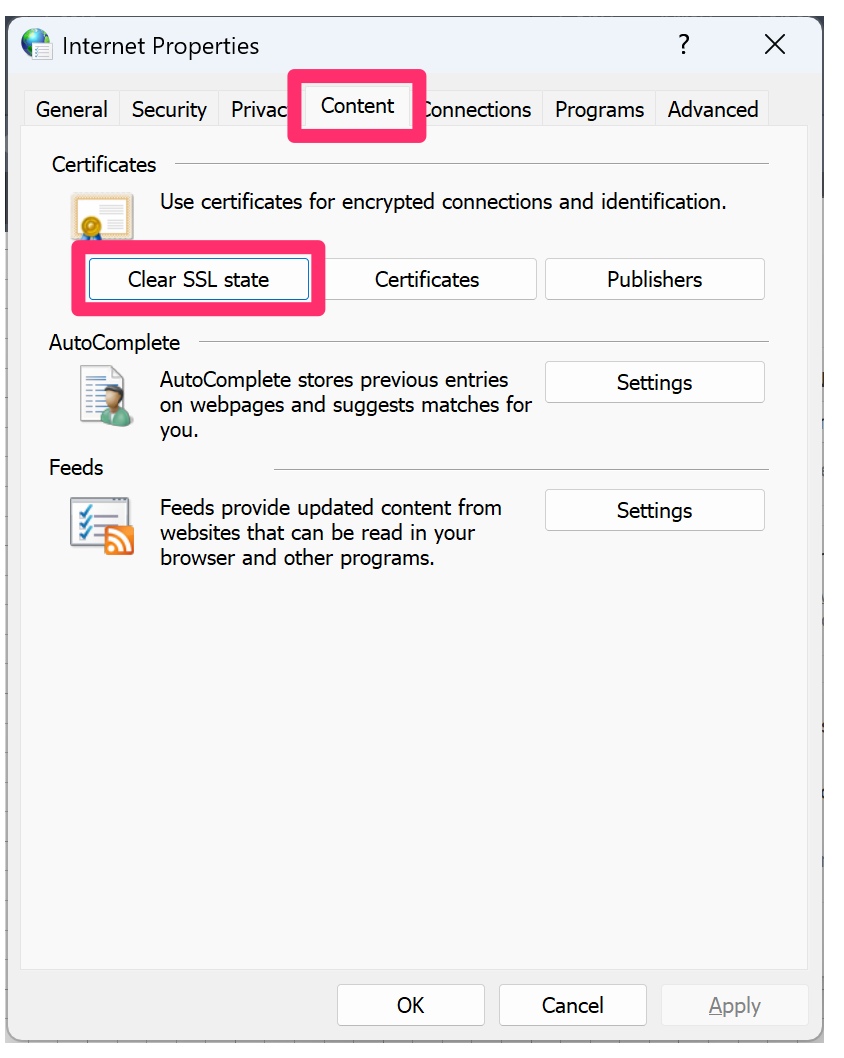
Step 4: Clear the Secure Sockets Layer (SSL) state.
Finally, if you're still seeing the error after verifying that the Windows Certificate Update is current, your final step should be to clear the SSL state.
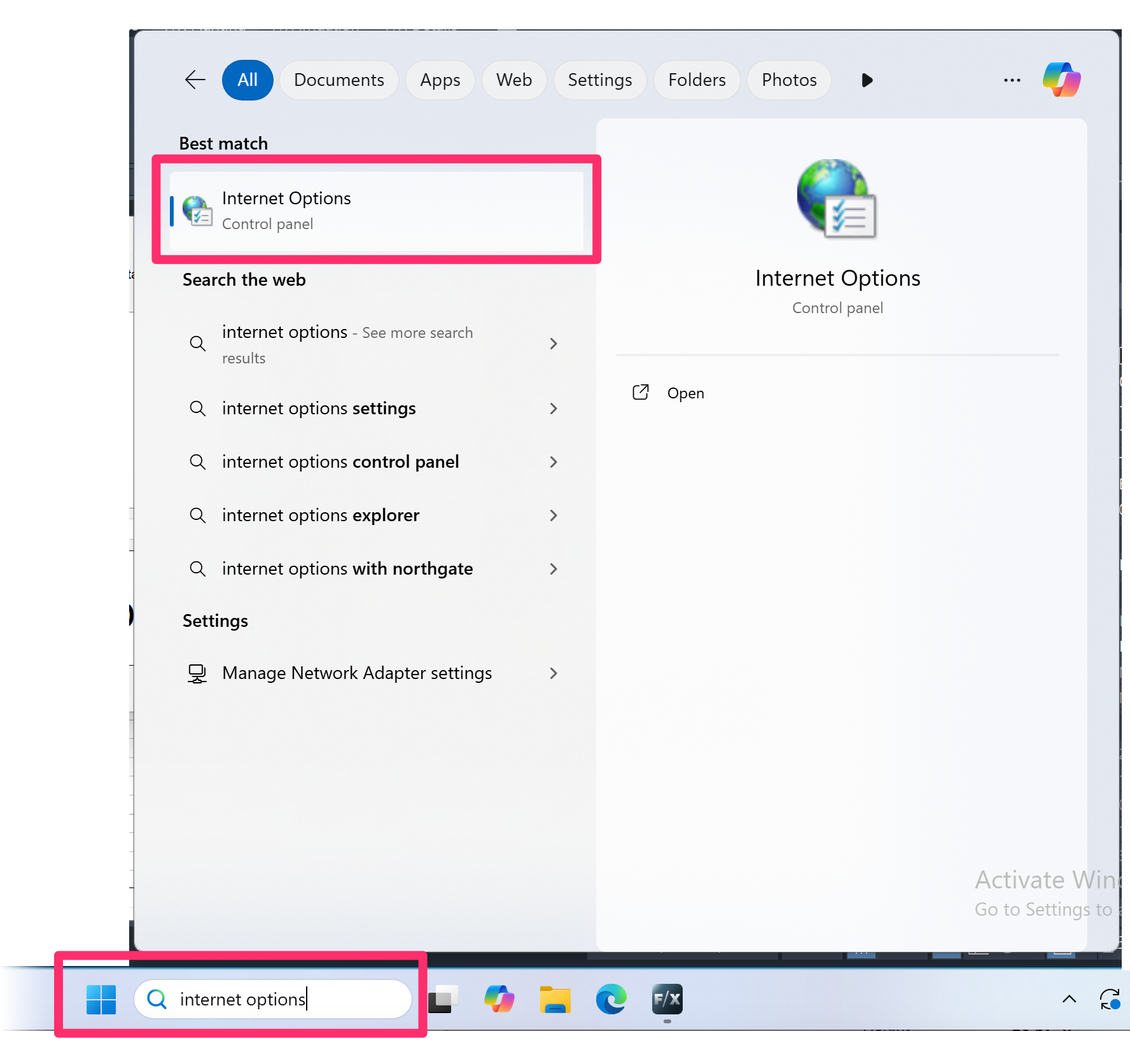
Open the Windows Start menu, and search for Internet Options.
Select the Internet Options item that appears in the menu.
In the Internet Properties dialog box, select the Content tab.
Then click Clear SSL state.
Contact
- Land F/X



Our software tailors AutoCAD®, Revit®, SketchUp®, and Rhino® to the needs of landscape architects, irrigation designers, and other professionals. We automate your most tedious tasks and ensure accuracy, giving you more time to design.