Land F/X
  • Portal
  • Products
    • Detail F/X
      • Product
      • Features
      • Trial
      • Purchase
    • Planting F/X
      • Product
      • Features
      • Trial
      • Purchase
    • Irrigation F/X
      • Product
      • Features
      • Trial
      • Purchase
    • F/X CAD
    • Plugin for Revit®
    • Plugin for SketchUp®
    • Plugin for Rhino®
    • Site & Hardscape
    • Lighting
    • Manufacturer Connection
    • Academic
    • Purchase
  • Support
    • Knowledge Base
    • Documentation
    • Submit Ticket
    • Updates
    • Forum
    • Install
  • Videos
    • Power Tips
    • Webinars
    • Podcasts
  • Who We Are
    • Contact Us
    • Careers
    • Gallery
    • News
Land F/X
  • Portal
  • Products
    • Detail F/X
      • Product
      • Features
      • Trial
      • Purchase
    • Planting F/X
      • Product
      • Features
      • Trial
      • Purchase
    • Irrigation F/X
      • Product
      • Features
      • Trial
      • Purchase
    • F/X CAD
    • Plugin for Revit®
    • Plugin for SketchUp®
    • Plugin for Rhino®
    • Site & Hardscape
    • Lighting
    • Manufacturer Connection
    • Academic
    • Purchase
  • Support
    • Knowledge Base
    • Documentation
    • Submit Ticket
    • Updates
    • Forum
    • Install
  • Videos
    • Power Tips
    • Webinars
    • Podcasts
  • Who We Are
    • Contact Us
    • Careers
    • Gallery
    • News
  1. Home
  2. Knowledge Base
  3. F/X CAD & AutoCAD
  4. Customizing F/X CAD & AutoCAD
  5. Right-Click Settings in CAD

    []

    Right-Click Settings in CAD

    Updated on: April 27, 2022

    Issue

    You want to customize the settings for right-clicking in AutoCAD – or you tried to do so and can't get the CAD right-click settings to behave correctly.


    Solution

    Open the Options dialog box:


    Manage ribbon, options button

    Manage ribbon, Options button


    type Options in the Command line


    right-click in the Command line and selecting Options from the menu

    Tools pull-down menu

    Tools pull-down menu


    You can configure your right-click settings in the following locations within the Options dialog box:


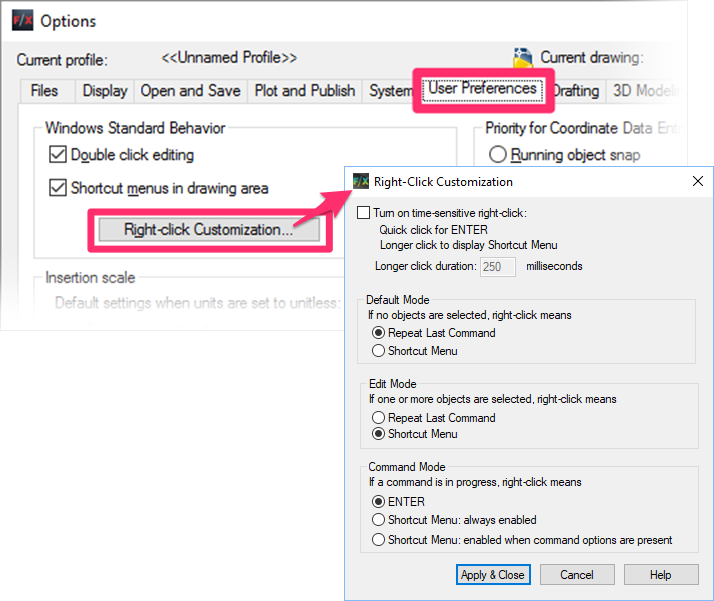
    User Preferences tab

    Most of the right-click settings are available in the Right-Click Customization dialog box. You can get there by selecting the User Preferences tab and clicking Right-click Customization.


    We recommend the settings pictured to the right.
    More information >

    Right-Click Customization dialog box


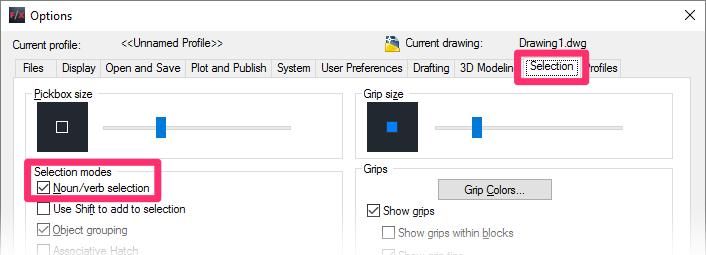
    Selection tab

    Selection tab

    We also recommend opening the Selection tab and selecting the Noun/verb selection option beneath Selection modes.

    We've compiled a hefty collection of recommendations for the available settings in the Options dialog box. See our recommendations for the AutoCAD Options settings.

    Contact

    • Land F/X
    • PMB 351 3940 Broad St. STE 7
      San Luis Obispo, CA 93401
    • +1 805-541-1003
    Email Logo Facebook Logo Instagram Logo LinkedIn Logo
    Land F/X Logo

    Our software tailors AutoCAD®, Revit®, SketchUp®, and Rhino® to the needs of landscape architects, irrigation designers, and other professionals. We automate your most tedious tasks and ensure accuracy, giving you more time to design.

    • Portal
    • Products
    • Support
    • Videos
    • Who We Are