Land F/X
  • Portal
  • Products
    • Detail F/X
      • Product
      • Features
      • Trial
      • Purchase
    • Planting F/X
      • Product
      • Features
      • Trial
      • Purchase
    • Irrigation F/X
      • Product
      • Features
      • Trial
      • Purchase
    • F/X CAD
    • Plugin for Revit®
    • Plugin for SketchUp®
    • Plugin for Rhino®
    • Site & Hardscape
    • Lighting
    • Manufacturer Connection
    • Academic
    • Purchase
  • Support
    • Knowledge Base
    • Documentation
    • Submit Ticket
    • Updates
    • Forum
    • Install
  • Videos
    • Power Tips
    • Webinars
    • Podcasts
  • Who We Are
    • Contact Us
    • Careers
    • Gallery
    • News
Land F/X
  • Portal
  • Products
    • Detail F/X
      • Product
      • Features
      • Trial
      • Purchase
    • Planting F/X
      • Product
      • Features
      • Trial
      • Purchase
    • Irrigation F/X
      • Product
      • Features
      • Trial
      • Purchase
    • F/X CAD
    • Plugin for Revit®
    • Plugin for SketchUp®
    • Plugin for Rhino®
    • Site & Hardscape
    • Lighting
    • Manufacturer Connection
    • Academic
    • Purchase
  • Support
    • Knowledge Base
    • Documentation
    • Submit Ticket
    • Updates
    • Forum
    • Install
  • Videos
    • Power Tips
    • Webinars
    • Podcasts
  • Who We Are
    • Contact Us
    • Careers
    • Gallery
    • News
  1. Home
  2. Knowledge Base
  3. F/X CAD & AutoCAD
  4. Errors: F/X CAD & AutoCAD
  5. Error: 'Bad Argument Type'

    Error: The Application Has Failed to Start Because Its Side-by-Side Configuration is Incorrect (Opening F/X CAD)

    Updated on: April 15, 2022

    Issue

    When starting F/X CAD, you received the following error message:

    Error: The application has failed to start because its side-by-side configuration is incorrect.

    Did you receive this same error message when attempting to install the Land F/X Workstation component (attempting to run the setup64 file)? If so, you're experiencing a different issue. Solution >


    Cause

    An issue with Microsoft Visual C++ Redistributable on your computer is preventing F/X CAD from opening or functioning correctly.


    Solution

    To correct the problem, you'll need to reinstall Microsoft Visual C++ Redistributable.


    1. Look for an F/X CAD folder whose name ends in .64.2 on your desktop.


    FX CAD Folder

    Our F/X CAD installation instructions recommend keeping this folder on your desktop for easy access. If you've moved it to another location, navigate to this folder in that location.


    2. Within that folder, navigate to the following folder path:

    3rdParty\x64\VCRedist


    You'll see several subfolders within the folder VCRedist.
    VCRedist subfolders


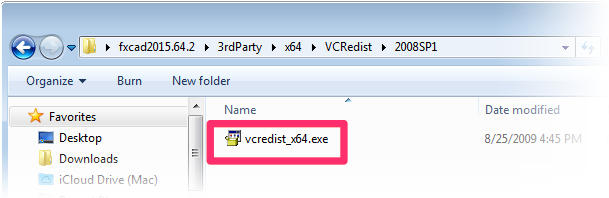
    3. Open each of these subfolders, one at a time. Within each subfolder, you'll see a file named vcredist_x64.exe. Double-click this file in each of the subfolders.


    Click the vcredist_x64.exe in each folder


    4. In a quirk of the Windows operating system, double-clicking each of these vcredist_x64.exe files will open a different dialog box. Here's what to do when you see each of them:


    Subfolder: 2008SP1


    Actions:

    • Double-click the file vcredist_x64.exe.


    • Select Repair, click Next, and follow the prompts.
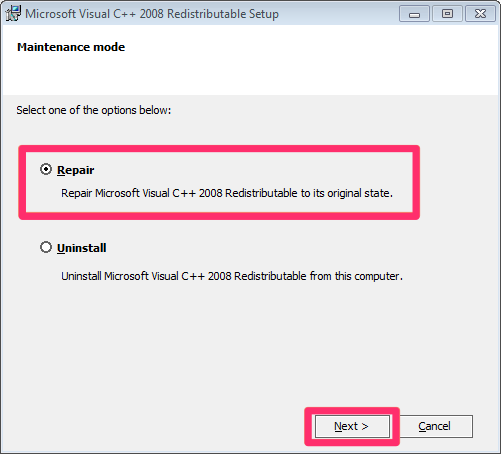
     

    Repair


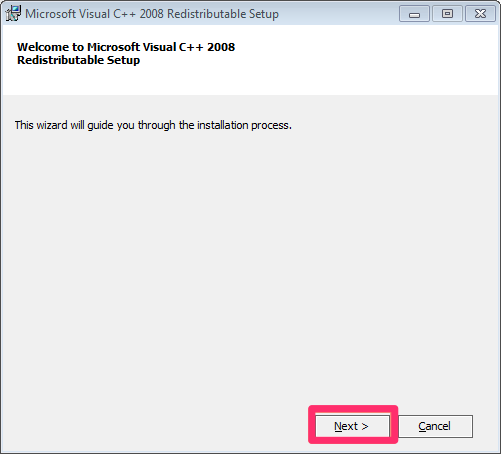
    Subfolder: 2008SP1.6161


    Actions:

    • Double-click the file vcredist_x64.exe.


    • Click Next, and follow the prompts.


    follow the prompts


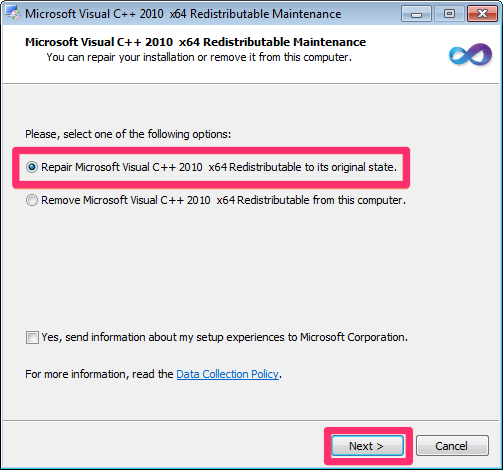
    Subfolder: 2010SP1


    Actions:

    • Double-click the file vcredist_x64.exe.


    • Select Repair Microsoft Visual C++ 2010 x64 Redistributable to its original state.


    • Click Next, and follow the prompts.


    click next


    Subfolder: 2012UPD4


    Actions:

    • Double-click the file vcredist_x64.exe.


    • Select Repair, and follow the prompts.
    Open the file

    Contact

    • Land F/X
    • PMB 351 3940 Broad St. STE 7
      San Luis Obispo, CA 93401
    • +1 805-541-1003
    Email Logo Facebook Logo Instagram Logo LinkedIn Logo
    Land F/X Logo

    Our software tailors AutoCAD®, Revit®, SketchUp®, and Rhino® to the needs of landscape architects, irrigation designers, and other professionals. We automate your most tedious tasks and ensure accuracy, giving you more time to design.

    • Portal
    • Products
    • Support
    • Videos
    • Who We Are