

Land F/X
  • Portal
  • Products
    • Detail F/X
      • Product
      • Features
      • Trial
      • Purchase
    • Planting F/X
      • Product
      • Features
      • Trial
      • Purchase
    • Irrigation F/X
      • Product
      • Features
      • Trial
      • Purchase
    • F/X CAD
    • Plugin for Revit®
    • Plugin for SketchUp®
    • Plugin for Rhino®
    • Site & Hardscape
    • Lighting
    • Manufacturer Connection
    • Academic
    • Purchase
  • Support
    • Knowledge Base
    • Documentation
    • Submit Ticket
    • Updates
    • Forum
    • Install
  • Videos
    • Power Tips
    • Webinars
    • Podcasts
  • Who We Are
    • Contact Us
    • Careers
    • Gallery
    • News
Land F/X
  • Portal
  • Products
    • Detail F/X
      • Product
      • Features
      • Trial
      • Purchase
    • Planting F/X
      • Product
      • Features
      • Trial
      • Purchase
    • Irrigation F/X
      • Product
      • Features
      • Trial
      • Purchase
    • F/X CAD
    • Plugin for Revit®
    • Plugin for SketchUp®
    • Plugin for Rhino®
    • Site & Hardscape
    • Lighting
    • Manufacturer Connection
    • Academic
    • Purchase
  • Support
    • Knowledge Base
    • Documentation
    • Submit Ticket
    • Updates
    • Forum
    • Install
  • Videos
    • Power Tips
    • Webinars
    • Podcasts
  • Who We Are
    • Contact Us
    • Careers
    • Gallery
    • News
  1. Home
  2. Knowledge Base
  3. F/X CAD & AutoCAD
  4. Features & Tools
  5. F/X CAD 2026: New Features

    XCLIP Command: Unwanted Lines are Projecting Along the XCLIP Areas

    Updated on: October 20, 2025

    Issue

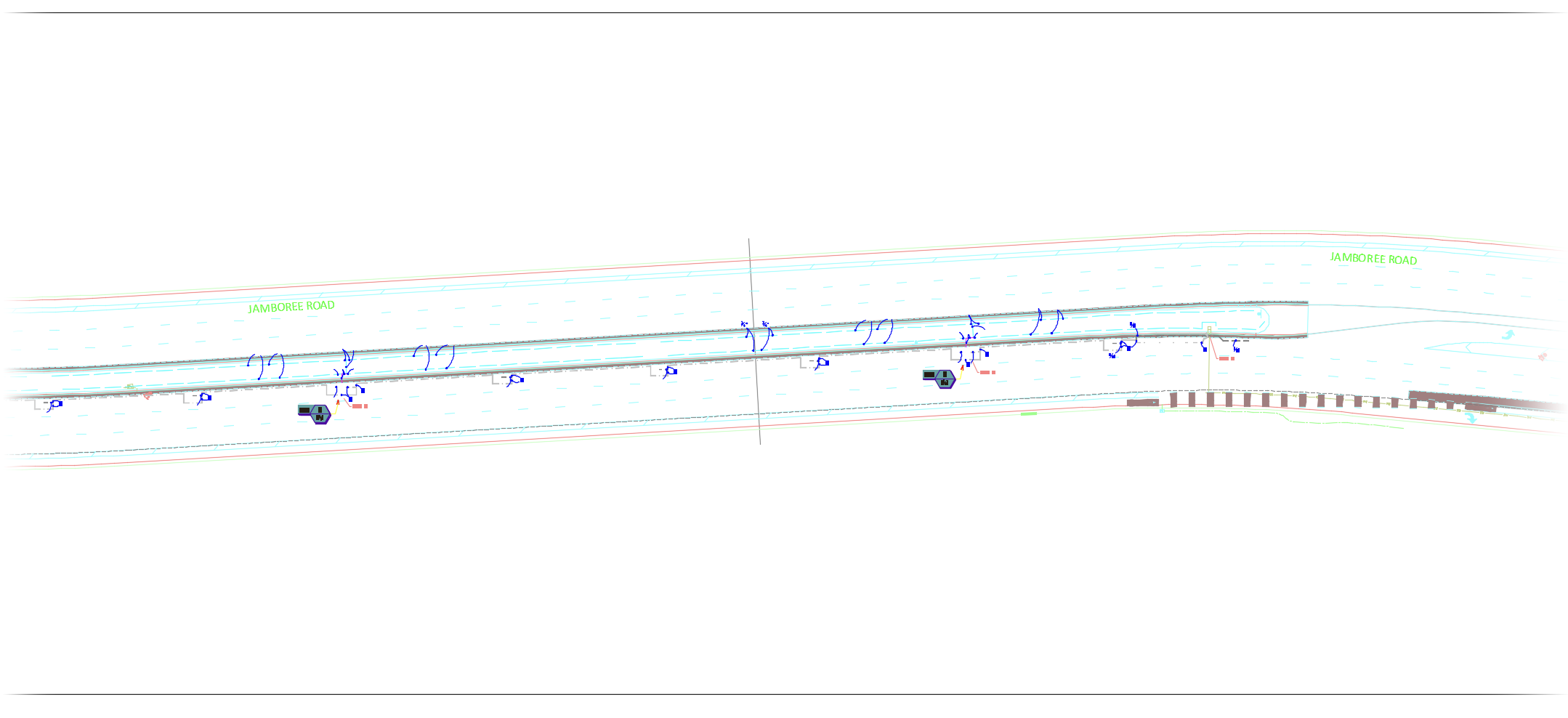
    You're using the XCLIP command to crop an Xref or block, and you're noticing some unwanted lines that are projecting along the XCLIP areas.


    XCLIP Command


    You may have tried to delete these lines projected along the XCLIP area but found that doing so also erased objects in the drawing.

     

    Erase
    Erase


    Cause

    The XCLIP areas have somehow become associated with objects in the actual drawing.

    The XCLIP command is a method of cropping an Xref or block, hiding all objects outside a selected border. More information


    XCLIP Command


    Solution

    Run the XCLIP command again. This time, select only the XCLIP boundaries you wish to remove.

    You can use the CTRL + A keys to select all objects in your drawing, then hold SHIFT and deselect all the objects you want to keep.


    After you've selected the objects you want to remove, use the Delete option. The XCLIP areas will be removed, and the content initially connected to that XCLIP will remain.

    If you simply select the XCLIP areas and use the Erase or Delete key on your keyboard, the objects tied to those XCLIP areas will also be deleted.

    Contact

    • Land F/X
    • PMB 351 3940 Broad St. STE 7
      San Luis Obispo, CA 93401
    • +1 805-541-1003
    Email Logo Facebook Logo Instagram Logo LinkedIn Logo
    Land F/X Logo

    Our software tailors AutoCAD®, Revit®, SketchUp®, and Rhino® to the needs of landscape architects, irrigation designers, and other professionals. We automate your most tedious tasks and ensure accuracy, giving you more time to design.

    • Portal
    • Products
    • Support
    • Videos
    • Who We Are