Land F/X
  • Portal
  • Products
  • Support
  • Videos
  • Who We Are
  • Trial
  • Purchase
Land F/X
  • Portal
    • Dashboard
    • Account
    • Licenses
    • Data
    • Support
  • Products
    • Detail F/X
      • Product
      • Features
      • Trial
      • Purchase
    • Planting F/X
      • Product
      • Features
      • Trial
      • Purchase
    • Irrigation F/X
      • Product
      • Features
      • Trial
      • Purchase
    • F/X CAD
    • Plugin for Revit®
    • Plugin for SketchUp®
    • Plugin for Rhino®
    • Site & Hardscape
    • Lighting
    • Manufacturer Connection
    • Academic
    • Purchase
  • Support
    • Knowledge Base
    • Documentation
    • Submit Ticket
    • Updates
    • Forum
    • Install
  • Videos
    • Power Tips
    • Webinars
  • Who We Are
    • Contact Us
    • Careers
    • Gallery
    • News
  1. Knowledge Base
  2. F/X CAD & AutoCAD
  3. System Performance
  4. AutoCAD, F/X CAD, or Civil 3D Crashes or Freezes, or is Slow or Unresponsive

Verify That the Autodesk Desktop Licensing Service Is Running Properly

Issue

You need to verify that the Autodesk Desktop Licensing Service is running correctly.


Solution

Step 1: Verify the service is running.

1A. Type Services in the Windows Start menu. Click the Services item that appears in the menu.
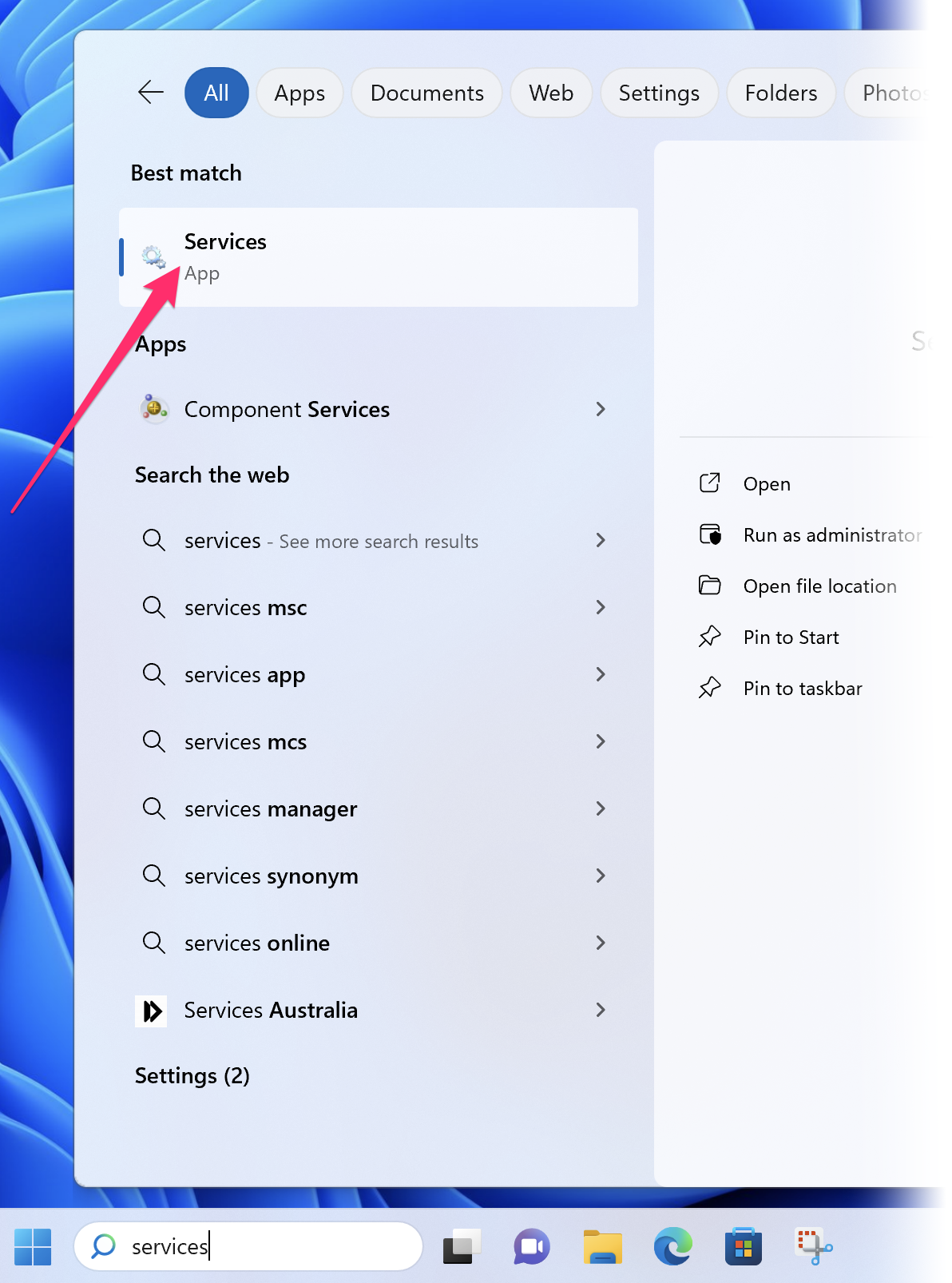
Services shown in Windows Start menu


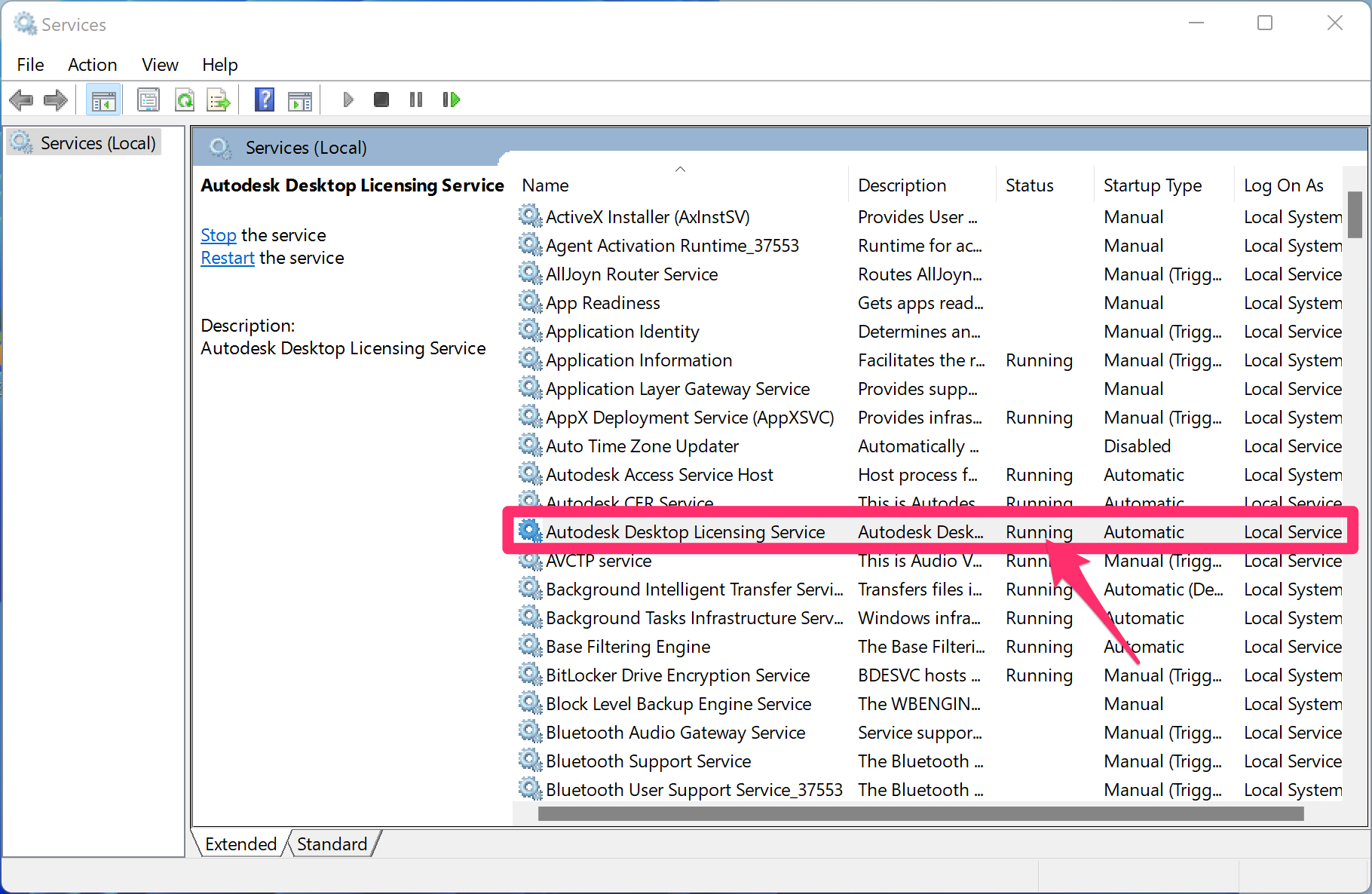
Autodesk Desktop Licensing Service shown in Windows Services

1B. In the Services dialog box, scroll down to Autodesk Desktop Licensing Service and verify that it's listed as Running.


If you see that the service is Not Running, move on to Step 2 (if necessary): Start the service.


Step 2 (if necessary): Start the service.

2A. To start the Autodesk Desktop Licensing Service, right-click it in the Services and select Properties from the menu that opens.
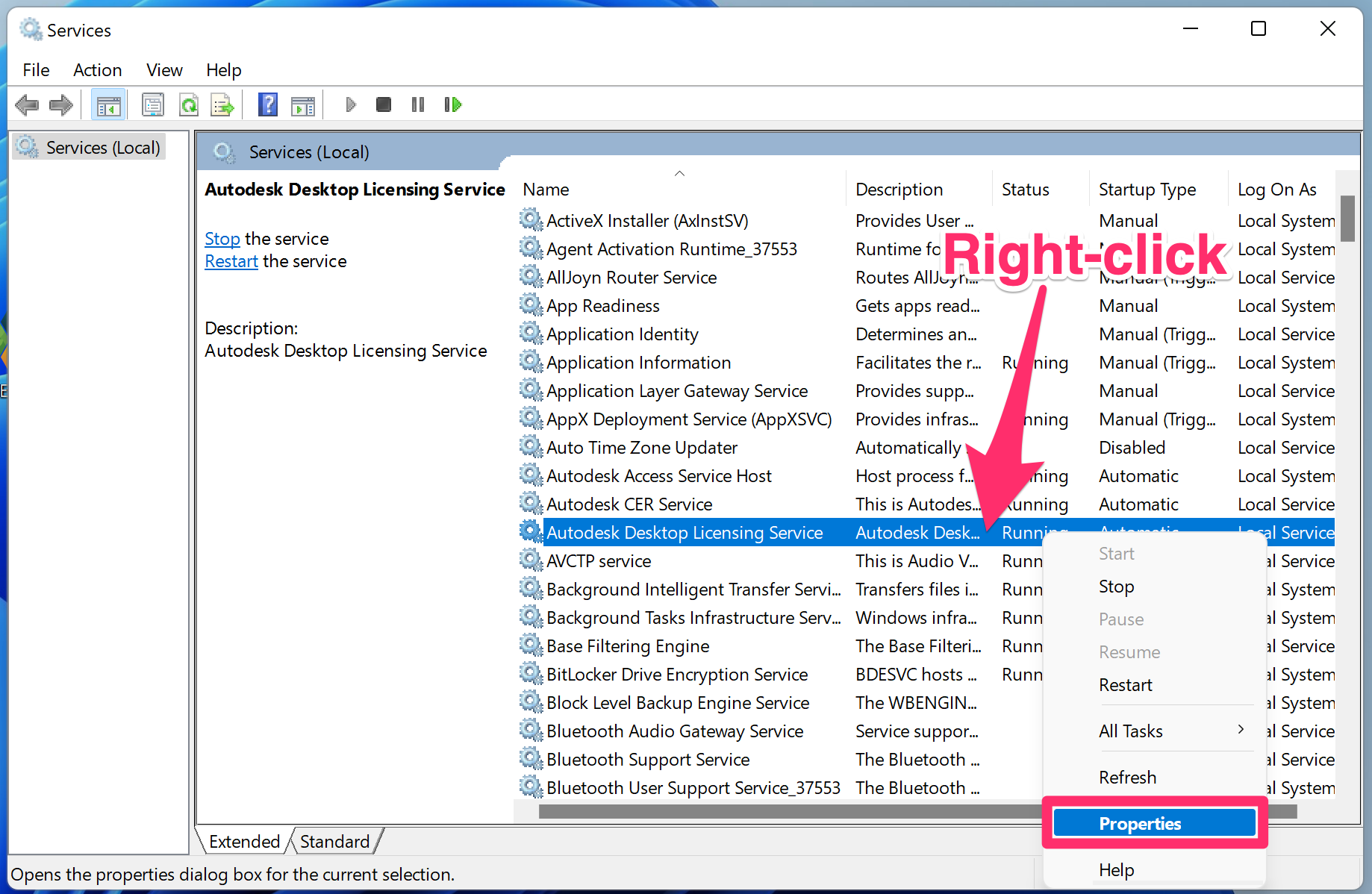
Properties shown on right-click me u for Autodesk Desktop Licensing Service


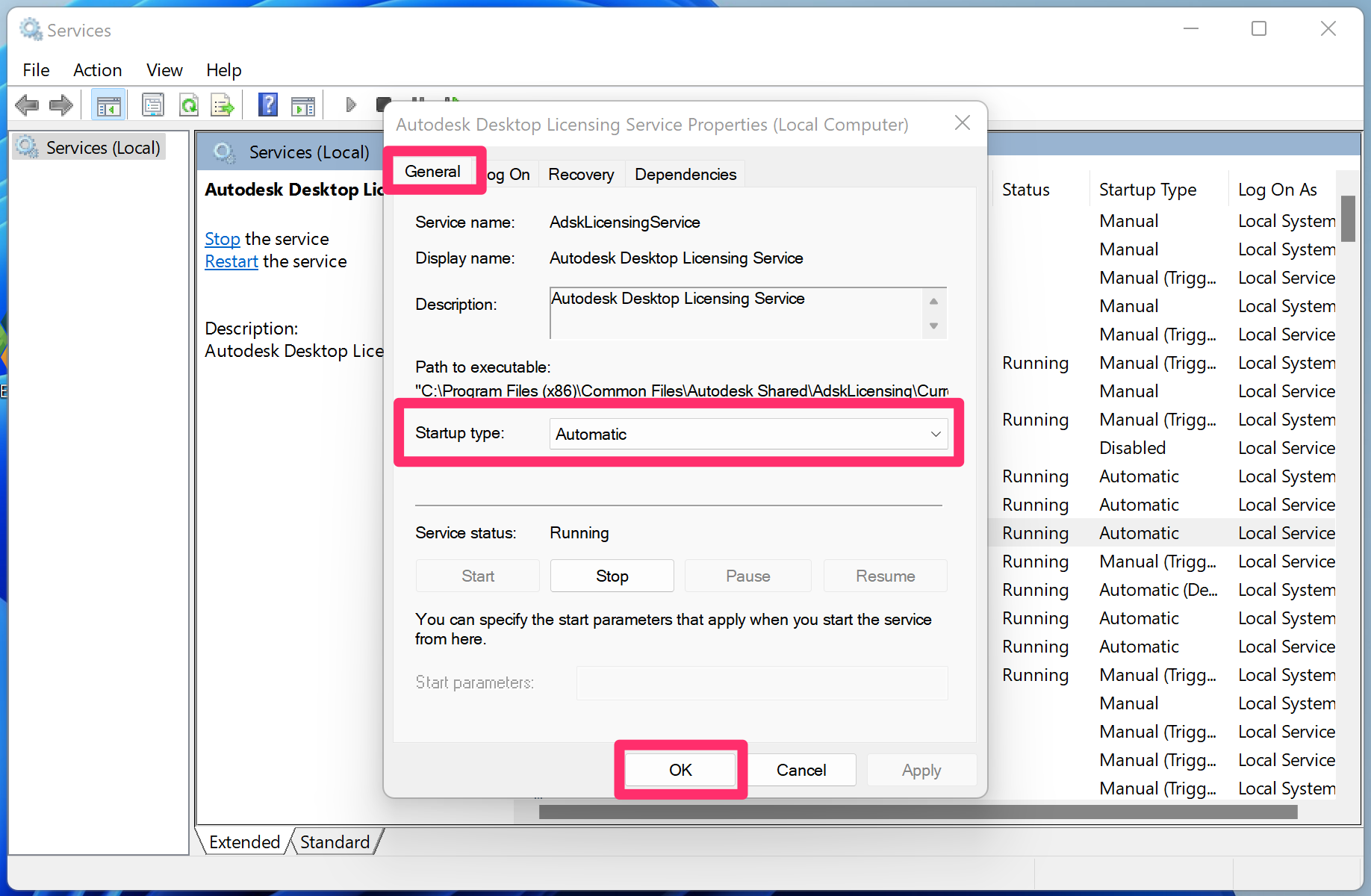
Autodesk Desktop Licensing Service shown in Windows Services

2B. In the Autodesk Desktop Licensing Service Properties dialog box, select the General tab.


Select the Startup Type menu to Automatic. Click OK to save the change.


The Autodesk Desktop Licensing Service should now be running properly.

Contact

  • Land F/X
  • PMB 351 3940 Broad St. STE 7
    San Luis Obispo, CA 93401
  • +1 805-541-1003
Email Logo Facebook Logo Instagram Logo LinkedIn Logo
Land F/X Logo

Our software tailors AutoCAD®, Revit®, SketchUp®, and Rhino® to the needs of landscape architects, irrigation designers, and other professionals. We automate your most tedious tasks and ensure accuracy, giving you more time to design.

  • Portal
  • Products
  • Support
  • Videos
  • Who We Are