

Land F/X
  • Portal
  • Products
    • Detail F/X
      • Product
      • Features
      • Trial
      • Purchase
    • Planting F/X
      • Product
      • Features
      • Trial
      • Purchase
    • Irrigation F/X
      • Product
      • Features
      • Trial
      • Purchase
    • F/X CAD
    • Plugin for Revit®
    • Plugin for SketchUp®
    • Plugin for Rhino®
    • Site & Hardscape
    • Lighting
    • Manufacturer Connection
    • Academic
    • Purchase
  • Support
    • Knowledge Base
    • Documentation
    • Submit Ticket
    • Updates
    • Forum
    • Install
  • Videos
    • Power Tips
    • Webinars
    • Podcasts
  • Who We Are
    • Contact Us
    • Careers
    • Gallery
    • News
Land F/X
  • Portal
  • Products
    • Detail F/X
      • Product
      • Features
      • Trial
      • Purchase
    • Planting F/X
      • Product
      • Features
      • Trial
      • Purchase
    • Irrigation F/X
      • Product
      • Features
      • Trial
      • Purchase
    • F/X CAD
    • Plugin for Revit®
    • Plugin for SketchUp®
    • Plugin for Rhino®
    • Site & Hardscape
    • Lighting
    • Manufacturer Connection
    • Academic
    • Purchase
  • Support
    • Knowledge Base
    • Documentation
    • Submit Ticket
    • Updates
    • Forum
    • Install
  • Videos
    • Power Tips
    • Webinars
    • Podcasts
  • Who We Are
    • Contact Us
    • Careers
    • Gallery
    • News
  1. Home
  2. Knowledge Base
  3. F/X CAD & AutoCAD
  4. Plotting Issues & Techniques
  5. Turn Off Background Plotting / Publishing

    CAD Crashes or Freezes When Attaching an Xref from Shortcut Folder on Server

    Updated on: April 18, 2022

    Issue

    You attempted to attach an Xref from a shortcut folder on a server while working remotely, and CAD crashed or froze.


    For example, you may have been working from home and attempted to Xref a file from your office server.
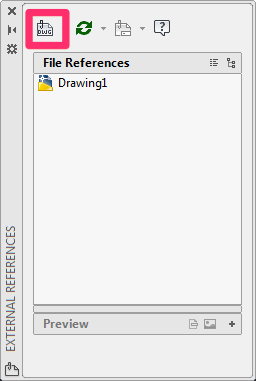
     

    attempted to Xref a file


    However, when you attempted to navigate to a shortcut folder on that server in the Select Reference File dialog box (as shown below), CAD crashed.
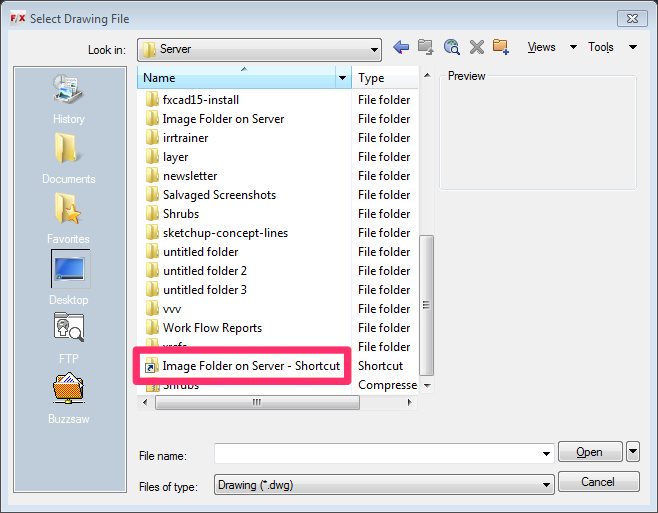
     

    Select Reference File dialog box


    Cause

    AutoCAD appears to be somewhat finicky when users attempt to navigate directly to a shortcut folder when attaching an Xref to a drawing. In order to Xref a file from a shortcut folder remotely, you'll need to create a local shortcut for that folder.


    Solution

    Step 1: Copy the Shortcut Folder's Target Address

    Navigate directly to the shortcut folder from the remote computer (for example, your home computer). Right-click the shortcut folder, and select Properties from the menu that opens.


    Properties


    In the Shortcut Properties dialog box, highlight the text in the Target field.


    Shortcut Properties dialog box


    Copy this text by pressing CTRL + C (Windows) or Command + C (Mac).


    Step 2: Create a Local Shortcut

    In the Xref Manager, click the Attach button (the top left button). If the Xref Manager isn't open already, you can open it by typing XREF in the Command line and pressing Enter.


    Xref Manager, click the Attach button


    Right-click within the pane on the left side of the Select Reference File dialog box, as shown below. Select Add from the menu that opens.
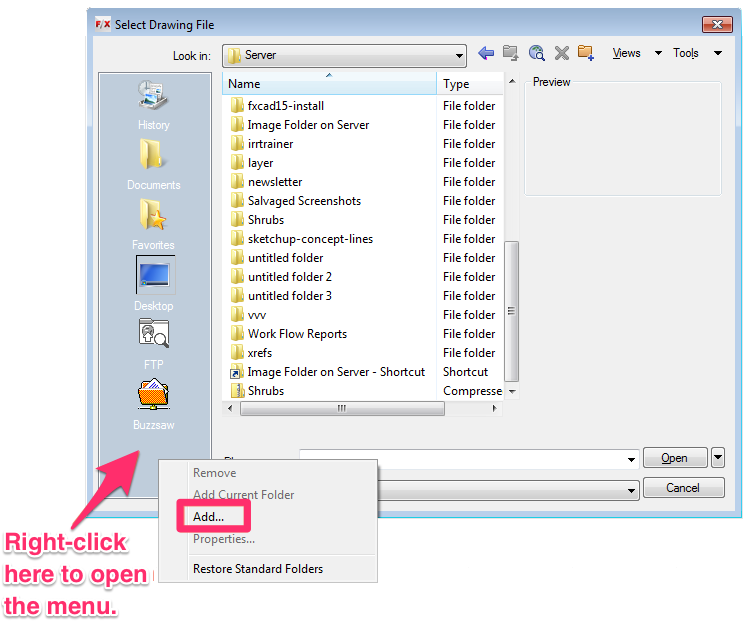
     

    Select Reference File dialog box


    The Add Places Item dialog box will open.

    • Type the name of the shortcut in the Item name field.
    • Paste the shortcut's Target (which you copied in Step 1) into the Item path field by pressing CTRL + V (Windows) or Command + V (Mac).


    Click OK to close this dialog box.
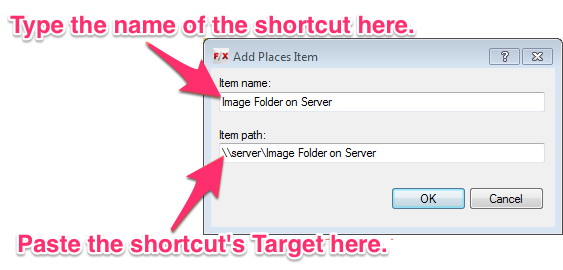
     

    Close the dialog box


    The local shortcut for the folder on your server will be added to the left pane of the Select Reference File dialog box. You should now be able to browse to this shortcut when adding your Xrefs without crashing CAD.
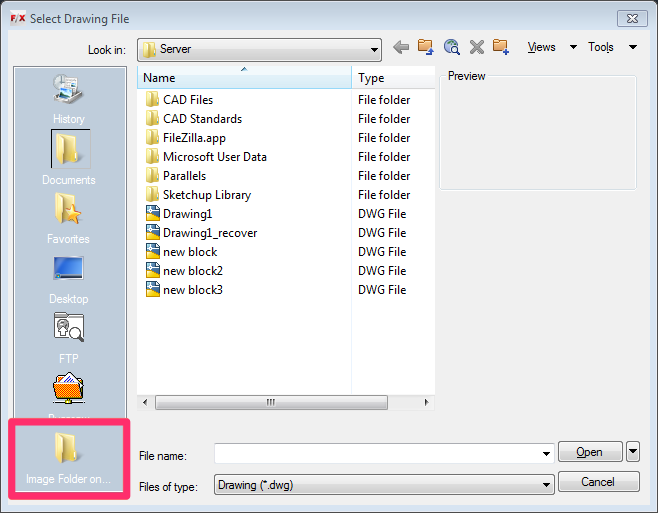
     

    Select Reference File dialog box

    Contact

    • Land F/X
    • PMB 351 3940 Broad St. STE 7
      San Luis Obispo, CA 93401
    • +1 805-541-1003
    Email Logo Facebook Logo Instagram Logo LinkedIn Logo
    Land F/X Logo

    Our software tailors AutoCAD®, Revit®, SketchUp®, and Rhino® to the needs of landscape architects, irrigation designers, and other professionals. We automate your most tedious tasks and ensure accuracy, giving you more time to design.

    • Portal
    • Products
    • Support
    • Videos
    • Who We Are