

Change the Scale Between Engineering and Architectural
Updated on: September 03, 2025
Issue
You need to convert an existing drawing from Engineering Scale to Architectural Scale, or from Architectural Scale to Engineering Scale.
For example, you may have reached an advanced stage in your drawing, only to have a client, supervisor, or design committee request that you submit your plan in a different scale.
Solution
Fortunately, you can convert your scale quickly in just a few steps.
Step 1: Resize all objects in your drawing
This step will apply your new scale to all objects that are currently in your drawing – from linework to plants, irrigation equipment, hatches – everything!
In Model Space, type SCALE in the Command line, and press Enter.
The Command line will prompt you to Select objects. Select the entirety of your drawing in Model space. Press Enter.
The Command line will prompt you to Specify base point. Type 0,0 to set your base point at 0,0. Press Enter.
The Command line will prompt you to Specify Scale Factor. Set one of the following scale factors:
- Convert to Engineering Scale: Type 1/12, and press Enter.
- Convert to Architectural Scale: Type12, and press Enter.
A bit of explanation
AutoCAD is technically a "unitless" system. For example, a line drawn from the coordinates 0,0 to 0,10 in Decimal Feet will be 10 "units" long. Whether you change your units to inches, meters, millimeters, angstroms, or parsecs, the line will continue to measure 10 units.

However, the issue of scale forces a new wrinkle into this perfect unitless world. If you did, in fact, change your units, you would eventually need the line to be measured in the number of your new units that match its measurement in the original units. So for an object that was originally meant to measure 10 feet, changing your units to inches would then require the object to actually measure 120 units (in this case, 120 inches, or 10 feet).

That's exactly why you need to resize the objects in your drawing when changing the scale. In our example, changing the number of units in our line will not make the line longer or shorter – as long as we rescale the drawing correctly. It simply changes the number of "units" in the drawing to match the new scale we're about to set.
Step 2: Rescale your drawing
You can easily rescale your drawing using the Land F/X Scale tool. In Model Space, open our Scale tool:

F/X Adminribbon, Scale tool

F/X Plantingribbon, Scale button
Type SetDrawScale in the Command line
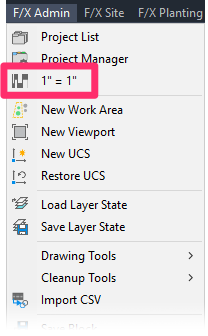
FX ADMIN menu, scale option
The Plot Scale dialog box will open.
Click any of the top three buttons to change the drawing units.
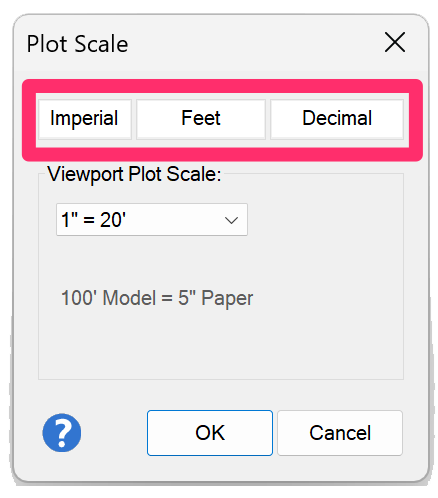
In the Drawing Units dialog box, change the settings according to your desired scale.
Convert to Engineering Scale:
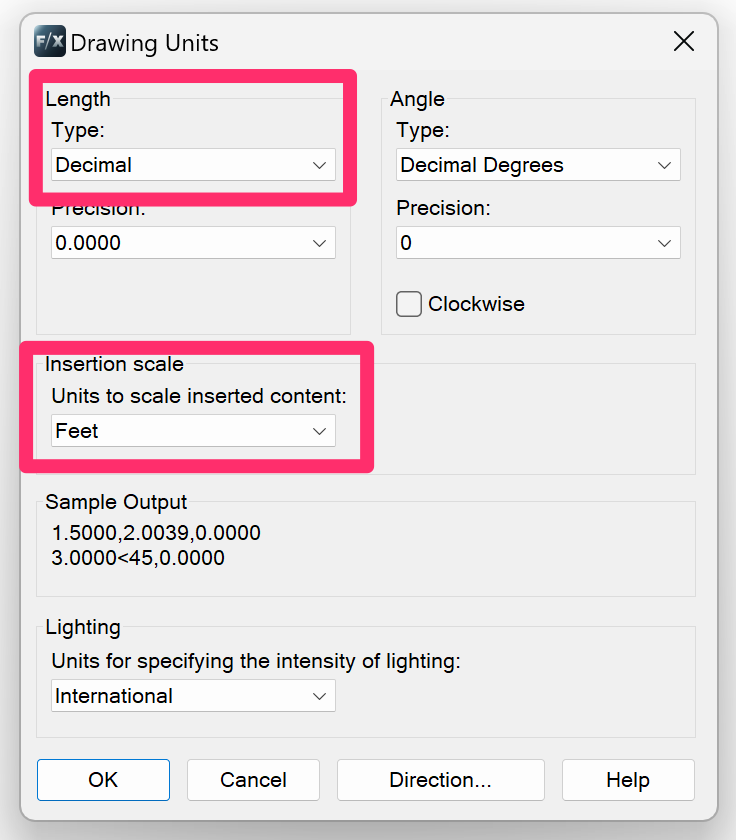
- Select Decimal from the Length: Type menu.
- Select Feet from the Insertion scale: Units to scale inserted content menu
- Click OK in the Drawing Units dialog box, then click OK in the Plot Scale dialog box.
Convert to Architectural Scale:
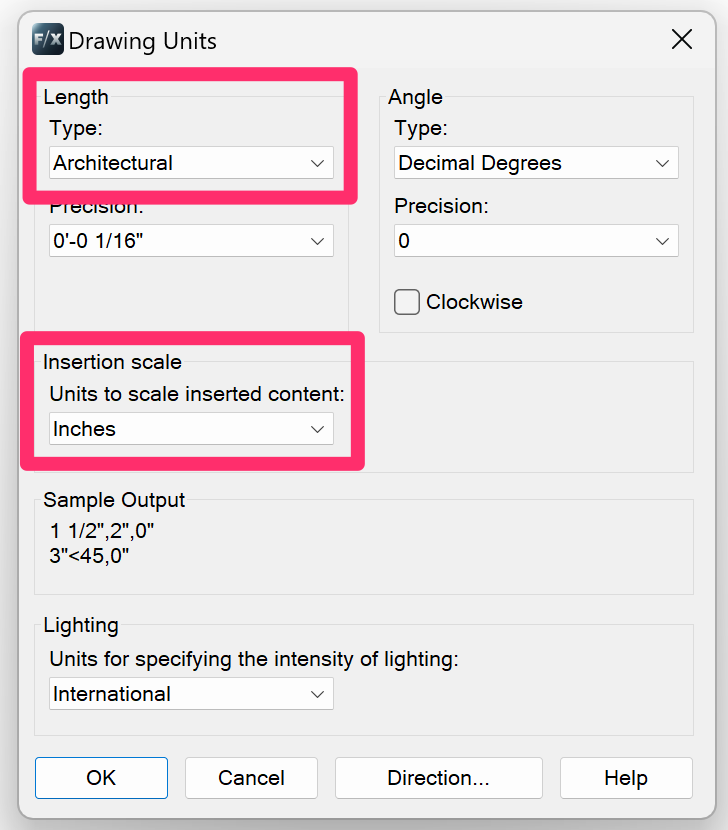
- Select Architectural from the Length: Type menu.
- Select Inches from the Insertion scale: Units to scale inserted content menu
- Click OK in the Drawing Units dialog box, then click OK in the Plot Scale dialog box.
If asked Rescale objects to match the new scale? click No. (You've already rescaled, or resized, your objects in Step 1.)

Step 3: Rescale your viewport in Paper Space
Finally, you'll need to change the units in Paper Space to match the units you've set in Model Space above. We've added a Land F/X feature that allows you to do just that.
First, open Paper Space and double-click within the viewport.

Open the Scale tool, and set the same units you set in Step 2 above. This time, you'll be rescaling your Paper Space viewport.
Land F/X will scale the viewport for you. Your drawing is now completely rescaled!