

Land F/X
  • Portal
  • Products
    • Detail F/X
      • Product
      • Features
      • Trial
      • Purchase
    • Planting F/X
      • Product
      • Features
      • Trial
      • Purchase
    • Irrigation F/X
      • Product
      • Features
      • Trial
      • Purchase
    • F/X CAD
    • Plugin for Revit®
    • Plugin for SketchUp®
    • Plugin for Rhino®
    • Site & Hardscape
    • Lighting
    • Manufacturer Connection
    • Academic
    • Purchase
  • Support
    • Knowledge Base
    • Documentation
    • Submit Ticket
    • Updates
    • Forum
    • Install
  • Videos
    • Power Tips
    • Webinars
    • Podcasts
  • Who We Are
    • Contact Us
    • Careers
    • Gallery
    • News
Land F/X
  • Portal
  • Products
    • Detail F/X
      • Product
      • Features
      • Trial
      • Purchase
    • Planting F/X
      • Product
      • Features
      • Trial
      • Purchase
    • Irrigation F/X
      • Product
      • Features
      • Trial
      • Purchase
    • F/X CAD
    • Plugin for Revit®
    • Plugin for SketchUp®
    • Plugin for Rhino®
    • Site & Hardscape
    • Lighting
    • Manufacturer Connection
    • Academic
    • Purchase
  • Support
    • Knowledge Base
    • Documentation
    • Submit Ticket
    • Updates
    • Forum
    • Install
  • Videos
    • Power Tips
    • Webinars
    • Podcasts
  • Who We Are
    • Contact Us
    • Careers
    • Gallery
    • News
  1. Home
  2. Knowledge Base
  3. Installation Troubleshooting & Errors
  4. Installing Land F/X: Info & Troubleshooting
  5. What Is Your Database Server Name?

    What Is Your Database Server Name?

    Updated on: May 05, 2022

    Issue


    You are installing one of our plugins in an office with a central server. You might be on the screen that asks for your Database Server Name (or F/X Data Server) and you don't know what to enter in the text field, or you might just need to know your server name to complete our installation instructions.

    Database Server Name prompt


    Solution

    Single-User Installations

    If you are a single user, or you want to use this computer as a standalone workstation that is not connected to your server network, you can use the following for your Database Server Name: 127.0.0.1


    Multi-User Installations

    If you are installing the Multi-User version of our software, complete the following steps to determine your Database Server name.


    Step 1: Determine the Letter Drive Containing Your Data Server


    From the same screen shown above in the installation steps, click <Back once.
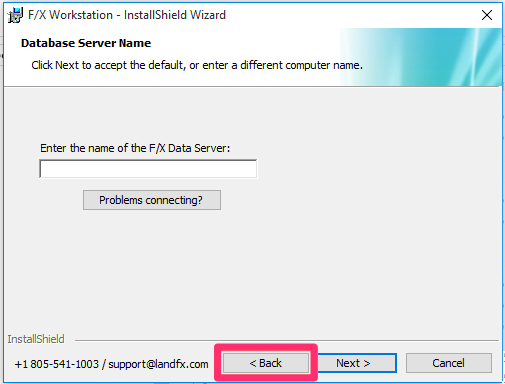
    Land F/X installer, Back button


    You'll be brought back to the F/X Server Network Location screen – the previous screen in the installation steps.
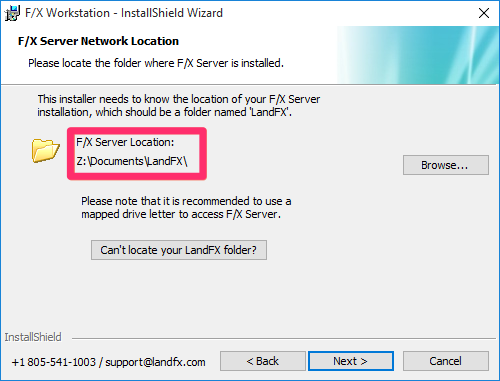


    Letter drive containing data server

    Here, you'll see the letter drive that contains your data server. (The letter will appear at the beginning of the LandFX folder path.) Take note of this letter.


    In our example, the data server is on the letter drive Z:.


    Step 2: Determine Your Data Server Name

    Open Windows Explorer, and look in the left panel for the letter drive you noted above.


    In our example, we'll look for the letter Z.


    Your Data Server Name is the text that appears within the single quotation marks next to that letter drive.


    In our example, the Data Server Name is My Server.

    Data Server Name appearing within single quotation marks next to the letter drive


    Step 3: Enter Your Data Server Name in the Database Server Name Screen of the Installer
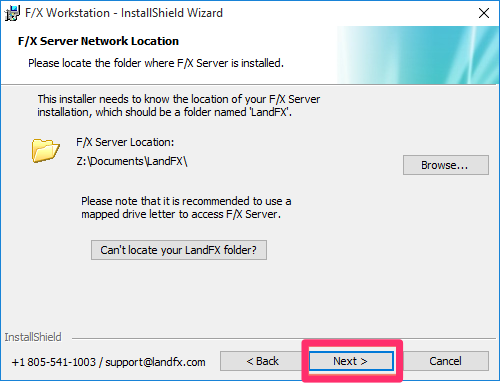
     

    Land F/X installer, Database Server Name screen

    Back in the installer, click Next> until you reach the Database Server Name screen, shown below.


    In the Database Server Name screen, enter your server name – that is, the exact text from within the single quotation marks from Step 2 above.


    In our example, we would enter My Server.


    Click Next when finished.


    You can now continue installing.

    Entering server name in Database Server Name field

    Contact

    • Land F/X
    • PMB 351 3940 Broad St. STE 7
      San Luis Obispo, CA 93401
    • +1 805-541-1003
    Email Logo Facebook Logo Instagram Logo LinkedIn Logo
    Land F/X Logo

    Our software tailors AutoCAD®, Revit®, SketchUp®, and Rhino® to the needs of landscape architects, irrigation designers, and other professionals. We automate your most tedious tasks and ensure accuracy, giving you more time to design.

    • Portal
    • Products
    • Support
    • Videos
    • Who We Are