

Install Land F/X from the Land F/X Portal
Updated on: September 26, 2022
This guide applies to:



The steps on this page are for installing Land F/X software from the Land F/X Portal.
Need to install F/X CAD?

You'll be brought to the F/X CAD installation steps once you've installed Land F/X.
Quick video

Step 1: Navigate to the installation section on the Portal.
Log in to the Land F/X portal:
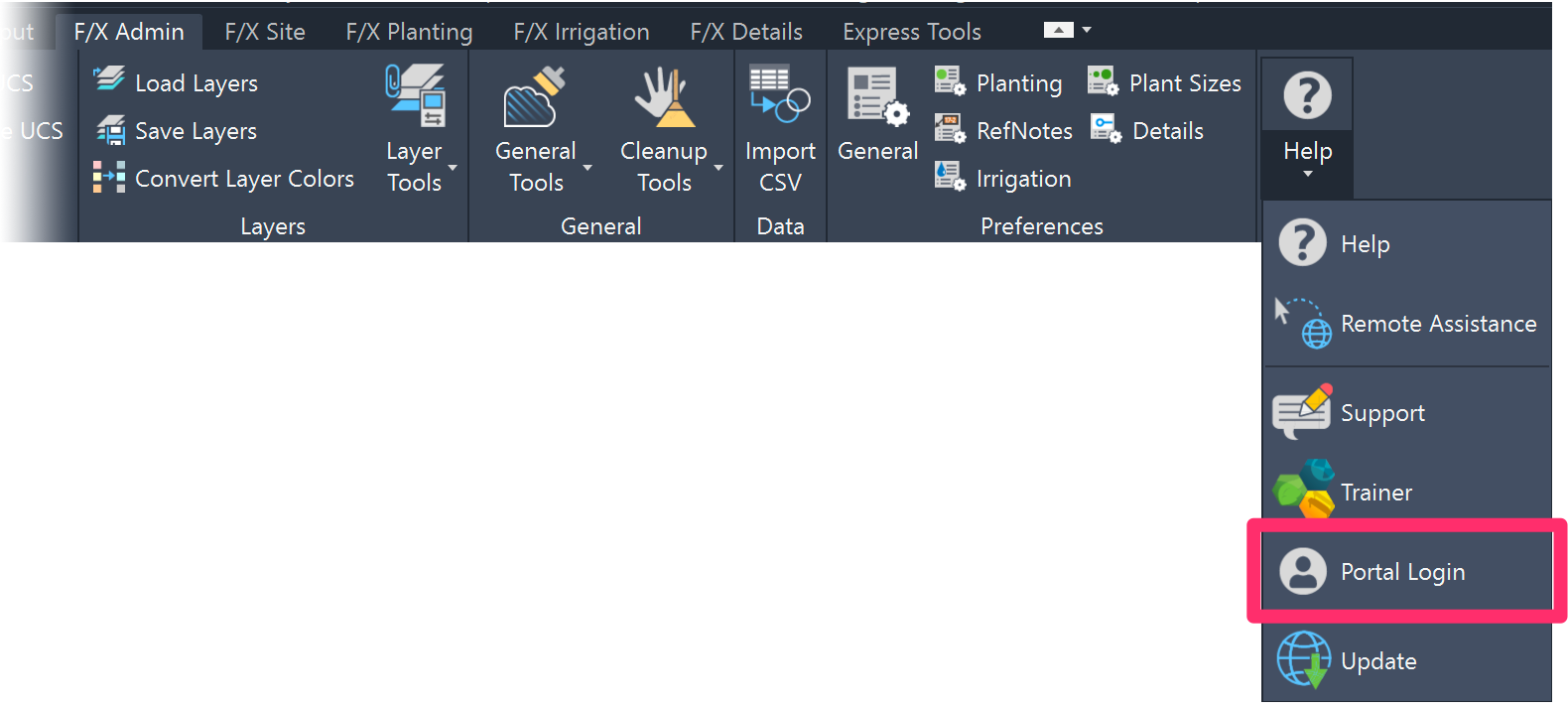
Any of the F/X ribbons (example, F/X Admin), Portal Login flyout
Note that you won't automatically have a Portal profile if you're a Land F/X user. If you haven't registered for the Portal, you'll need to do so before you can complete these steps. How to register for the Portal
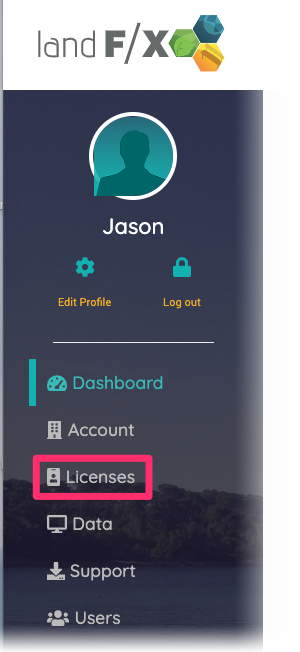
1B. After logging in to the Portal, select the Licenses tab in the left column
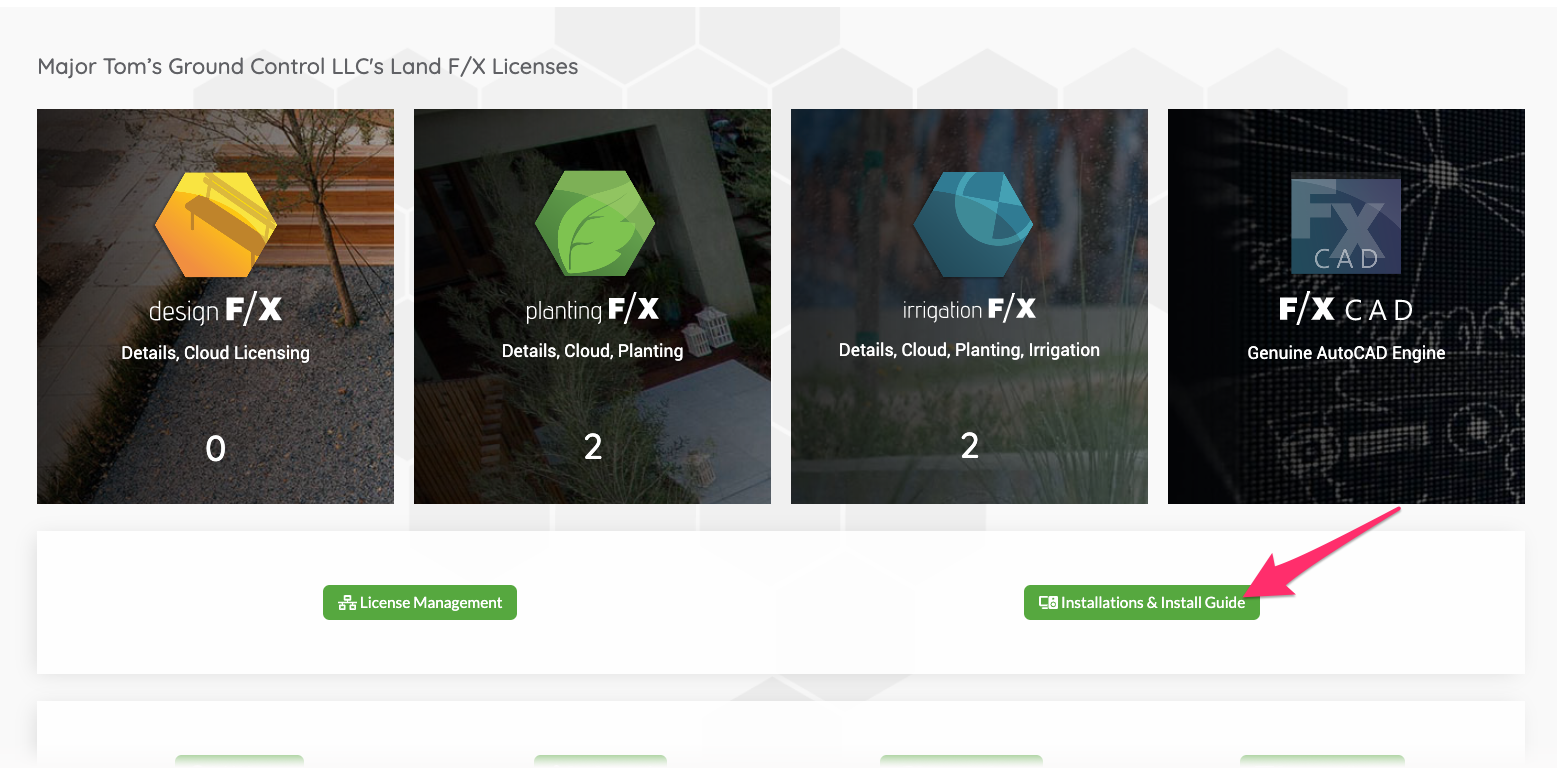
1C. Click Installations & Install Guide.
You can now move on to Step 2: Complete the installation process.
Step 2: Complete the installation process.
At this point, you'll choose the installation option you need to complete:
- New Land F/X license (more common), or
- New Land F/X server (less common)
Not sure of which installation option to choose? Ask your network administrator.
2A. (Land F/X license) To install a Land F/X license (a license of Detail F/X, Planting F/X, or Irrigation F/X), click Add installation to this server.

2B. (Land F/X license) You'll be asked Are you replacing an existing installation?
- If you're replacing a Land F/X license on a computer that already has Land F/X installed, click Yes.
- If you're installing a Land F/X license on a computer that doesn't already have Land F/X installed, click No, this is a new machine.


2C. (Land F/X license) You'll be asked What CAD will you use for this installation?.
Select your version of F/X CAD or AutoCAD from the menu, then click Choose.
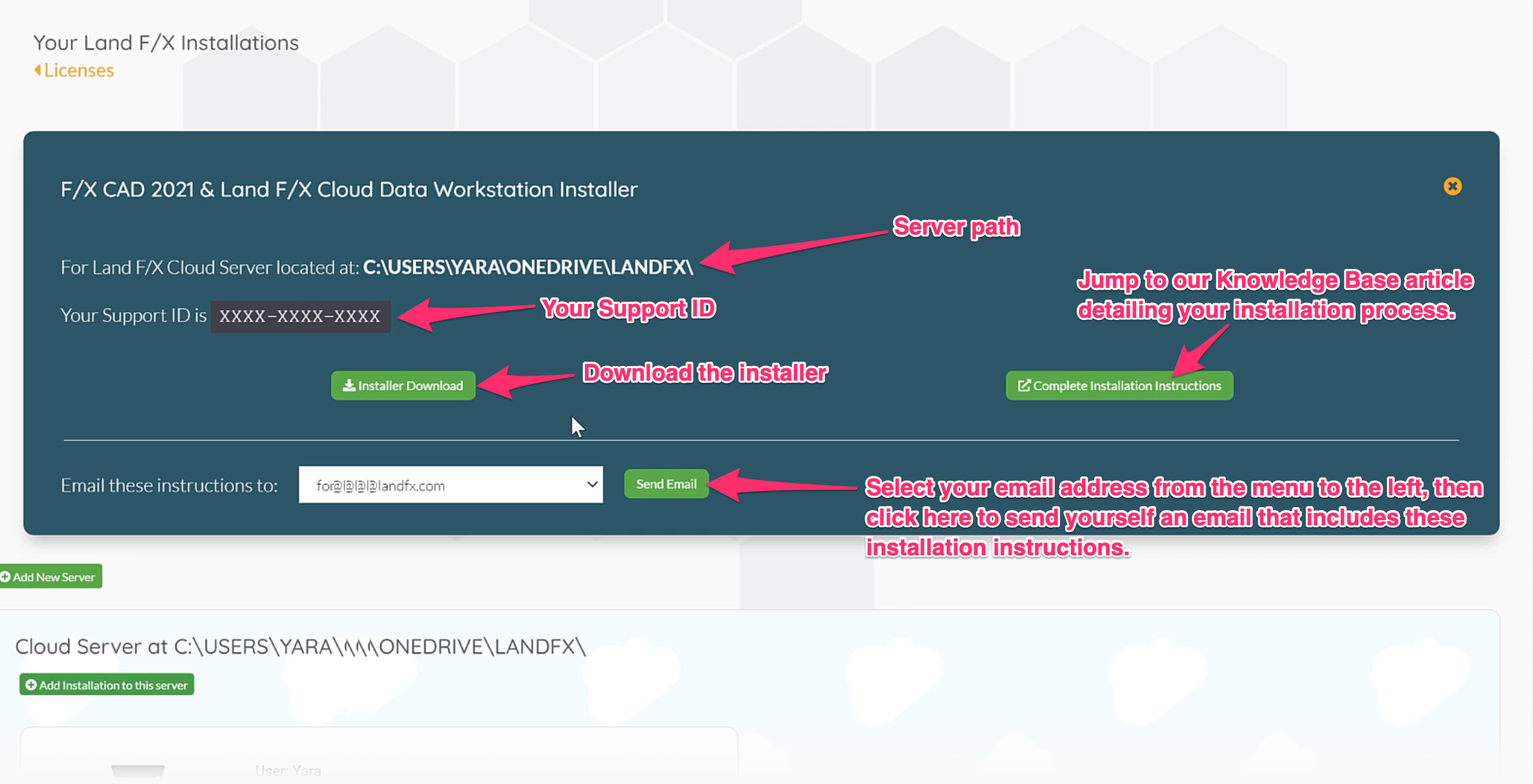
2D. (Land F/X license) You'll be brought to a page showing the information and links you need for completing your installation:
- The server path you selected for installing Land F/X
- Your Support ID, which you'll need for your installation
- Installer Download: A link to download the installer
- Complete Installation Instructions: A link to a page on our website showing instructions for installing your Land F/X license. Note: This page will also include a link to download the installer.
- An option to email these instructions to yourself. Just select your email address from the menu and click Send Email.
Close
The following steps show how to install a new Land F/X server on your network, which is much rarer than installing a Land F/X license. You will most likely only need to complete these steps if you are your office's network administrator.
2A. (New Land F/X server) To install a new Land F/X server, click New Server.
2B. (New Land F/X server) You might see a message that you already have one or more Land F/X servers in your network.
- Click Use an existing server if you only need to install a new Land F/X license rather than a new server. If you choose this option, you'll be brought to our steps to install a Land F/X license.
- Click Install a new server to continue installing a new Land F/X server.

2C. (New Land F/X server) The Add New Server screen will pop up. Select the type of Land F/X server you want to install from the menu (pictured below to the right), then click Choose.


2D. (Land F/X license) You'll be brought to a page showing the information and links you need for completing your server installation:
- Your Support ID, which you'll need for your installation
- Installer Download: A link to download the installer
- Complete Installation Instructions: A link to a page on our website showing instructions for installing your Land F/X license. Note: This page will also include a link to download the installer.
- An option to email these instructions to yourself. Just select your email address from the menu and click Send Email.

Close