

Land F/X
  • Portal
  • Products
  • Support
  • Videos
  • Who We Are
  • Trial
  • Purchase
Land F/X
  • Portal
    • Dashboard
    • Account
    • Licenses
    • Data
    • Support
  • Products
    • Detail F/X
      • Product
      • Features
      • Trial
      • Purchase
    • Planting F/X
      • Product
      • Features
      • Trial
      • Purchase
    • Irrigation F/X
      • Product
      • Features
      • Trial
      • Purchase
    • F/X CAD
    • Plugin for Revit®
    • Plugin for SketchUp®
    • Plugin for Rhino®
    • Site & Hardscape
    • Lighting
    • Manufacturer Connection
    • Academic
    • Purchase
  • Support
    • Knowledge Base
    • Documentation
    • Submit Ticket
    • Updates
    • Forum
    • Install
  • Videos
    • Power Tips
    • Webinars
  • Who We Are
    • Contact Us
    • Careers
    • Gallery
    • News
  1. Knowledge Base
  2. Planting
  3. Errors: Planting
  4. Error Adding Plant / Invalid Error (Adding a New Plant to Our Master List)

Error: Too Many Arguments OR Too Few Arguments (Adding a Plant or Other Object to a Land F/X Project)

Issue

You saw one of the following error messages when attempting to add a plant or another Land F/X object, such as a Reference Note or irrigation component, to a project:

  • Error: Too many arguments
  • Error: Too few arguments


Solution

1. Restart your computer. After it powers back on, sign in to your user account.


2. Open the Windows Start menu and search for cmd.

Windows Start menu, Command Prompt entry


Opening the Command Prompt entry as an administrator from the Windows Start menu


3. Right-click the Command Prompt entry that appears in the Start menu, then select Run as administrator from the submenu that opens.


4. The Command Prompt will open. Copy and paste the following command into the Command Prompt:

cd %ProgramFiles%\Autodesk\ApplicationPlugins\landfx.bundle\contents\resources\antview\Win64


Press Enter.
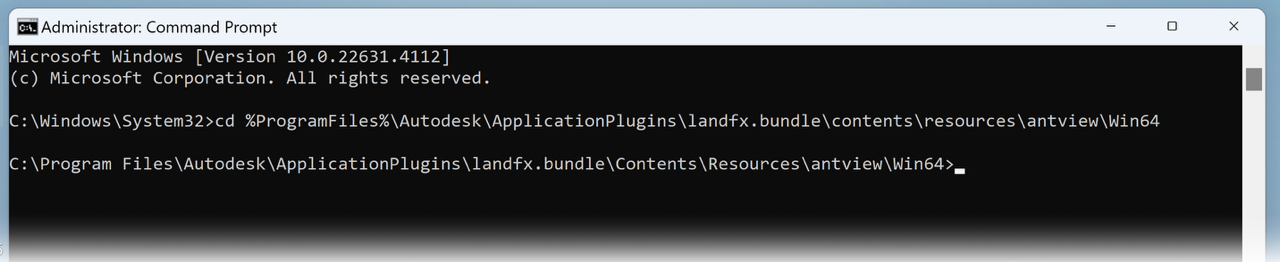
Command pasted into Command prompt


5. Copy and paste the following command into the Command Prompt:

regsvr32 -i AntView.ocx


Press Enter again. You should now see a success message like the one pictured below.

Success message in the Command prompt


6. Restart your computer again.


7. Open CAD and try placing an object again.

If you can place an object without seeing an error, you've resolved the issue. If you're still seeing the error, download and run our latest F/X Workstation installer.

Contact

  • Land F/X
  • PMB 351 3940 Broad St. STE 7
    San Luis Obispo, CA 93401
  • +1 805-541-1003
Email Logo Facebook Logo Instagram Logo LinkedIn Logo
Land F/X Logo

Our software tailors AutoCAD®, Revit®, SketchUp®, and Rhino® to the needs of landscape architects, irrigation designers, and other professionals. We automate your most tedious tasks and ensure accuracy, giving you more time to design.

  • Portal
  • Products
  • Support
  • Videos
  • Who We Are