

Land F/X
  • Portal
  • Products
    • Detail F/X
      • Product
      • Features
      • Trial
      • Purchase
    • Planting F/X
      • Product
      • Features
      • Trial
      • Purchase
    • Irrigation F/X
      • Product
      • Features
      • Trial
      • Purchase
    • F/X CAD
    • Plugin for Revit®
    • Plugin for SketchUp®
    • Plugin for Rhino®
    • Site & Hardscape
    • Lighting
    • Manufacturer Connection
    • Academic
    • Purchase
  • Support
    • Knowledge Base
    • Documentation
    • Submit Ticket
    • Updates
    • Forum
    • Install
  • Videos
    • Power Tips
    • Webinars
    • Podcasts
  • Who We Are
    • Contact Us
    • Careers
    • Gallery
    • News
Land F/X
  • Portal
  • Products
    • Detail F/X
      • Product
      • Features
      • Trial
      • Purchase
    • Planting F/X
      • Product
      • Features
      • Trial
      • Purchase
    • Irrigation F/X
      • Product
      • Features
      • Trial
      • Purchase
    • F/X CAD
    • Plugin for Revit®
    • Plugin for SketchUp®
    • Plugin for Rhino®
    • Site & Hardscape
    • Lighting
    • Manufacturer Connection
    • Academic
    • Purchase
  • Support
    • Knowledge Base
    • Documentation
    • Submit Ticket
    • Updates
    • Forum
    • Install
  • Videos
    • Power Tips
    • Webinars
    • Podcasts
  • Who We Are
    • Contact Us
    • Careers
    • Gallery
    • News
  1. Home
  2. Knowledge Base
  3. Planting
  4. Plant Labels
  5. Plant Photo Callout Images Missing

    []

    Plant Labels Draw Order Keeps Changing

    Updated on: May 26, 2022

    Issue

    The draw order of your plant labels seems to be changing as you move from Paper Space to Model Space, and when you reopen your drawing. You may notice that several of your plant labels are sent to the back under the plants, obscuring the lead lines when you print.


    Cause

    You likely have the Color Symbols option turned on. When applying the color symbols, the system will move the color symbols to the top of the draw order.


    Solutions

    You have several options for remedying this issue.


    For one, you could select a plant callout, right-click, and use the Select Similar command to select all callouts pointing to that side. Then use the Draw order to bring them all to the top. However, this would not apply to your other text and notations.


    Therefore, a better solution would be to move your notations to Paper Space. You can isolate their layers, then type CHSPACE in the Command line in order to achieve this.


    If this solution seems to work best, you can open the Land F/X Planting Preferences and select the option Move to Paper Space under Labels placed within a Viewport.


    As a result, all labels placed in a viewport will be moved automatically into Paper Space.
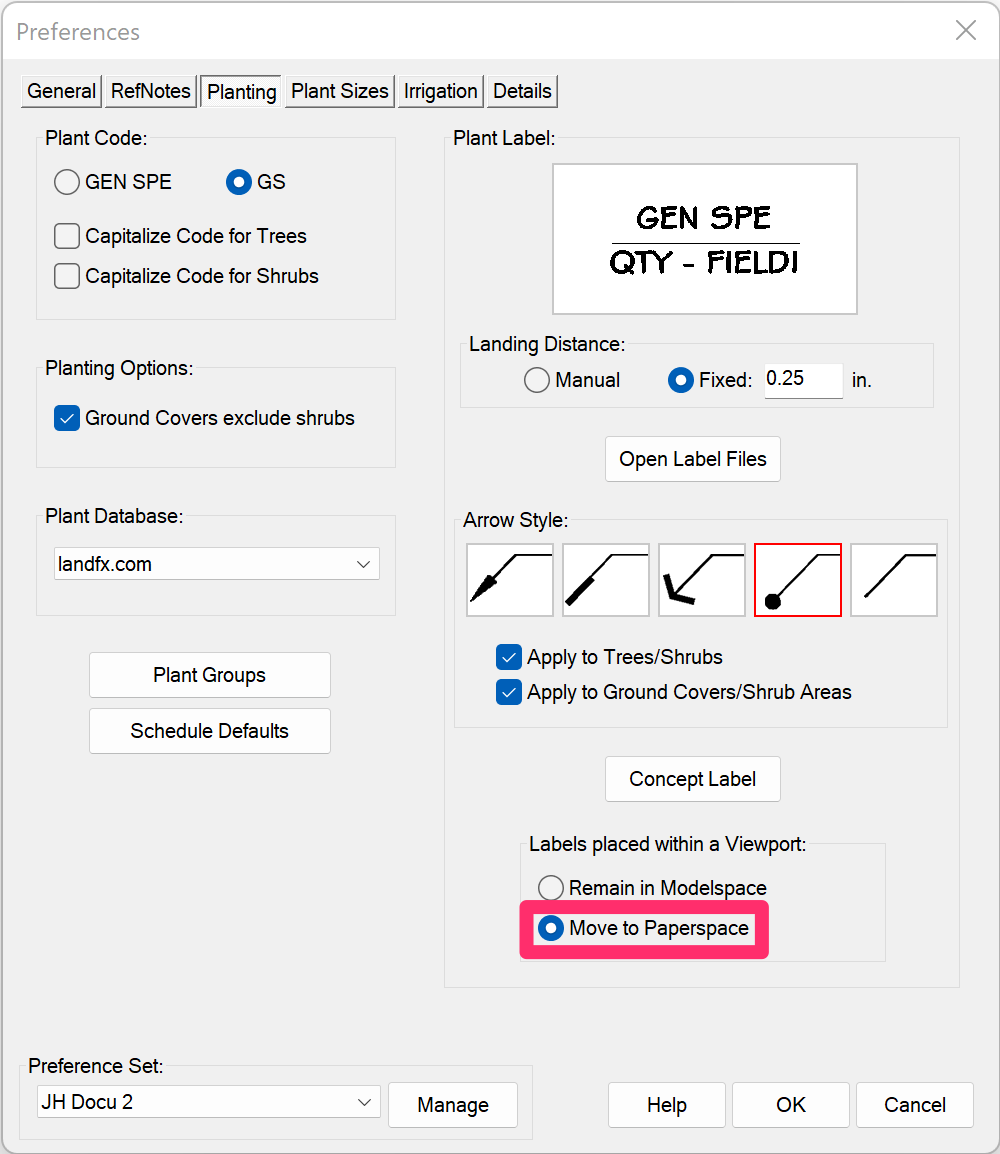
    Planting Preferences, Move to Paper Space option

    Contact

    • Land F/X
    • PMB 351 3940 Broad St. STE 7
      San Luis Obispo, CA 93401
    • +1 805-541-1003
    Email Logo Facebook Logo Instagram Logo LinkedIn Logo
    Land F/X Logo

    Our software tailors AutoCAD®, Revit®, SketchUp®, and Rhino® to the needs of landscape architects, irrigation designers, and other professionals. We automate your most tedious tasks and ensure accuracy, giving you more time to design.

    • Portal
    • Products
    • Support
    • Videos
    • Who We Are