

Land F/X
  • Portal
  • Products
    • Detail F/X
      • Product
      • Features
      • Trial
      • Purchase
    • Planting F/X
      • Product
      • Features
      • Trial
      • Purchase
    • Irrigation F/X
      • Product
      • Features
      • Trial
      • Purchase
    • F/X CAD
    • Plugin for Revit®
    • Plugin for SketchUp®
    • Plugin for Rhino®
    • Site & Hardscape
    • Lighting
    • Manufacturer Connection
    • Academic
    • Purchase
  • Support
    • Knowledge Base
    • Documentation
    • Submit Ticket
    • Updates
    • Forum
    • Install
  • Videos
    • Power Tips
    • Webinars
    • Podcasts
  • Who We Are
    • Contact Us
    • Careers
    • Gallery
    • News
Land F/X
  • Portal
  • Products
    • Detail F/X
      • Product
      • Features
      • Trial
      • Purchase
    • Planting F/X
      • Product
      • Features
      • Trial
      • Purchase
    • Irrigation F/X
      • Product
      • Features
      • Trial
      • Purchase
    • F/X CAD
    • Plugin for Revit®
    • Plugin for SketchUp®
    • Plugin for Rhino®
    • Site & Hardscape
    • Lighting
    • Manufacturer Connection
    • Academic
    • Purchase
  • Support
    • Knowledge Base
    • Documentation
    • Submit Ticket
    • Updates
    • Forum
    • Install
  • Videos
    • Power Tips
    • Webinars
    • Podcasts
  • Who We Are
    • Contact Us
    • Careers
    • Gallery
    • News
  1. Home
  2. Knowledge Base
  3. Planting
  4. Plant Labels

    Left and Right Plant Labels Look Different

    Updated on: May 26, 2022

    Issue

    The left and right versions of your plant labels look different.


    Cause

    You may have a predefined block of an old style in the current drawing that is making the labels look different.


    In the example below, the left (L) and right (R) versions of the LAFX-PLANT-LABEL-11 label style have been defined differently in the drawing.

     

    Left version of callout defined in drawing


    Right version of callout defined in drawing


    Solution

    1. Open the Planting Preferences. Click the Plant label thumbnail, and select a different plant label style from the one you want to use. In our example, you'd select a style that is not the style PLANT-LABEL11.


    Selecting a new plant label style in the Planting Preferences screen


    2. The left and right versions of all labels in the drawing should now change to the new label style you selected.
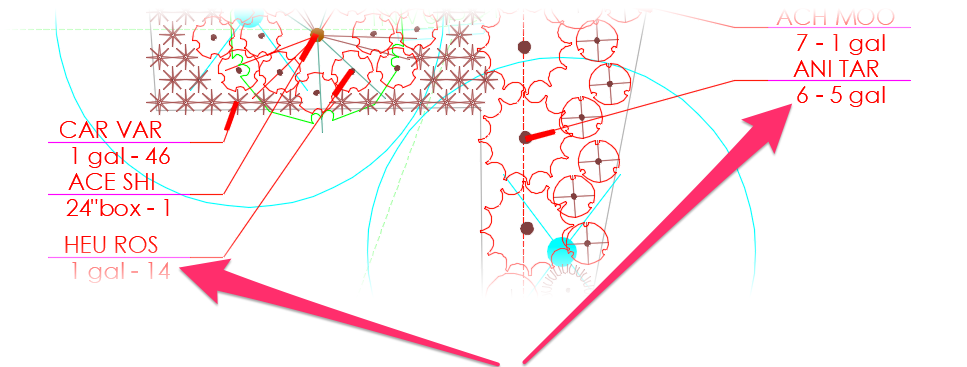
     

    Left and right versions of all labels in drawing change to newly selected label style


    3. Type PRG in the Command line and press Enter. This step will purge the unwanted label style from your drawing.


    4. Restart CAD.


    5. Open the Planting Preferences screen again, and select the plant label style you want to use. In our example, you'd select the style PLANT-LABEL11.
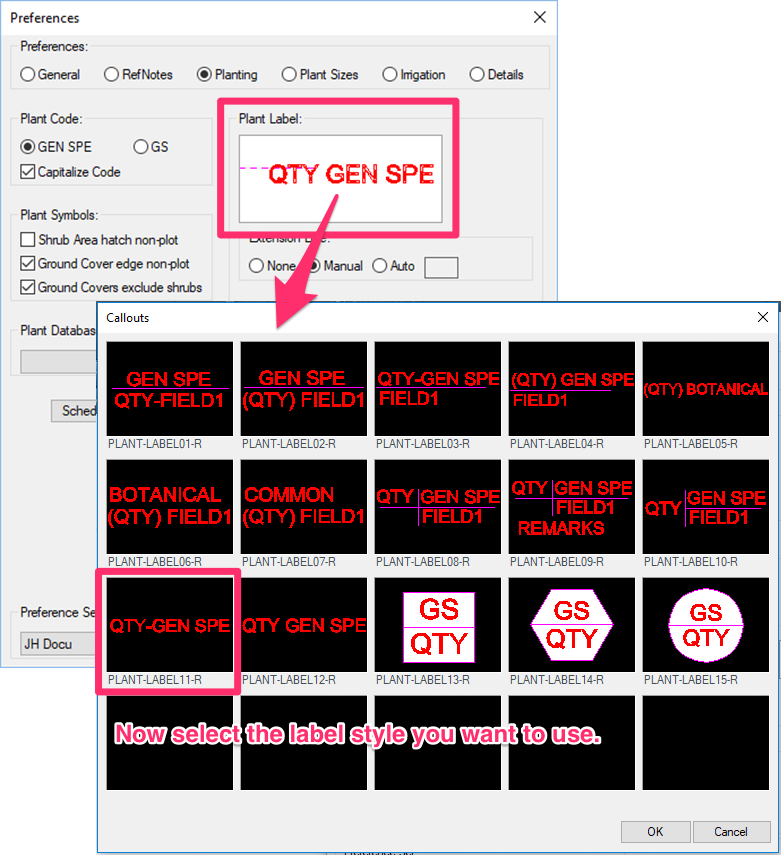


    Selecting the desired plant label style in the Planting Preferences screen


    Your labels should now all match, and future labels should come in correctly on both the right and left sides.
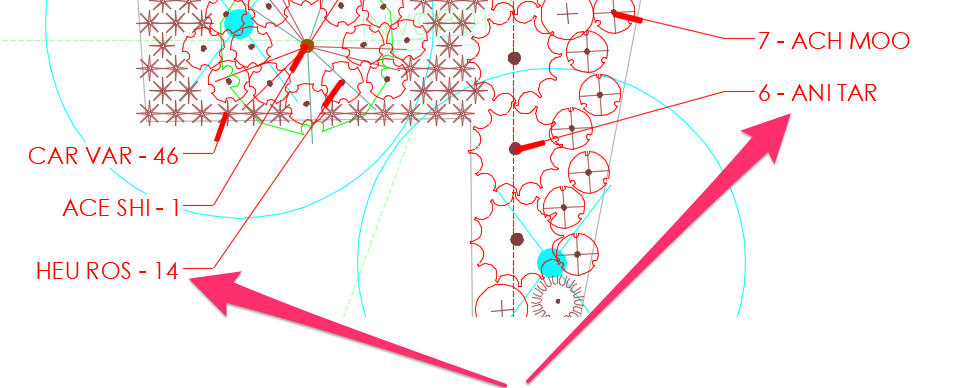
     

    Right and left versions of desired label style match in drawing


    Still having trouble with your plant labels after completing these steps? For example, are the callout boxes coming in empty? Right and left labels coming in at different sizes but in the same style? Are the attribute values incorrect? If so, follow our plant label troubleshooting steps.

    Contact

    • Land F/X
    • PMB 351 3940 Broad St. STE 7
      San Luis Obispo, CA 93401
    • +1 805-541-1003
    Email Logo Facebook Logo Instagram Logo LinkedIn Logo
    Land F/X Logo

    Our software tailors AutoCAD®, Revit®, SketchUp®, and Rhino® to the needs of landscape architects, irrigation designers, and other professionals. We automate your most tedious tasks and ensure accuracy, giving you more time to design.

    • Portal
    • Products
    • Support
    • Videos
    • Who We Are