

Creating an Existing Irrigation Symbol Family
Updated on: March 19, 2025
- Step 1: Download Symbols To Customize
- Step 2: Copy the Downloaded Symbols to a Symbol Editing Folder
- Step 3: Rename the Copied Symbol Files
- Step 4: Customize the Copied Symbols
- Related Webinars
When creating an irrigation plan for a site where existing equipment is already installed, you may want to create extra visual separation from the proposed irrigation on your plan – often achieved by making the existing equipment appear lighter on the plan, adding a "fade" to the symbols, or making the equipment more gray than black (see examples below).
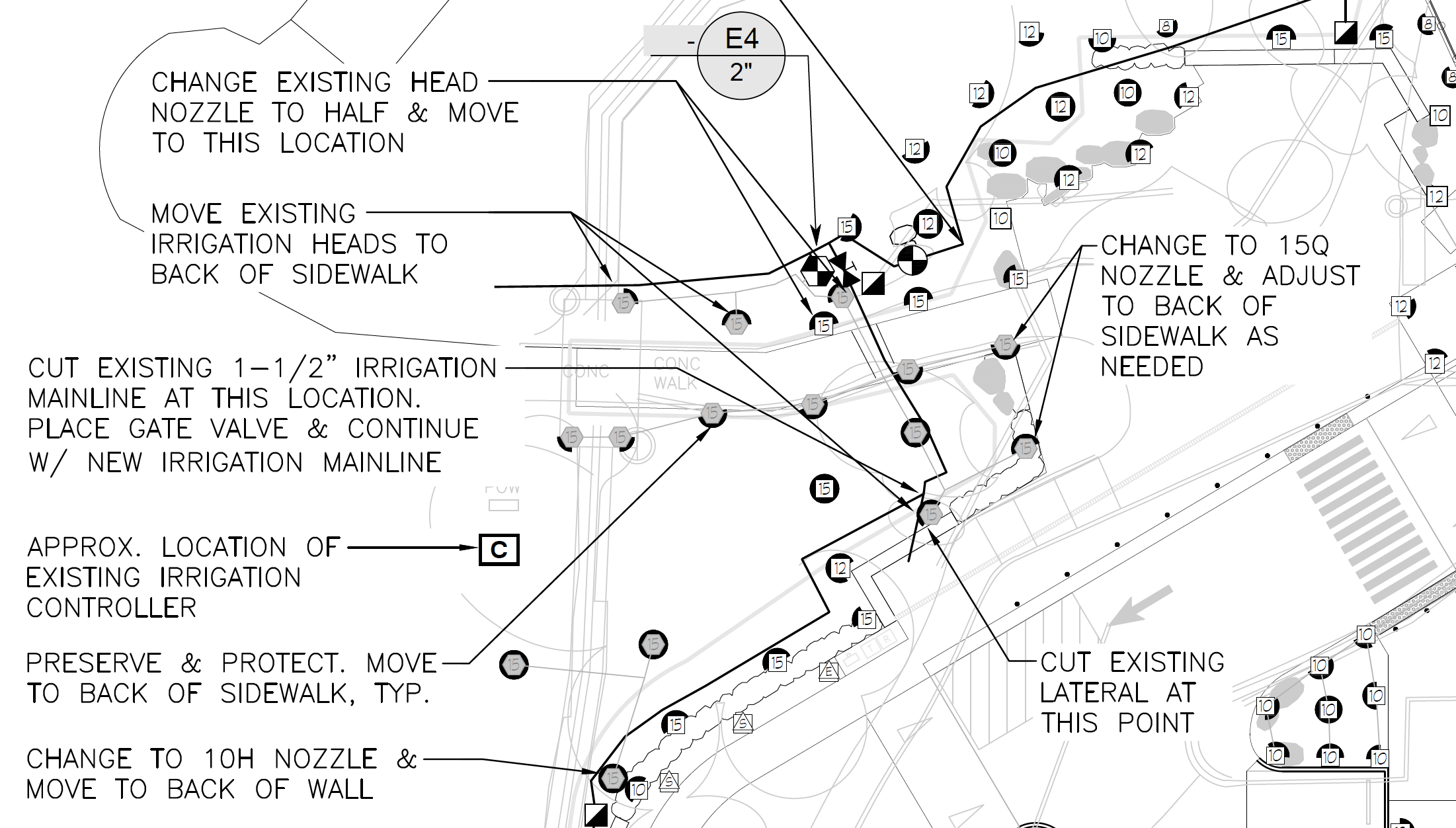
Example 1: Existing equipment appearing lighter than the rest of the equipment

Example 2: Existing equipment with built-in "fade"

Example 3: Existing equipment more gray than black
Close
If you work with existing irrigation regularly, creating a family of existing irrigation symbols will allow you to incorporate them on a long-term basis into your use and standards. The easiest approach will consist of editing our default symbols and saving them back into the system. We recommend using our Irrigation Symbols documentation to familiarize yourself with our irrigation symbol folders.
We'll use an Arc Rotates spray symbol family as our example to walk you through this process. You can also choose to apply similar process to the entire Land F/X irrigation symbol library. When customizing irrigation head symbols, you'll modify three sets of symbols:
- The preview slide images (SLD, or .sld, file types) for the equipment
- All corresponding schedule symbols
- The head symbols themselves
Step 1: Download Symbols To Customize
Prior to editing any symbols, create a folder in your documents or on your desktop where you'll copy our default symbols to edit them safely.
Next, choose which of our default symbols you'll edit to create your custom symbols. In this example, we'll edit the Spray Arc Rotates symbol family FAMILY-NA-2 to turn them into an existing irrigation symbol family we can use for turf and shrub spray equipment.

We need all possible symbols to download into our LandFX folder. An easy way to achieve this is to assign the symbols to equipment in a Land F/X project and run an Irrigation Schedule. To download the entirety of FAMILY-NA-2, we'll run four separate Irrigation Schedules with the following options selected:
- Entire Palette
- A second schedule with the Entire Palette option selected
- By Group selected in the Sprays/Rotaries/Bubblers section*
- By Nozzle selected in the Sprays/Rotaries/Bubblers section*
*Take care to deselect the Entire Palette option when running these last two schedules.

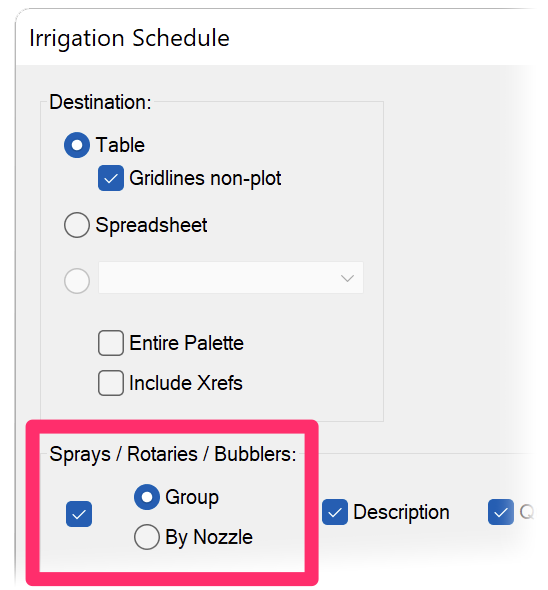

Running these four schedules will cause all necessary files to download to your LandFX folder.
Step 2: Copy the Downloaded Symbols to a Symbol Editing Folder
Now that we've downloaded all the necessary symbol files, we'll copy them to the symbol editing folder you created in your documents or on your desktop during Step 1.
For these spray symbols, we'll copy the SLD, XML, and DWG files listed below from the following folders to your symbol editing folder:
- LandFX\Blocks\graphics\irrigation\spray:
- All files that begin with LAFX-N2
- All SLD, XML, and DWG files whose names start with LAFX-FAMILY-NA-2 (the files for the symbol selection image)
- LandFX\Blocks\graphics\irrigation\schedule_symbols:
- All SLD, XML, and .DWG files whose names begin with LAFX-NA2S (the files for the schedule symbols)


Step 3: Rename the Copied Symbol Files
Open the folder where you copied all the symbol files, and rename all files to reflect the next available family or slot the equipment will take. In our example, we'll change the N2 in all file names to N9 because the new existing spray symbols will be the 9th set of symbols.
For example, the files LAFX-N2-02H.sld, LAFX-N2-02H.xml, and LAFX-N2-02H.dwg will be renamed to LAFX-N9-02H.sld, LAFX-N9-02H.xml, and LAFX-N9-02H.dwg.
Step 4: Customize the Copied Symbols
You can now begin customizing the copied symbol files to add your visual indicator. In this example, we'll add a solid hatch to the symbols that will act as our "fade."

First, we'll make a new layer in the file so we can control the fade independently. We recommend following our layer naming convention. In this example, we've created a layer named LK-IRRG-EQPM-FADE.
We've set the color to one of our screened index colors in the Land F/X CTB. The example index color will plot as a light gray.
Draft a polyline border of the shape of the symbol, place a solid hatch into the polyline, and ensure the linework is on the newly created fade layer. Repeat this process for all symbols in the existing irrigation family you're making.


You'll also need to reshoot any slides you'd like to update – a great job for our BatchMan tool if you'd like each slide remade.
At a minimum, we recommend at least reshooting the slide image for the symbol selection, with some indicator for the purpose of these symbols, such as a text label, as shown in the example shown below.

Once you've edited all files and are ready to check your work, you can copy the files back into the appropriate folder in the location LandFX\Blocks\graphics\irrigation.
Ensure that you copy the equipment symbols back into their correct folder (such as spray and the schedule symbols back into the schedule_symbols folder.
As the newly created symbols are placed in a drawing, the fade layer will also be brought in. Adjust the transparency on that layer to control how faded you want the symbols to appear.

Related Webinars
- Irrigation Customization: We cover the Irrigation Preferences, including what to consider as you’re setting up your office standards, and what will and won’t change on the fly when you modify these settings, as well as customizing irrigation symbols. (1 hr 2 min)
- Dotting Your Irrigation I's: Each client will have different styles and requirements, but the concept is the same: You should feel comfortable matching any client’s standards. We'll show you how. (1 hr 1 min)
- Customizing Irrigation – What You Should Know: Join us for a discussion on the "need-to-knows" of making the software work with your office standards. We'll show you the different ways you can customize, and you'll pick up some valuable tips for setting up the software to meet your office standards. (1 hr 1 min)
- Implementing Your Office CAD Standards: Find out how easily you can adapt your own office standards to Land F/X – and how effectively the software will then apply them to your projects. (1 hr 2 min)
- Working With Blocks: Take a broad look into the role of blocks within Land F/X and how to integrate your personal set of blocks into our system. (1 hour 4 min)