

Land F/X
  • Portal
  • Products
    • Detail F/X
      • Product
      • Features
      • Trial
      • Purchase
    • Planting F/X
      • Product
      • Features
      • Trial
      • Purchase
    • Irrigation F/X
      • Product
      • Features
      • Trial
      • Purchase
    • F/X CAD
    • Plugin for Revit®
    • Plugin for SketchUp®
    • Plugin for Rhino®
    • Site & Hardscape
    • Lighting
    • Manufacturer Connection
    • Academic
    • Purchase
  • Support
    • Knowledge Base
    • Documentation
    • Submit Ticket
    • Updates
    • Forum
    • Install
  • Videos
    • Power Tips
    • Webinars
    • Podcasts
  • Who We Are
    • Contact Us
    • Careers
    • Gallery
    • News
Land F/X
  • Portal
  • Products
    • Detail F/X
      • Product
      • Features
      • Trial
      • Purchase
    • Planting F/X
      • Product
      • Features
      • Trial
      • Purchase
    • Irrigation F/X
      • Product
      • Features
      • Trial
      • Purchase
    • F/X CAD
    • Plugin for Revit®
    • Plugin for SketchUp®
    • Plugin for Rhino®
    • Site & Hardscape
    • Lighting
    • Manufacturer Connection
    • Academic
    • Purchase
  • Support
    • Knowledge Base
    • Documentation
    • Submit Ticket
    • Updates
    • Forum
    • Install
  • Videos
    • Power Tips
    • Webinars
    • Podcasts
  • Who We Are
    • Contact Us
    • Careers
    • Gallery
    • News
  1. Home
  2. Documentation
  3. Site & Hardscape Design Overview
  4. Customize Site & Hardscape
  5. Customize Blocks & Callouts
  6. Customizing the Leader with Text Arrow Styles

[]
https://www.landfx.com/images/docs/site/customize/blocks/6836/text-arrows.png

Customizing the Leader with Text Arrow Styles

Updated on: December 14, 2023

Do you want to use a customized arrow style when using our Leader with Text leader style? If so, we offer four leader style options that hold a custom user block, which you can adjust and use as your own. Use the following steps to make the proper changes.


The block files you have at your disposal are:

  • LAFX-TEXT-FRAME and LAFX-TEXT-FRAME-MASK
  • LAFX-TEXT-TICK and LAFX-TEXT-TICK-MASK
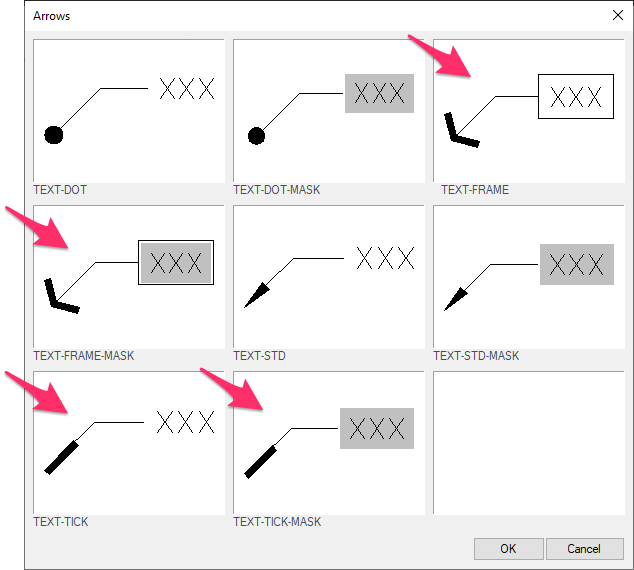
Available text leader arrows


Available text leader arrows to customize, as shown in the Arrows dialog box


LandFX\Blocks\graphics\arrows folder location

Navigate to the location \LandFX\Blocks\graphics\arrows, and look for the files whose names start with LAFX-TEXT, as those are the files that will be used for shooting the preview slide of the MLeader you modify.


Open the file that closest fits to your standard. Make a copy of the existing MLeader in that file, then explode the copy.


Type PROP in the Command line and press Enter to open the Properties panel. Select the arrow head block, then take note of its Name entry.


Exploding an MLeader and checking its arrow head block name in the Properties panel


Open the location LandFX\Blocks\graphics\arrows, and open the file with the same name as the arrow head block name you noted in the previous step (example: LAFX-PLINE.dwg)

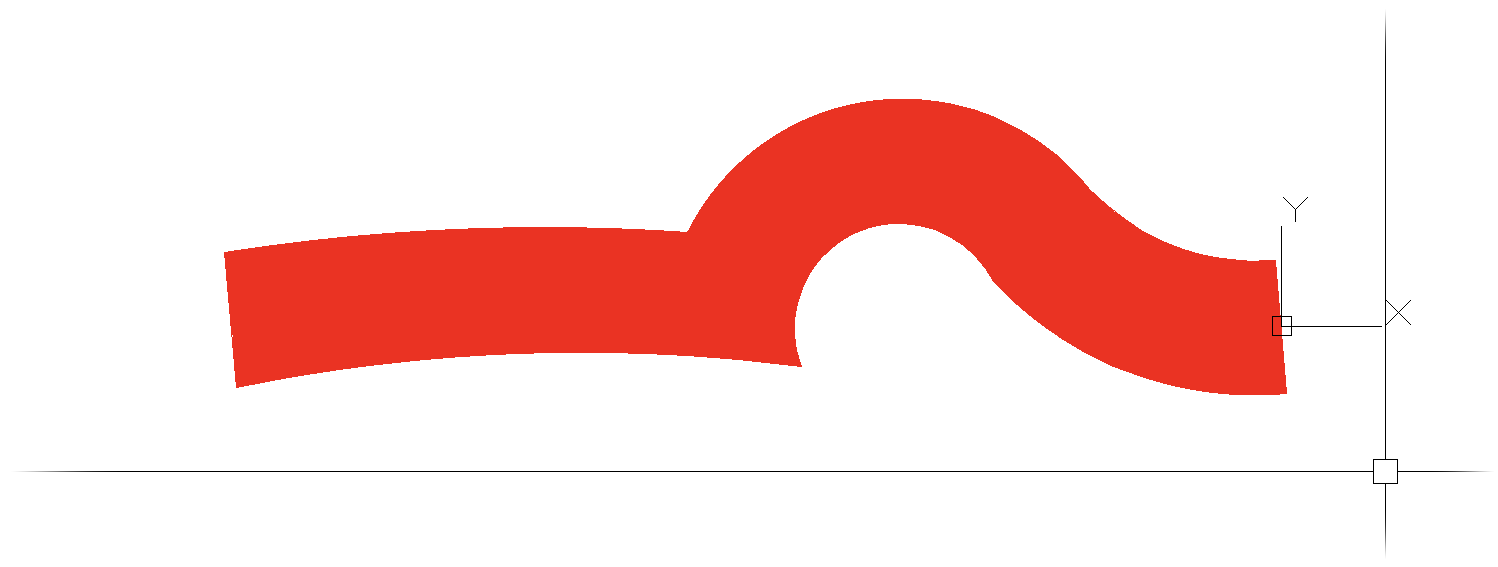
Opening an arrow head source block file in the folder location LandFX\Blocks\graphics\arrows


Modifying an arrow head block file

Make the modifications you want in the arrow head block file you just opened, and remove all existing content.

Notes for editing the source file:

  • Try to maintain a relatively close size to that of the existing content.
  • Make sure the right side of the arrow is at the proper insertion point of 0,0. This will be the point that is fixed when placing the MLeader.


Back in the MLeader file, use our Redefine Block tool, then click on the arrow head of the exploded MLeader to redefine the block to your customized style.


Redefining the arrow head block to the customized style


Type REGENALL in the Command line and press Enter. The MLeader style will update to show the new arrow head.
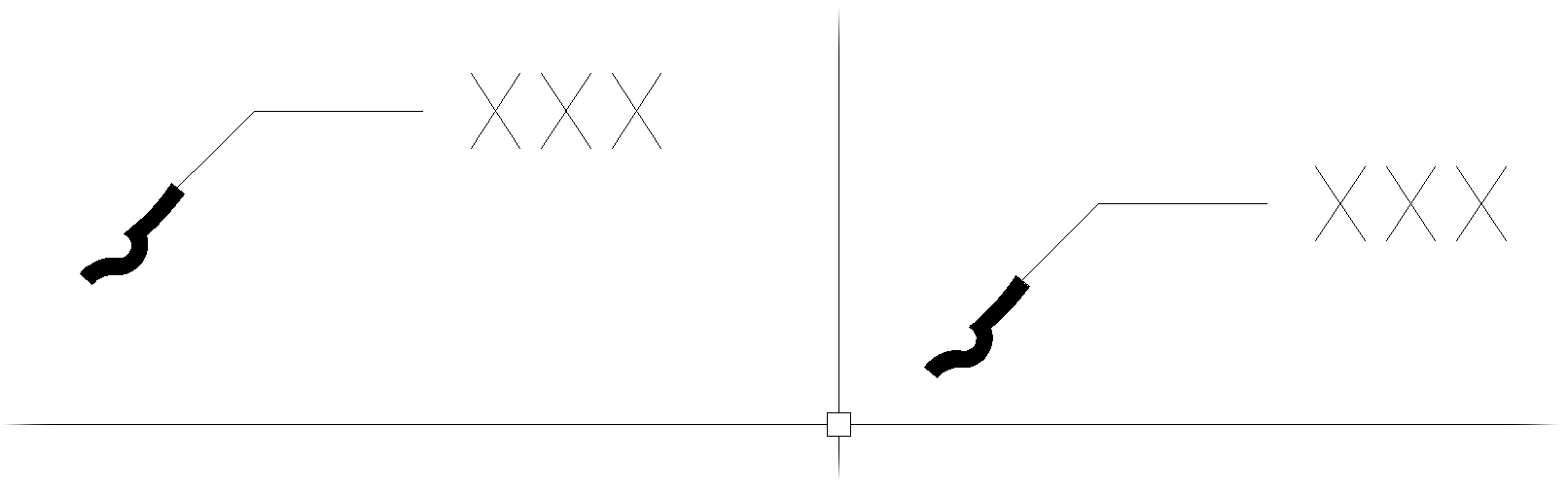
 

Arrow head style regenerates to reflect th custom style after running the REGENALL command

You can go back and forth, making changes as needed until you get the look you're after.


After verifying that the arrow head looks the way you want it to, follow our steps to shoot a new preview slide for it.


Finally, in a blank file, open our Leader with Text tool.


Look for your customized arrow style in the Arrows dialog box, and place it in your plan to test its functionality.

If you need to make any additional edits, you'll need to make those edits in the arrow block file and then update the MLeader preview file to shoot the new slide.
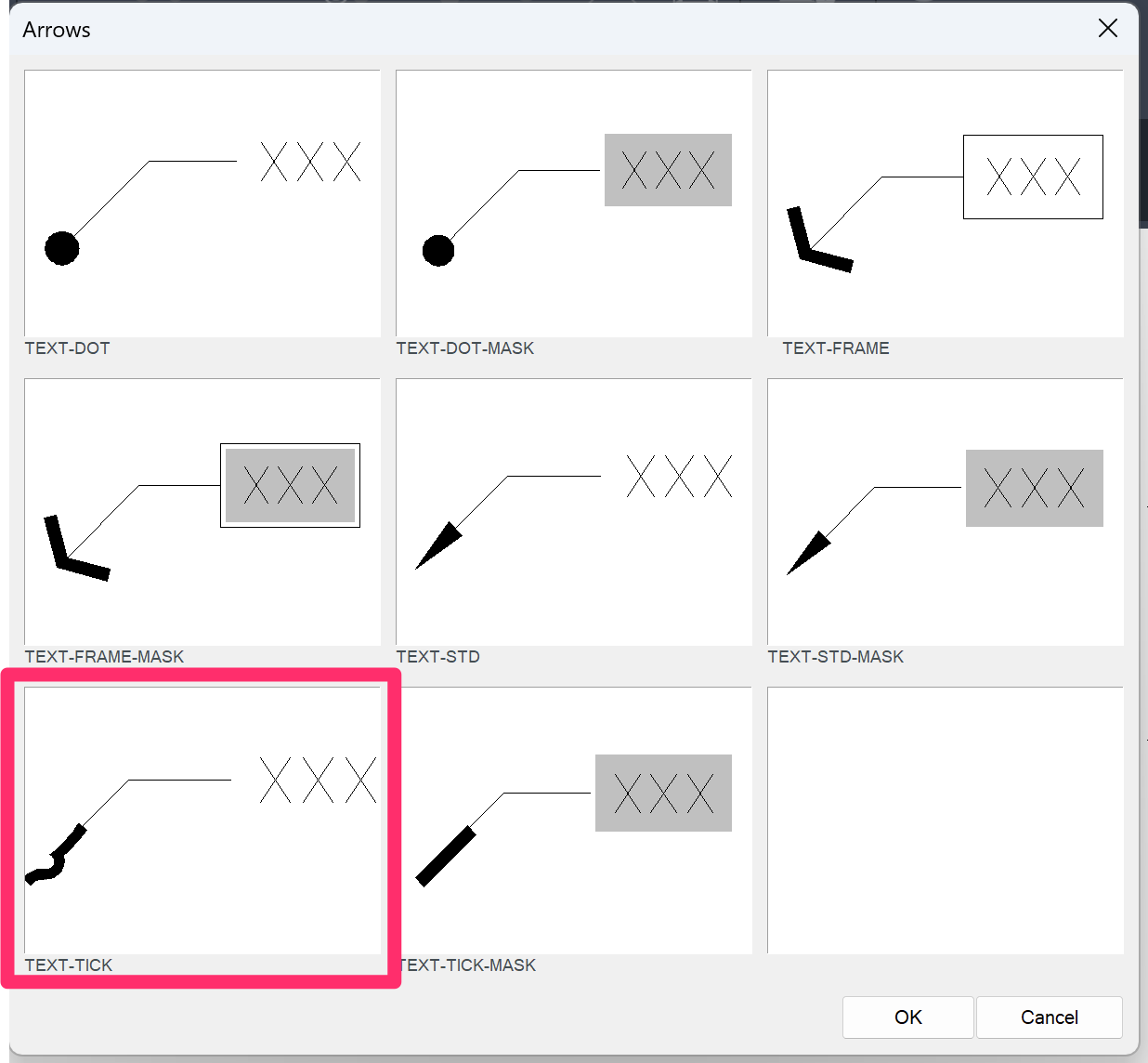
Customized arrow style shown in the Arrows dialog box

Contact

  • Land F/X
  • PMB 351 3940 Broad St. STE 7
    San Luis Obispo, CA 93401
  • +1 805-541-1003
Email Logo Facebook Logo Instagram Logo LinkedIn Logo
Land F/X Logo

Our software tailors AutoCAD®, Revit®, SketchUp®, and Rhino® to the needs of landscape architects, irrigation designers, and other professionals. We automate your most tedious tasks and ensure accuracy, giving you more time to design.

  • Portal
  • Products
  • Support
  • Videos
  • Who We Are