

Settings Tool (Including How to Update): Planting F/X for SketchUp Plugin
Quick video

- Settings Tool Overview
- Support ID
- Land F/X Account
- SketchUp Library Location
- Updating the Planting F/X for SketchUp Plugin
- Troubleshooting
- Related Videos
The Settings tool allows you to update our Planting F/X for SketchUp Plugin and change the location of your SketchUp library folder.
Settings Tool Overview
Open the Settings tool:

LandFX toolbar, Settings button
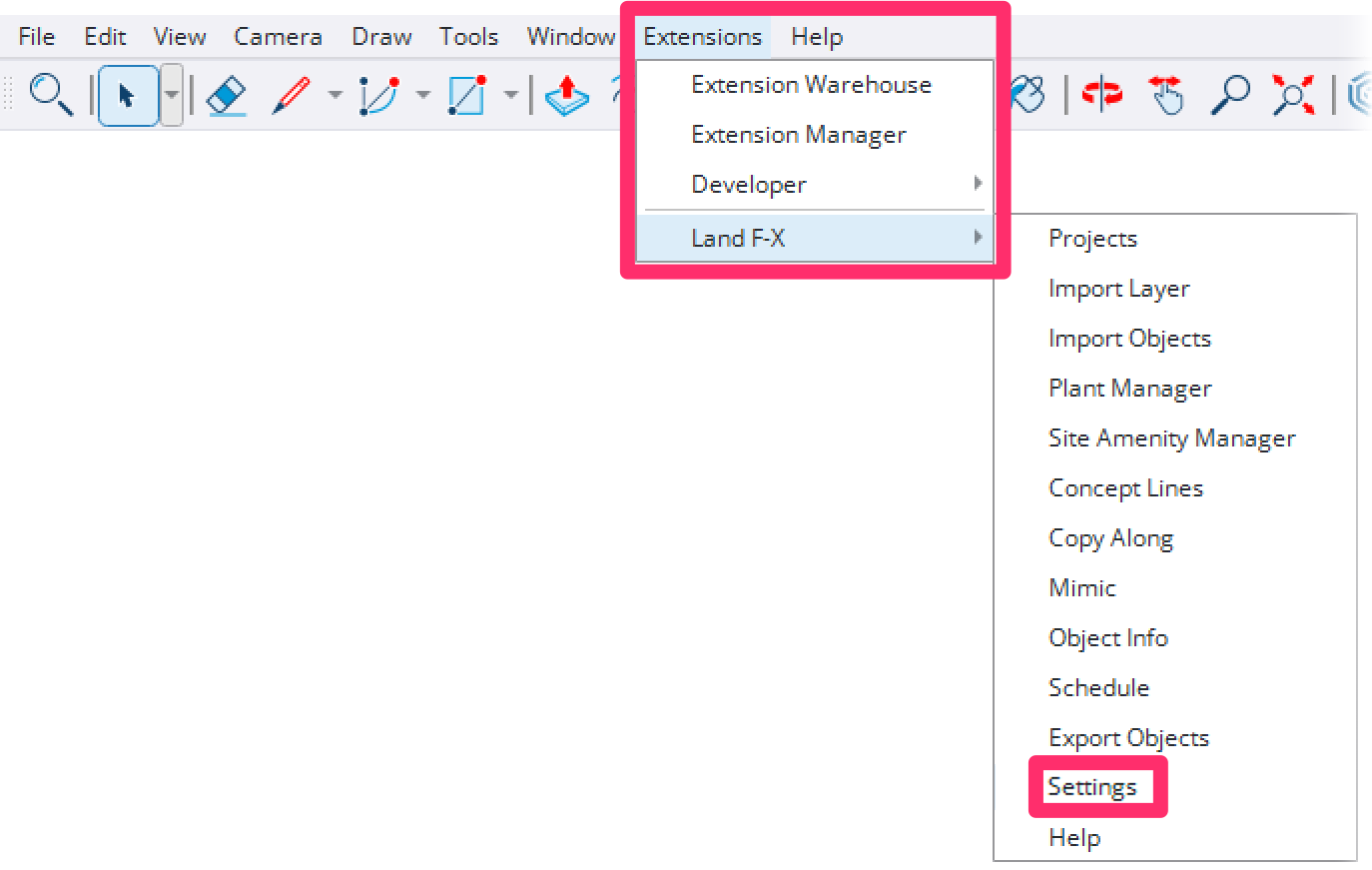
Land-FX menu, Settings option
The Land F/X Settings dialog box will open.
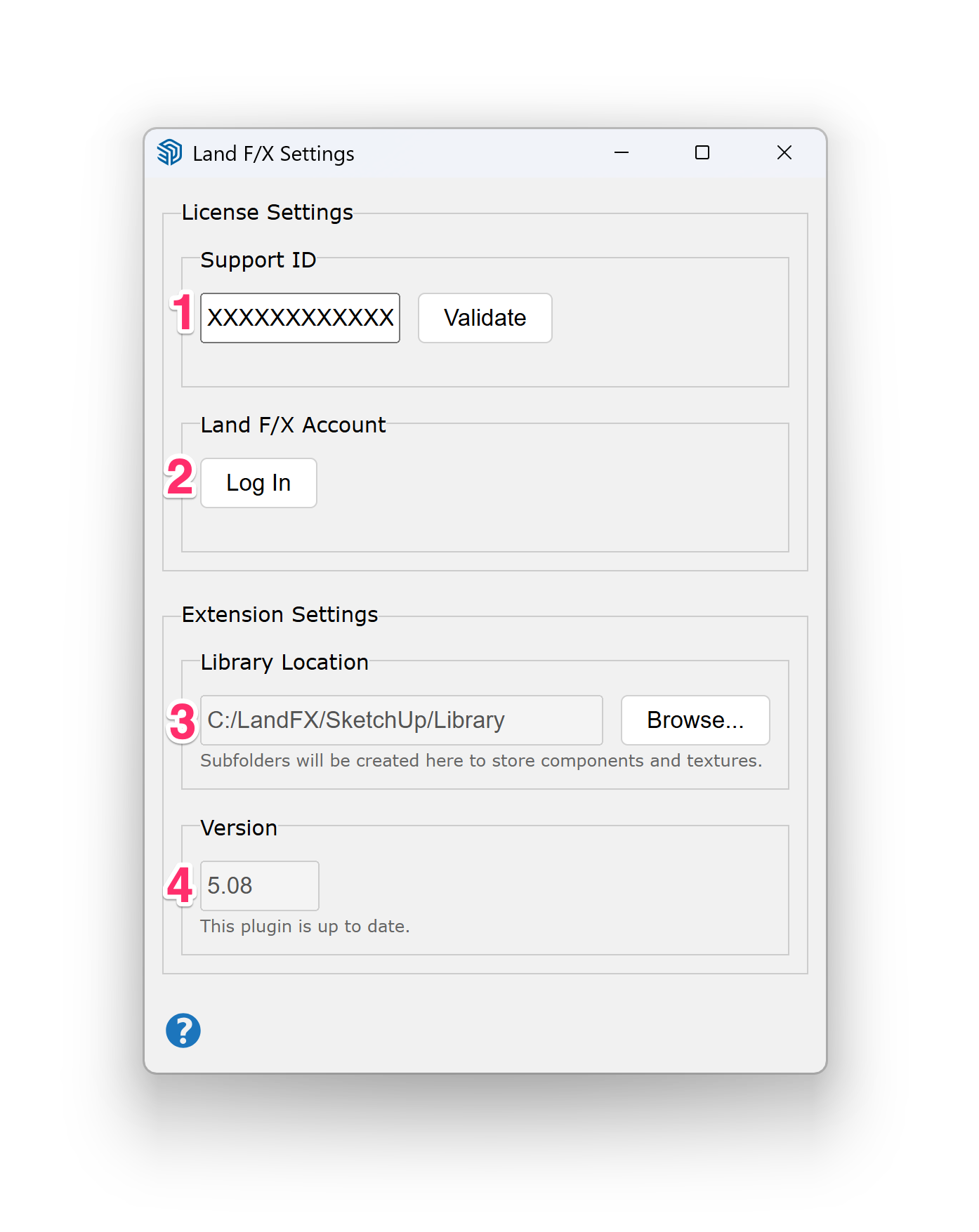
1. Support ID: This field displays your Land F/X Support ID. See Support ID below for information and instructions.
2. Click Log In to log in to your Land F/X account. More information
3. Library Location: Any components and materials from our database that appear in your SketchUp models will be stored in a library folder. The Planting F/X for SketchUp Plugin requires you to designate a location for this folder.
For your SketchUp library to function properly with the software, you'll need to follow some specific parameters in setting it. See SketchUp Library Location below for more information.
4. Version: This field displays the version of our Planting F/X for SketchUp Plugin you're currently running. If you're running the current version, you'll see the message The plugin is up to date below this field. How to update your Planting F/X Plugin version
Support ID
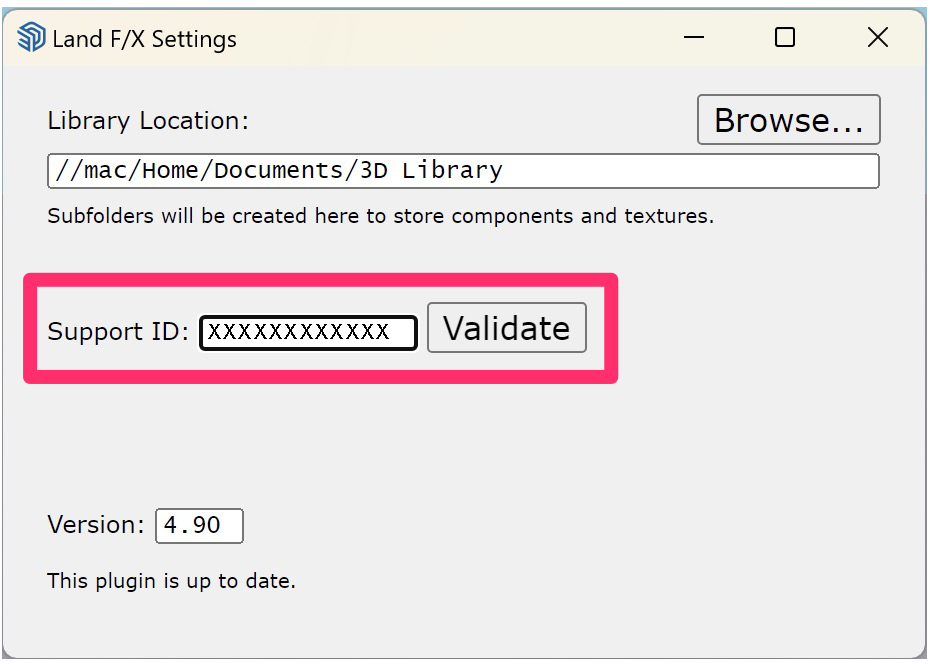
Your Support ID is a unique identifier tied to your Land F/X account that allows you to use your Land F/X software license(s). If you’ve just installed the Land F/X SketchUp extension, enter your Support ID in the specified field. Then click Validate.
Did the validation dialog box pop up blank when you clicked Validate, and you're unable to validate your Support ID? If so, here's what to do.
Don't know your Support ID?
To find your Support ID, you can log in to the Land F/X Portal and navigate to the Account section from the menu on the left side of your screen.
Don’t have a Land F/X account and need to get a Support ID? Register for a trial.
Still having trouble finding your Support ID? use this link to request that we email your Support ID to you.
Important: Unless you're initially setting up your Support ID upon installing the plugin, don't change the text in this field unless required by your network administrator.
Land F/X Account
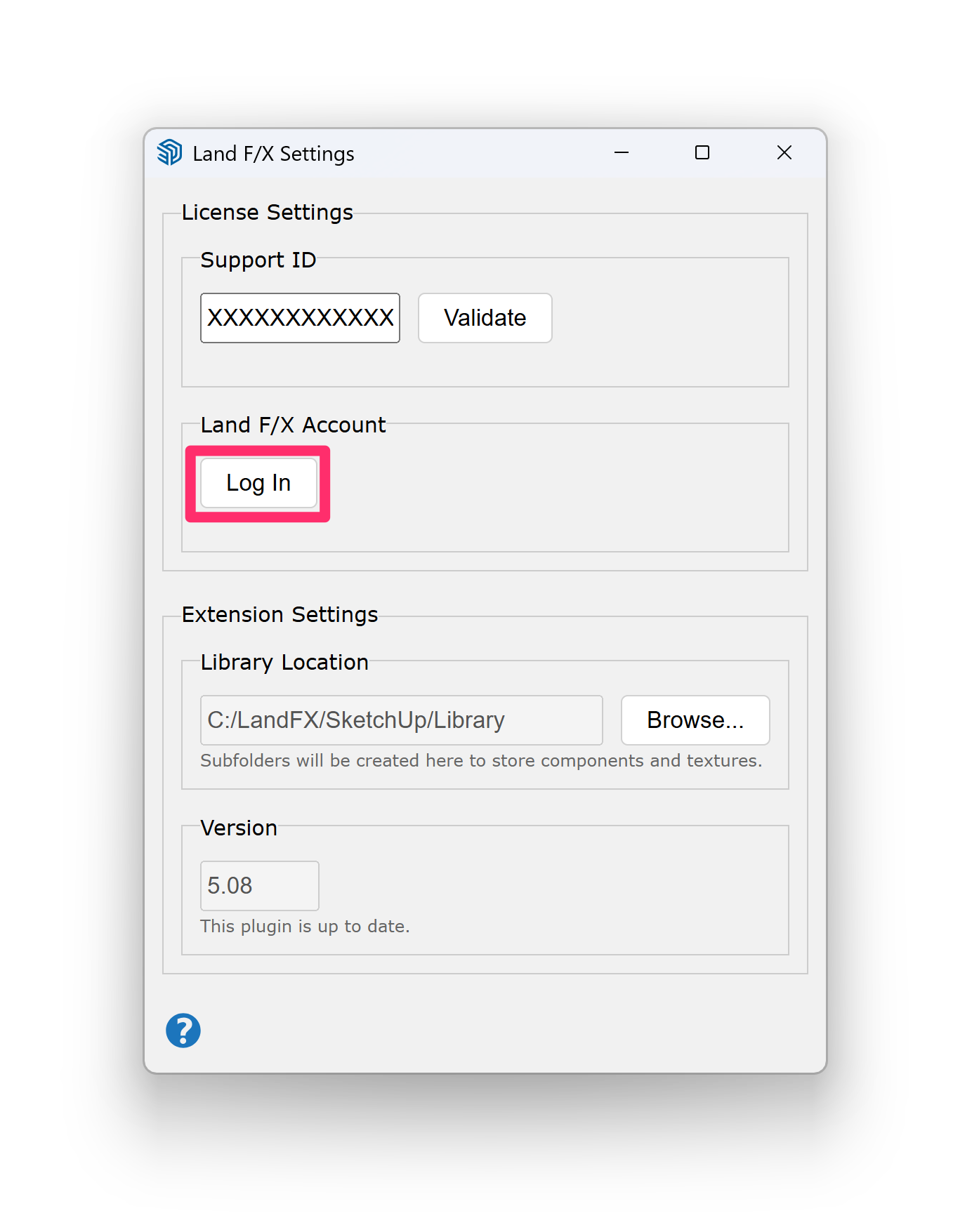
After validating your Support ID, you can log in to your Land F/X account by clicking Log In.
You must log in to use some functionality of the plugin, such as editing public plant data tags.
Academic users
If you're on an academic license, you'll need to log in before you can use any functionality of the plugin.
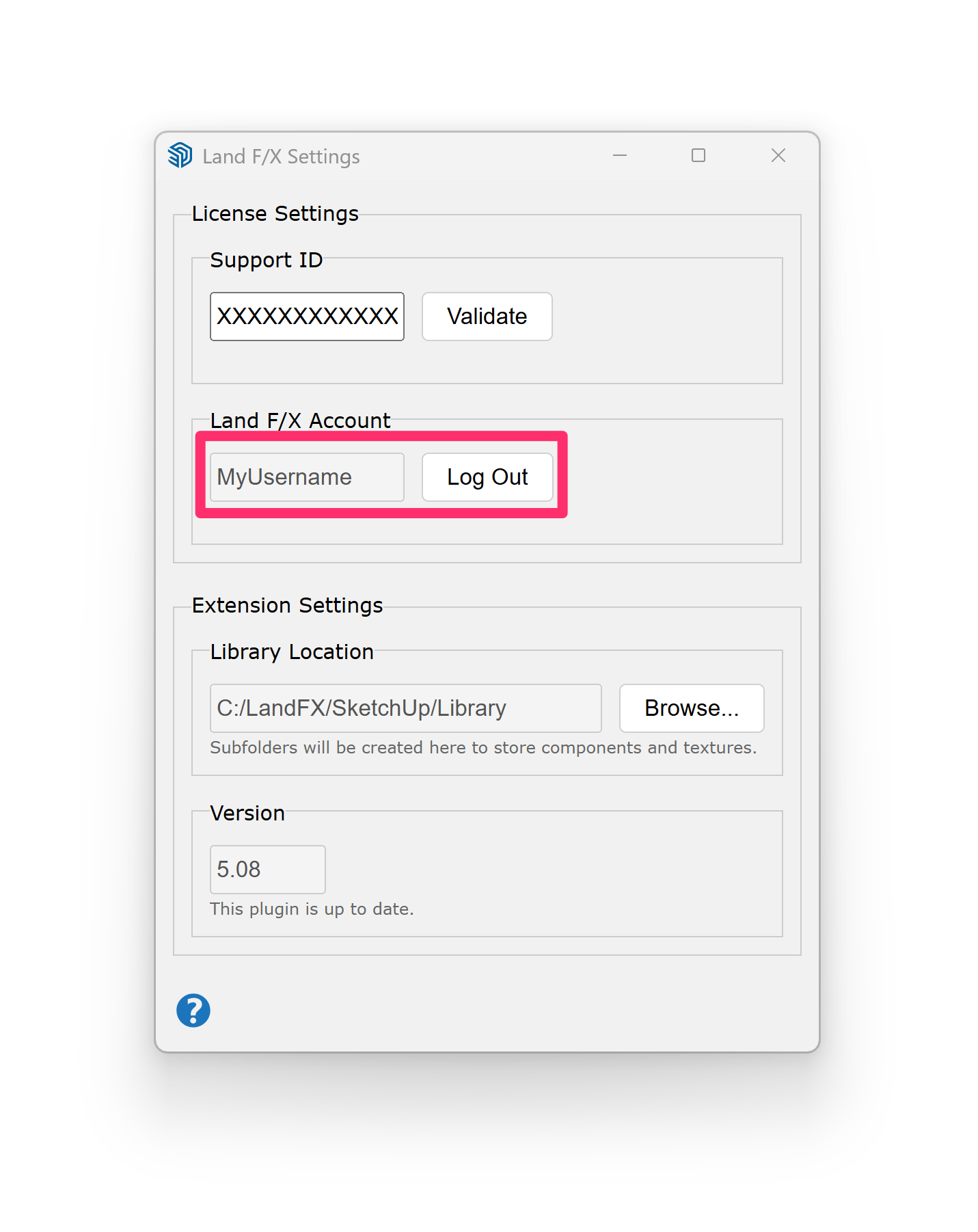
Once you've logged in, the Log In button is replaced by a text box showing your username, as well as a Log Out button. You can click this button if you need to log out of your account.
SketchUp Library Location
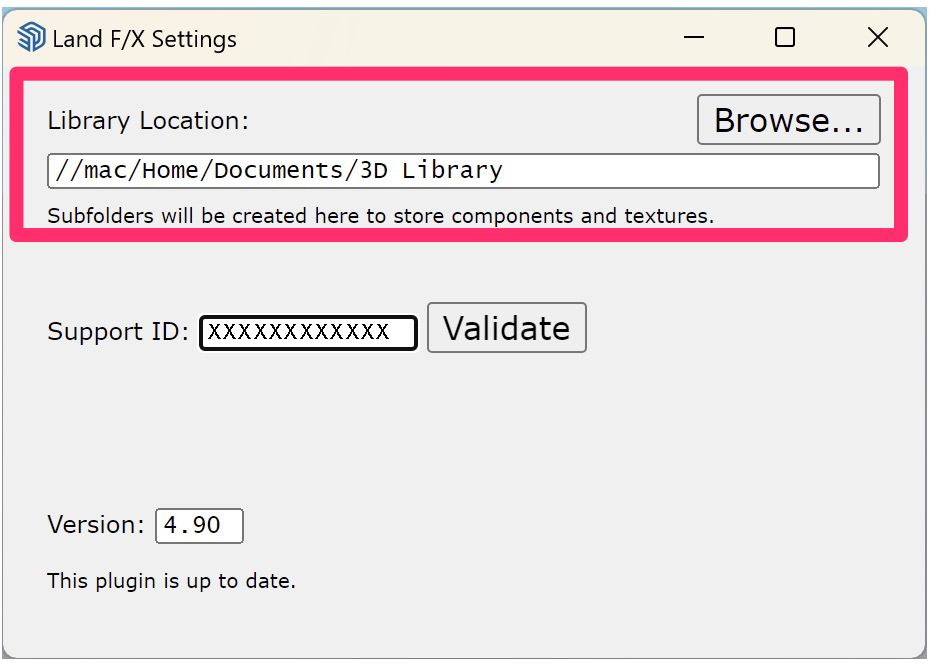
Your SketchUp library is the folder that contains components and materials from our database that appear in your SketchUp models. You'll be required to designate this folder when you download our Planting F/X for SketchUp Plugin. The Library Location field shows the current location of this folder.
If you want, you can change the folder location by selecting a new folder. Click Browse..., navigate to folder you want to set as your library folder, then click Save.
You can set an existing folder on your hard drive, or on your firm's network, as your library folder. You can also create a new folder for this purpose.
A correct library path should:
Have read/write permissions, and
Not contain any files that are unrelated to the Land F/X SketchUp extension
Updating the Planting F/X for SketchUp Plugin
The Version field displays the version of our Planting F/X for SketchUp Plugin you're running. If you're running the current version, you'll see the message The plugin is up to date below this field.
Looking for your current version of one of our other plugins? See our documentation on:
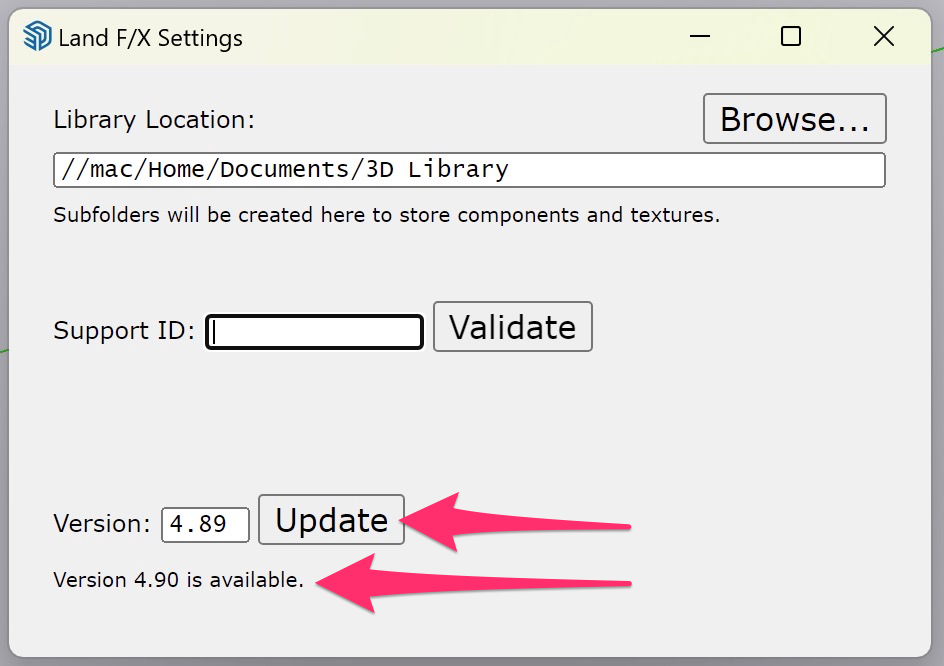
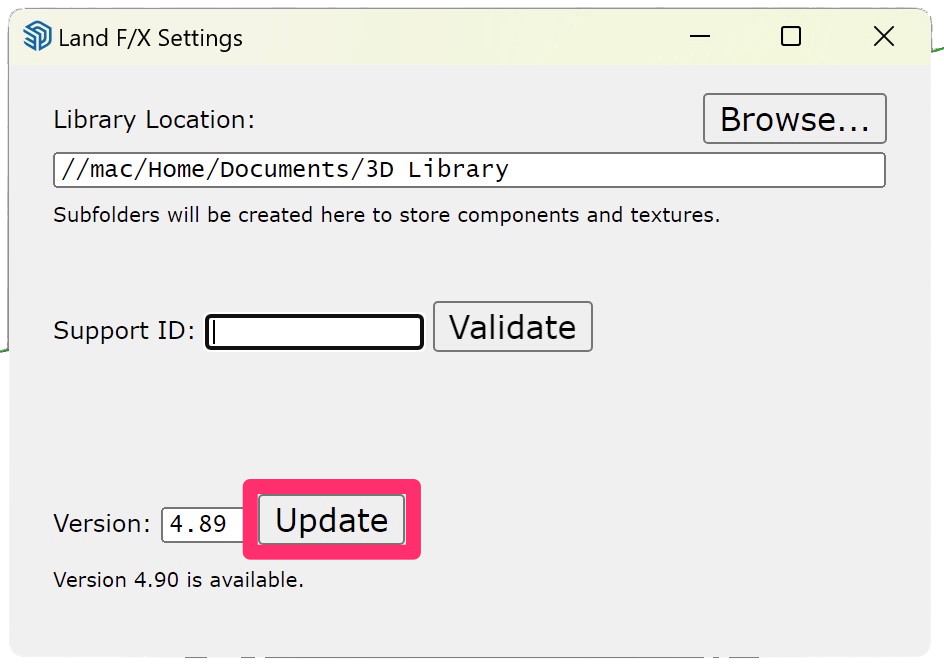
If your version of the plugin is not up to date, you'll see an Update button next to the current version number, along with a message showing which version is available.
Click Update to update your plugin.
This method for updating our plugin for SketchUp is only available in versions 4.89 or later. If you see an earlier version displayed in the Version field, follow our steps to install the Planting F/X for SketchUp Plugin instead.
If you choose not to update, you'll see a message that A new version of the Land F/X extension is available the next time you open SketchUp.
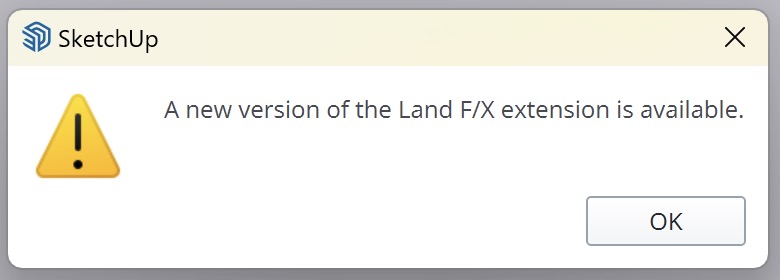
Message that a new version is available (Windows)
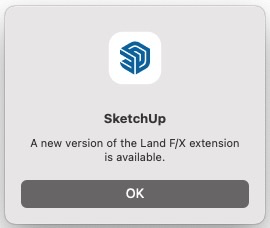
Message that a new version is available (Mac)
To update your version of the plugin, open the Settings tool and click Update.
You'll see a message asking you to verify that you trust the author of the extension. To continue with the update, click Yes.

Do you want to install this Extension? message (Windows)

Do you want to continue? message (Mac)
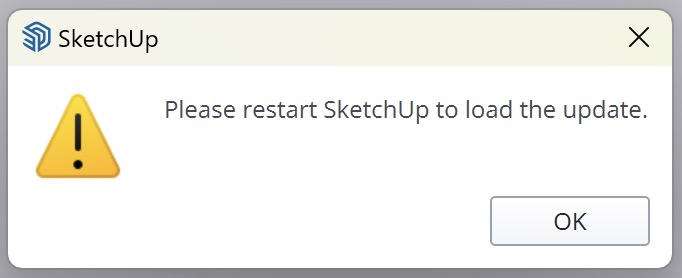
If you're running the Windows version of SketchUp, you'll see a message to Please restart SketchUp to load the update.
The update will take effect the next time you restart SketchUp.
Mac users:
You will not see this message to restart your computer if you're running the Mac version of SketchUp. While your plugin may work without restarting, we still recommend that you restart your Mac version of SketchUp to allow the update to take effect.
Related Videos
Troubleshooting
SketchUp: Basic troubleshooting (adding, placing, importing plants)
Issue: Our Planting F/X Plugin for SketchUp freezes or becomes unresponsive
Issue: Clicking one of the Land F/X tool buttons in SketchUp does nothing
Contact
- Land F/X



Our software tailors AutoCAD®, Revit®, SketchUp®, and Rhino® to the needs of landscape architects, irrigation designers, and other professionals. We automate your most tedious tasks and ensure accuracy, giving you more time to design.