

Mac With Parallels: Automatically Back Up Land F/X Using Time Machine
Updated on: May 17, 2022
Issue
You are using Parallels with Windows 10, you want to put your LandFX folder on the Mac side to allow Time Machine to back up your Land F/X data automatically.
We always recommend backing up the LandFX folder regularly. If you're using Parallels, you'll notice that Time Machine doesn't back up any files located on your Windows system. By completing the steps on this page, you can ensure that Time Machine is backing everything up successfully.
Solution
The following steps require you to convert your installation to use our Cloud Data option. If you have a slow Internet connection, the Cloud Data option is not recommended.
Step 1: Move Your Land F/X Database to the Cloud
Follow our steps to migrate your Land F/X database to the cloud.
Take care to follow each step exactly as described.
Step 2: Copy Your LandFX Folder from Windows to Mac

Copy your LandFX folder from Windows to an appropriate location on the Mac side.
We recommend putting your LandFX folder in your Documents folder or another easily accessible location.
Step 3: Update the Support File Search Paths
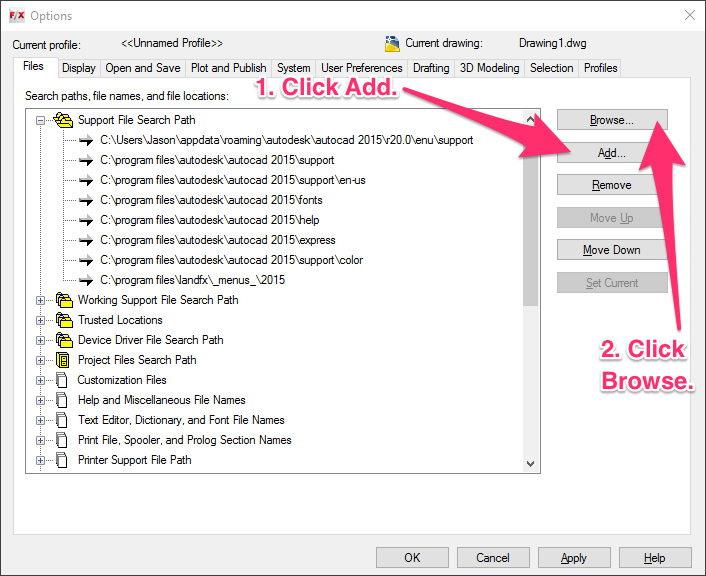
1. Type Op in the Command line and press Enter.
2. Select the Files tab.
Expand the Support File Search Path by clicking the plus sign to the left.


3. Remove each entry in the Support File Search Path that begins with C:/landfx.
To remove an entry, click it to highlight it and then click Remove.
Do not remove any other entries from the list – just those beginning with C:/landfx.
4. After removing all items beginning with C:/landfx from the Support File Search Path, click Add, then click Browse.

5. Expand the This PC location (Windows 10) or the Computer location (Windows 7).
Browse to the LandFX folder on the Mac side. In most cases, Parallels will assign the letter Z to the drive associated with files and folders on the Mac side of your computer. In our example, the path to the LandFX folder is This PC\Home on 'Mac' (Z:)\Documents\Landfx.
Select the LandFX folder and click OK.
Don't see the letter drive? Here's how to find it >
6. The Support File Search Path should now include an entry for the LandFX folder on the letter drive you just browsed to (example: Z: Documents\LandFX).
Click Apply to save the change.

Locate the Correct Letter Drive
Can't find the letter drive assigned to the LandFX folder's new location? To determine the drive letter, open the File Explorer in Windows and click This PC (Windows 10) or Computer (Windows 7). Expand the Network Locations. You should see the drive letter listed here. Parallels commonly assigns the letter Z to this location, as in the example below. Your drive may have a different letter.

Step 4: Unload and Reload the Land F/X Menus
Once you've added the LandFX folder's new location to the Support File Search Path, you'll need to tell the software to look in that location.
Type MENULOAD in the Command line, and press Enter. Then follow our steps to unload and reload the Land F/X menus.
Your LandFX folder will now be properly configured for its content to be backed up automatically by Time Machine.