

Export Land F/X Information to CSV/GIS
Updated on: February 10, 2023
Issue
You need to export the Land F/X data from your drawing to a CSV or GIS file.
This process can be helpful to export design or layout information to ArchGIS or similar programs that can import CSV files.
Need to import a CSV file and assign specified blocks to given data points in a CAD drawing? Use our Import CSV tool.
Solution
Step 1: Prepare the file
1A. On a computer with Land F/X installed, open the DWG file with the data you want to export to CSV/GIS.
1B. Run a Save As to a temporary file.
1C. Type DATAEXTRACTION in the Command line and press Enter to open the Data Extraction Wizard.
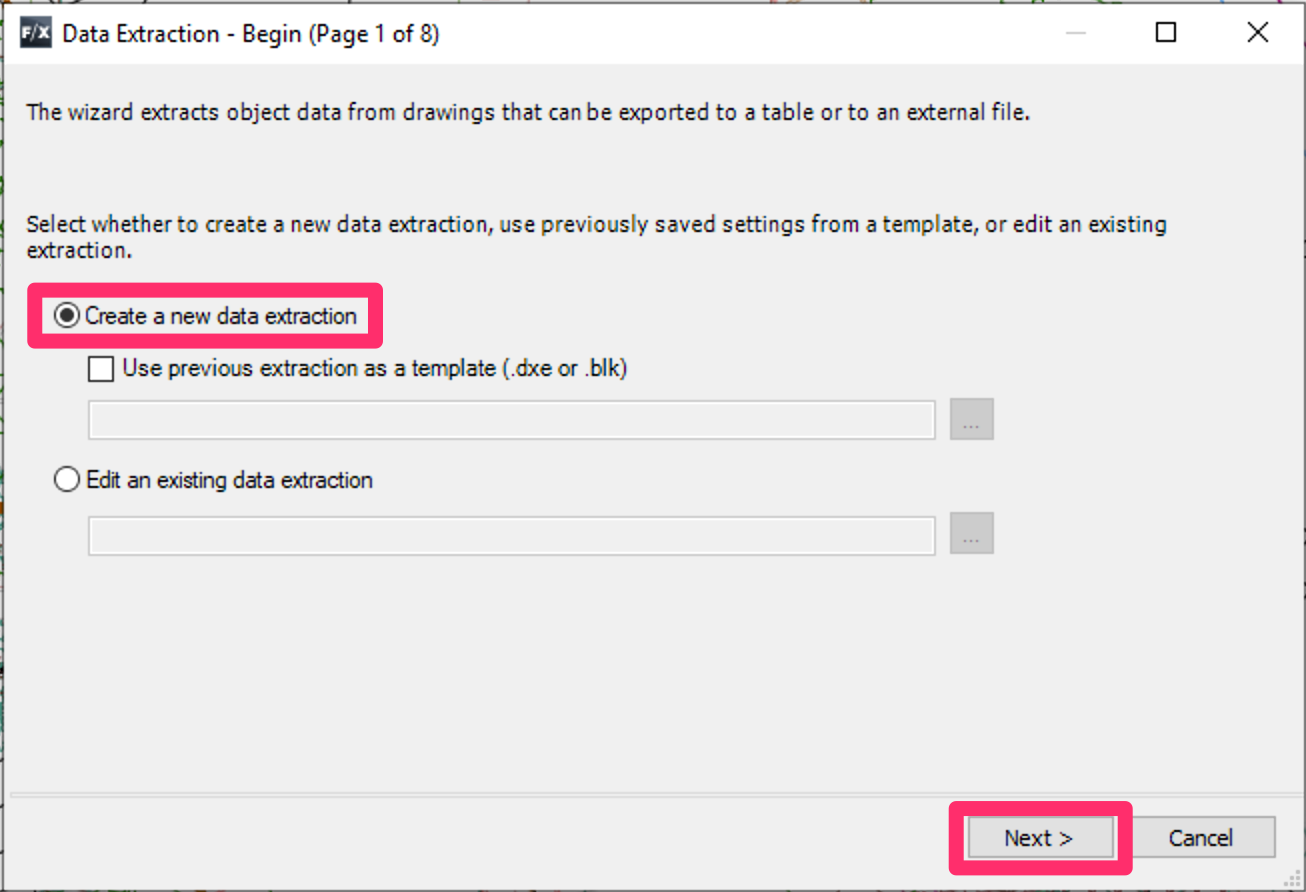
1D. Data Extraction – Begin:
Select the option to Create a new data extraction, then click Next.

1E. Save Data Extraction As:
Save the DXE file, ideally in same folder as the current DWG for easy future access.
1F. Data Extraction – Define Data Source:
Select the Drawings/Sheet set option, and check the option to Include current drawing.
Click Next.


1G. Data Extraction – Select Properties:
Select the options for all needed information. For Land F/X blocks and lines, select the Layer, Position X, Position Y, Rotation, Scale X, and Scale Y) options.
You can uncheck several items at once by selecting the first, holding the SHIFT key while selecting the last, and then unchecking the box.
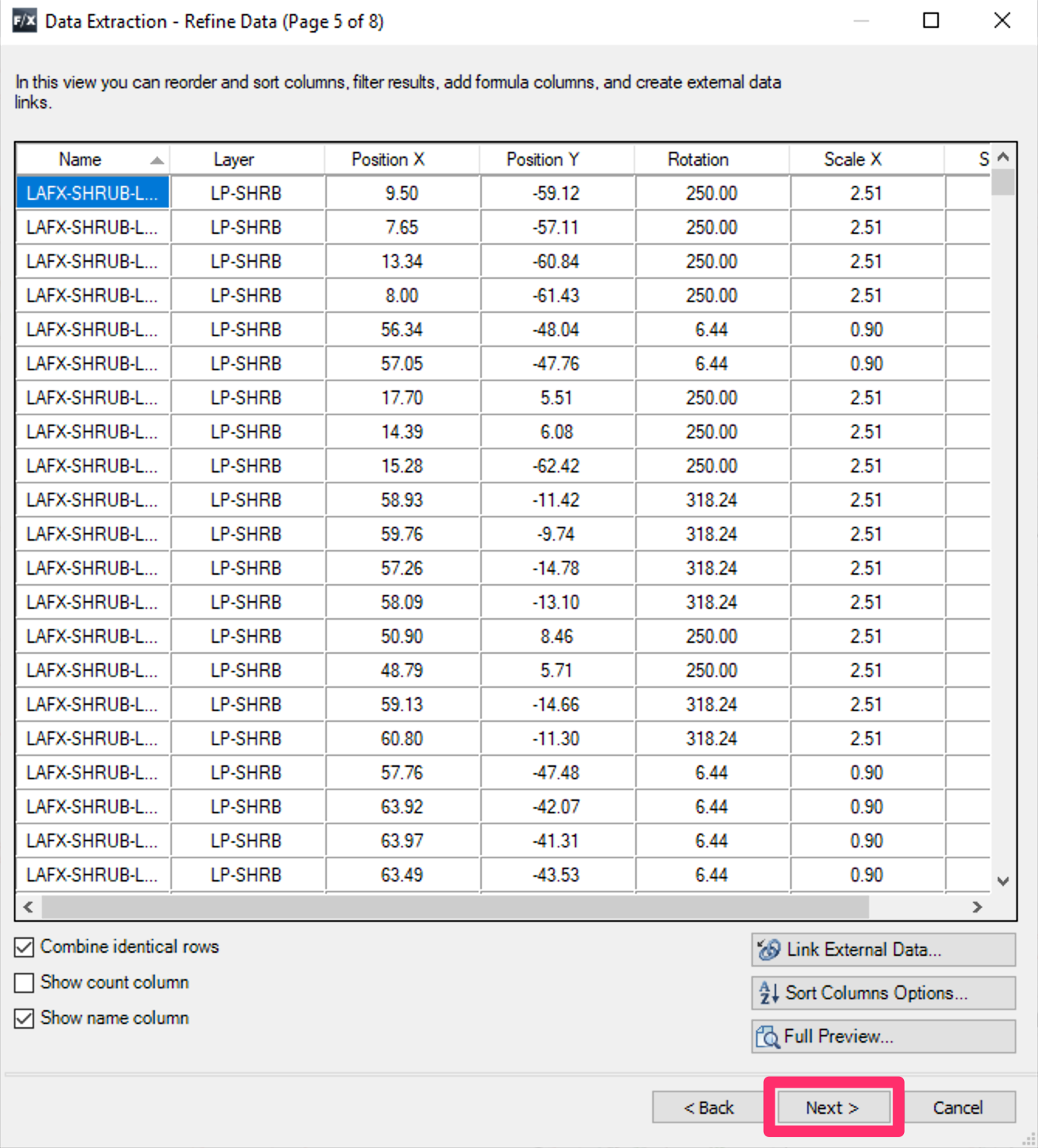
1H. Data Extraction – Refine Data:
Need to organize the information in a certain order? You can reorder and rename the information columns here.
Click a column to sort by that column. Drag and drop to reorder.
Click Next when finished.

1i. Data Extraction – Choose Output:
Select the option to Output data to external file. Exclude the count but include the name.
Click Next.
Step 2: Export other items
Export other Land F/X schedules to a spreadsheet in a program such as MS Excel, then copy the data from the spreadsheet into the CSV as needed for the application.
Include the symbol in a Plant Schedule to include the block name in the spreadsheet file, which will allow for easy coordination with your data extraction file.