

Land F/X
  • Portal
  • Products
    • Detail F/X
      • Product
      • Features
      • Trial
      • Purchase
    • Planting F/X
      • Product
      • Features
      • Trial
      • Purchase
    • Irrigation F/X
      • Product
      • Features
      • Trial
      • Purchase
    • F/X CAD
    • Plugin for Revit®
    • Plugin for SketchUp®
    • Plugin for Rhino®
    • Site & Hardscape
    • Lighting
    • Manufacturer Connection
    • Academic
    • Purchase
  • Support
    • Knowledge Base
    • Documentation
    • Submit Ticket
    • Updates
    • Forum
    • Install
  • Videos
    • Power Tips
    • Webinars
    • Podcasts
  • Who We Are
    • Contact Us
    • Careers
    • Gallery
    • News
Land F/X
  • Portal
  • Products
    • Detail F/X
      • Product
      • Features
      • Trial
      • Purchase
    • Planting F/X
      • Product
      • Features
      • Trial
      • Purchase
    • Irrigation F/X
      • Product
      • Features
      • Trial
      • Purchase
    • F/X CAD
    • Plugin for Revit®
    • Plugin for SketchUp®
    • Plugin for Rhino®
    • Site & Hardscape
    • Lighting
    • Manufacturer Connection
    • Academic
    • Purchase
  • Support
    • Knowledge Base
    • Documentation
    • Submit Ticket
    • Updates
    • Forum
    • Install
  • Videos
    • Power Tips
    • Webinars
    • Podcasts
  • Who We Are
    • Contact Us
    • Careers
    • Gallery
    • News
  1. Home
  2. Knowledge Base
  3. F/X CAD & AutoCAD
  4. Errors: F/X CAD & AutoCAD
  5. Getting Feature Failed ... No Connection Could Be Made Because the Target Machine Actively Refused It (Changing Your F/X CAD License Type)

    []

    You Do Not Have Access Rights to \\Mac\ ... (Opening or Saving a Drawing File on a Mac Using Parallels)

    Updated on: April 15, 2022

    Issue

    You saw an error message similar to the following when attempting to open or save a DWG in CAD:

    You do not have access rights to \\Mac\Home\Desktop\XXXX.DWG. See your administrator for access to this folder.

    The exact folder path shown in your error message will likely vary from what you see in this example.
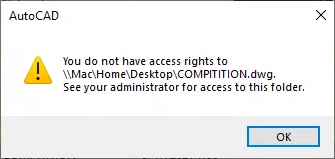
    You do not have access rights


    Cause

    We've seen this error result from a permissions translation issue between Parallels Desktop running on an M1 Mac and the Arm Release Candidate of Windows.


    Solution

    access files through the mapped drive

    You can avoid this error by accessing your DWGs and other files through the mapped drive Parallels creates rather than from shared or combined folders such as Desktop, Downloads, and Documents.


    For easier access to your files, and to further prevent the error:


    1. Follow our steps to turn on the Windows Configuration screen in Parallels.


    2. Open the Options tab and select Sharing from the left panel.


    3. Select the Share Mac tab and uncheck the Share Mac user folders with Windows option.

    Checking the box to Map Mac volumes to Windows creates a mapped Z drive on your virtual machine to the Mac Home folders, which will include the Desktop, Downloads, and Documents folders from your Mac. You should navigate to that Z: drive to open files in those locations.
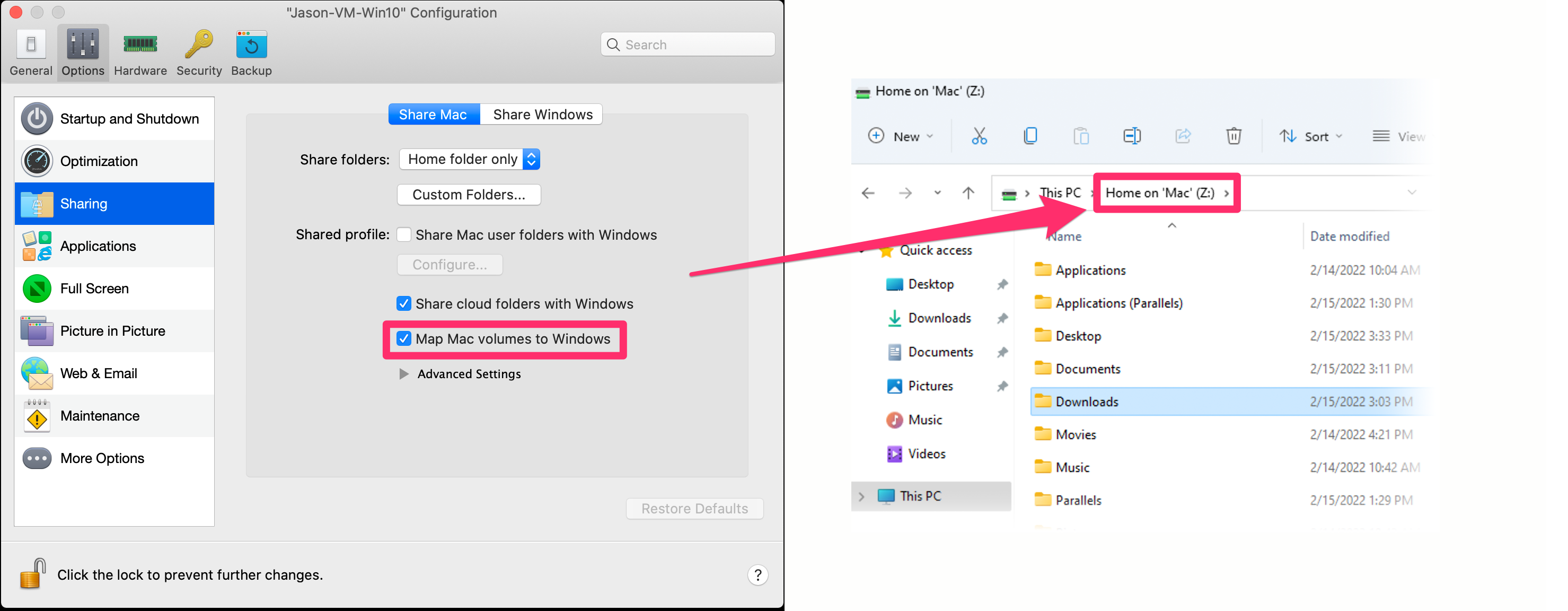
     

    Z Drive


    Note: The Desktop and Downloads folders in your virtual machine will be separate and exclusive to the virtual machine only.


    Accessing files stored within Mac OS

    You have a couple of options for accessing files stored in your Mac OS:


    Option 1 (recommended):

    We recommend clicking Custom Folders... while the Map Mac volumes to Windows option is checked and adding the specific folder option you want.


    Custom Folders


    As long as you complete this step with the Map Mac volumes to Windows option checked, doing so will create a mapped drive in Windows where you can access files from Mac OS with applications.

    If your files are stored in a shared online folder (using a service such as Google Drive, Dropbox, etc., you may still run into permissions errors and will need to set up your shared online folder application in Windows and access your files directly from there.

    set up your shared online folder


    Option 2:

    You can also choose to change the Share Folders pull-down menu to either Home folder only or All disks to access the entire Mac computer.
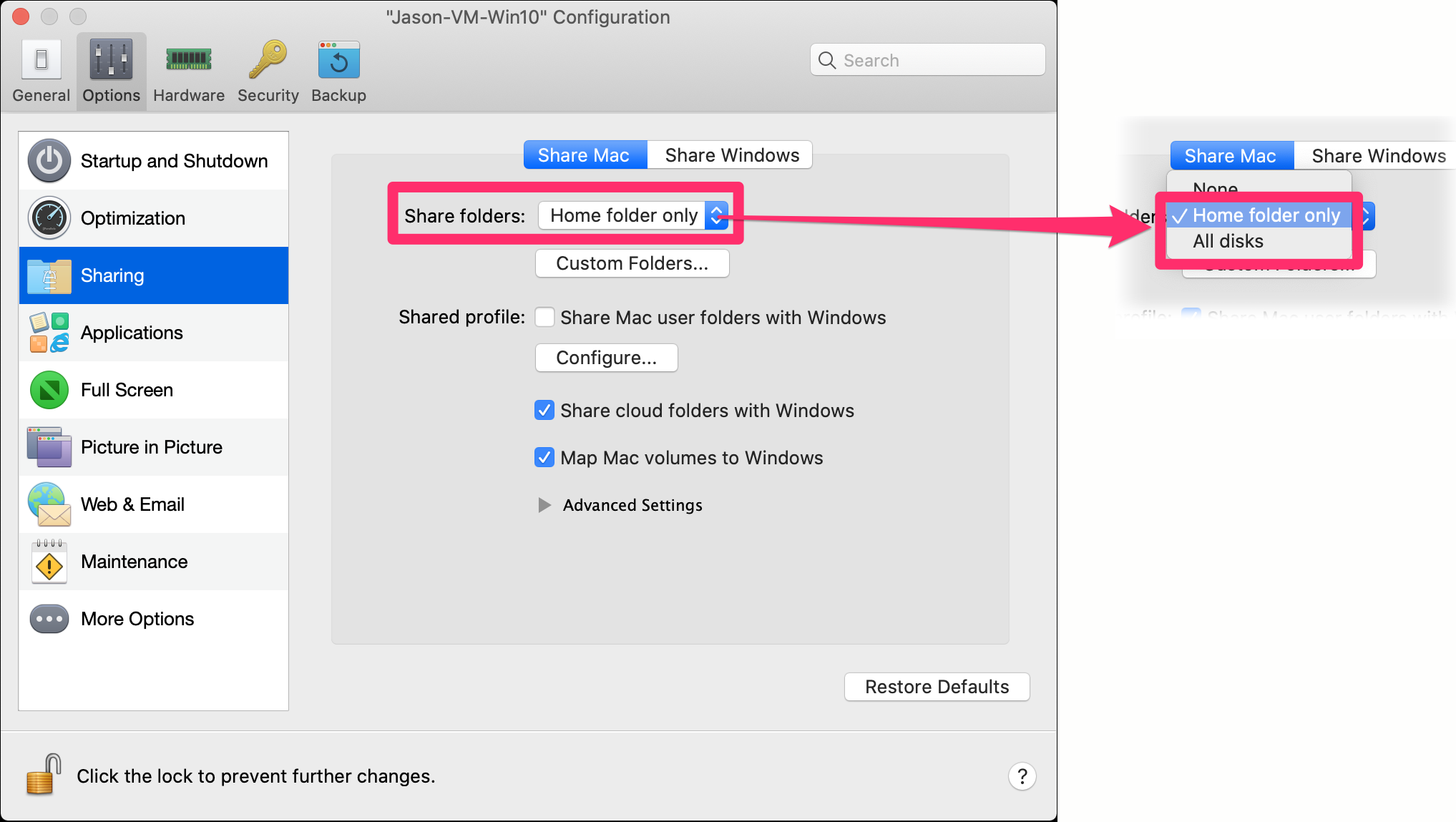
     

    Share Folders

    Contact

    • Land F/X
    • PMB 351 3940 Broad St. STE 7
      San Luis Obispo, CA 93401
    • +1 805-541-1003
    Email Logo Facebook Logo Instagram Logo LinkedIn Logo
    Land F/X Logo

    Our software tailors AutoCAD®, Revit®, SketchUp®, and Rhino® to the needs of landscape architects, irrigation designers, and other professionals. We automate your most tedious tasks and ensure accuracy, giving you more time to design.

    • Portal
    • Products
    • Support
    • Videos
    • Who We Are