

Land F/X
  • Portal
  • Products
    • Detail F/X
      • Product
      • Features
      • Trial
      • Purchase
    • Planting F/X
      • Product
      • Features
      • Trial
      • Purchase
    • Irrigation F/X
      • Product
      • Features
      • Trial
      • Purchase
    • F/X CAD
    • Plugin for Revit®
    • Plugin for SketchUp®
    • Plugin for Rhino®
    • Site & Hardscape
    • Lighting
    • Manufacturer Connection
    • Academic
    • Purchase
  • Support
    • Knowledge Base
    • Documentation
    • Submit Ticket
    • Updates
    • Forum
    • Install
  • Videos
    • Power Tips
    • Webinars
    • Podcasts
  • Who We Are
    • Contact Us
    • Careers
    • Gallery
    • News
Land F/X
  • Portal
  • Products
    • Detail F/X
      • Product
      • Features
      • Trial
      • Purchase
    • Planting F/X
      • Product
      • Features
      • Trial
      • Purchase
    • Irrigation F/X
      • Product
      • Features
      • Trial
      • Purchase
    • F/X CAD
    • Plugin for Revit®
    • Plugin for SketchUp®
    • Plugin for Rhino®
    • Site & Hardscape
    • Lighting
    • Manufacturer Connection
    • Academic
    • Purchase
  • Support
    • Knowledge Base
    • Documentation
    • Submit Ticket
    • Updates
    • Forum
    • Install
  • Videos
    • Power Tips
    • Webinars
    • Podcasts
  • Who We Are
    • Contact Us
    • Careers
    • Gallery
    • News
  1. Home
  2. Knowledge Base
  3. F/X CAD & AutoCAD
  4. Images & External References (Xrefs)
  5. Xref Layers Not Visible in a Viewport

    Unable to Bind an Xref to a Drawing

    Updated on: June 23, 2022

    Issue

    You're having trouble binding an Xref to a drawing.


    You may have also tried to bind or detach an Xref and found that the Detach and Bind options were grayed out in the menu.
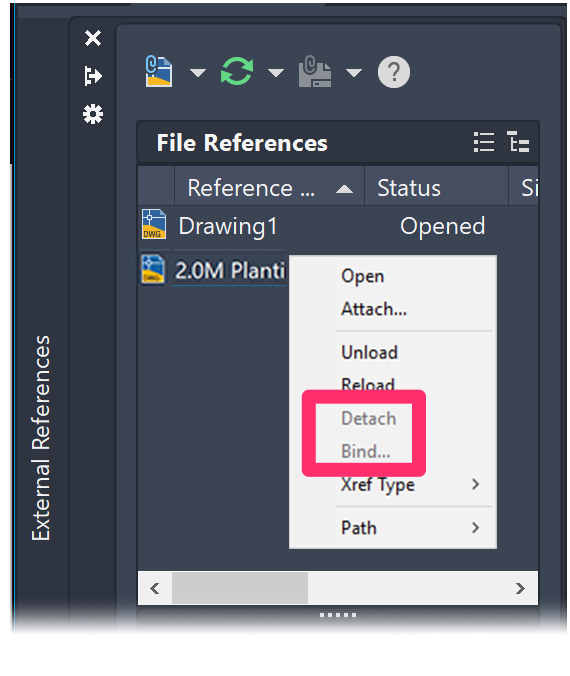
    Menu in External References Manager with Detach and Bind options grayed out


    Cause

    Issues with bound Xrefs can happen because of:

    • An unloaded or missing Xref
    • A circular reference (an Xref that references itself)
    • A corrupt drawing
    • A drawing that's using an older DWG file version
    • An issue with the Windows profile


    Solution

    Step 1: Reload the Xref
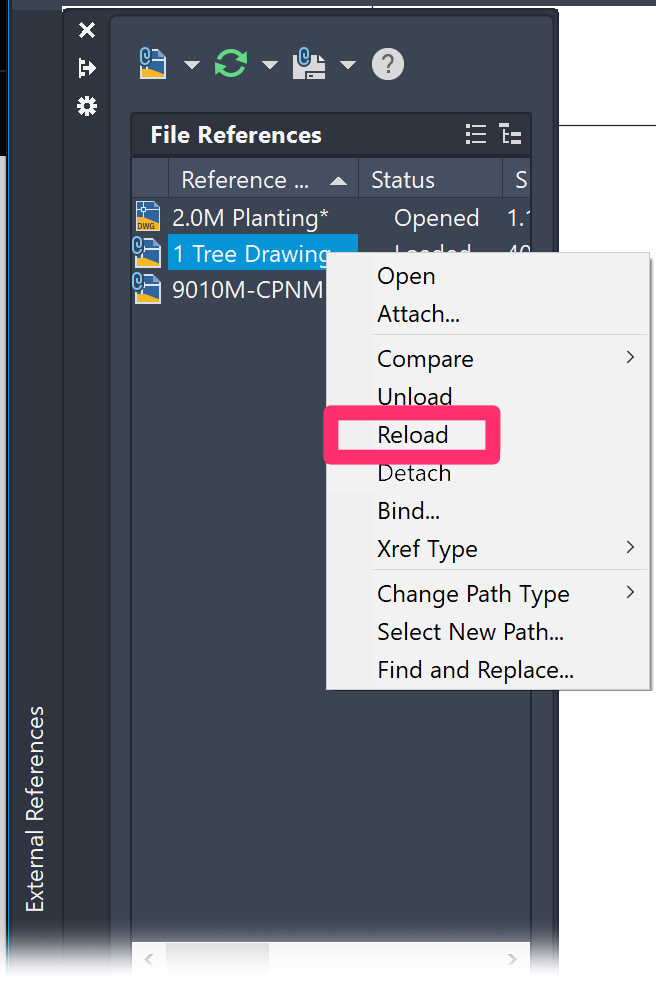
    Xref Manager, Reload menu option

    Try reloading the Xref to see whether it's become detached from your drawing.


    Right-click the Xref in the Xref Manager and select Reload from the menu that opens.


    Still can't bind the Xref? Move on to the next step.


    Step 2: Set Xrefs to Overlay to address a possible circular reference.

    The Overlay setting can prevent circular references, which can interfere with your ability to bind an Xref.


    If you haven't done so, set your Xrefs as Overlays rather than Attachments.


    Still can't bind the Xref? Move on to the next step.


    Step 3: Clean your drawing.

    At this point, you may be dealing with corruption in your drawing. Follow our steps to clean your drawing, making sure to detach and clean all Xrefs as well.

    How to prevent corruption in future drawings


    Still can't bind the Xref? Move on to the next step.


    Step 4: Save with a newer DWG version.

    Open the File menu and select Save As.


    In the Save Drawing As dialog box, check the version of the file listed in the Files of type menu.


    If the file is saved under an older DWG file version, try selecting a newer version, such as AutoCAD 2018 Drawing.


    Still unable to bind the Xref? Move on to the next step.
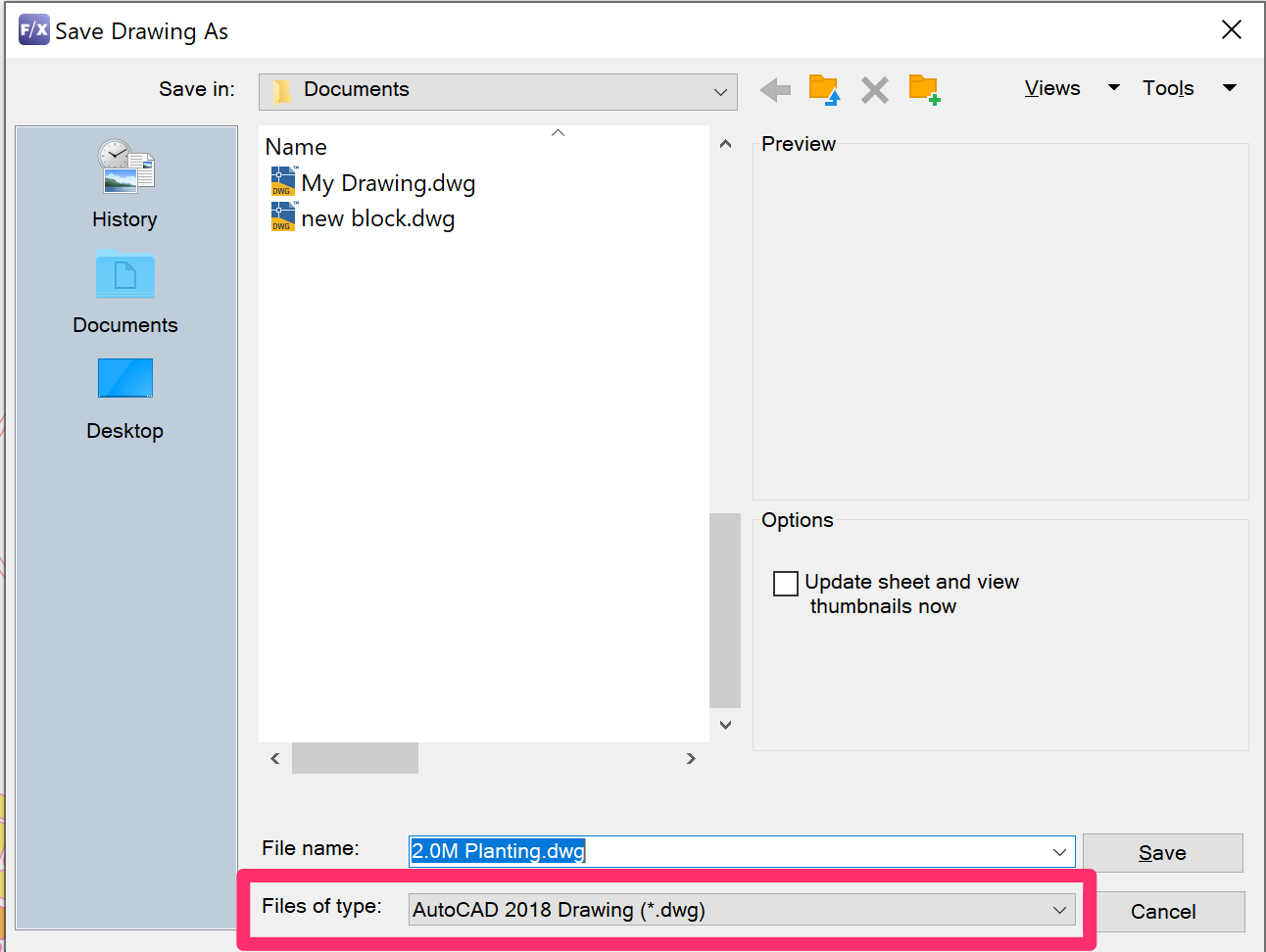
    Save Drawing As dialog box showing DWG file version in the Files of type menu


    Step 5: Check for an issue with the Windows profile.

    Try signing in to your computer as a different user. If you're able to bind the Xref when logged in to the other user profile, the profile you were using when first trying to bind the Xref, you likely need to either:

    • Reset your CAD installation to the default settings, or
    • Rebuild the user profile

    Contact

    • Land F/X
    • PMB 351 3940 Broad St. STE 7
      San Luis Obispo, CA 93401
    • +1 805-541-1003
    Email Logo Facebook Logo Instagram Logo LinkedIn Logo
    Land F/X Logo

    Our software tailors AutoCAD®, Revit®, SketchUp®, and Rhino® to the needs of landscape architects, irrigation designers, and other professionals. We automate your most tedious tasks and ensure accuracy, giving you more time to design.

    • Portal
    • Products
    • Support
    • Videos
    • Who We Are