

Locating, Backing Up, and Restoring acad.cuix
Updated on: June 25, 2026
Issue
It's a good idea to make a backup of the file acad.cuix. This file stores the settings you've configured in your AutoCAD customized user interface (CUI). For example, you may have placed your ribbons and toolbars in your preferred locations, where they will be whenever you open AutoCAD. The file acad.cuix stores these settings, allowing you to access them in the event of a system crash or reinstallation.
In some cases, you may encounter a problem with AutoCAD or F/X CAD that requires you to locate the file acad.cuix.
Problems with your backed-up acad.cuix? Or do you simply not have one?
If you receive an error message when trying to restore acad.cuix, or if your version is damaged or missing, you can download one of two possible cuix files using the link below for your version of AutoCAD or F/X CAD:
- Our modified acad.cuix files (linked below), optimized for F/X CAD per our discretion:
or
- The default AutoCAD cuix files from Autodesk:
What to Do With the Downloaded CUIX File
Once you've downloaded one of these files, double-click it to unzip it. You can then follow our instructions to restore acad.cuix.
Our modified cuix file (either of the first two links above, depending on your version) will work with stock AutoCAD and will not require you to have F/X CAD. However, please note that it contains a number of changes from the stock acad.cuix – for the better, we believe.
Solution
Locating acad.cuix
The easiest way to locate acad.cuix is to copy and paste its path from the Support File Search Path.
Open the Options dialog box:

Manage ribbon, Options button
type Options in the Command line
or right-click in the Command line and select Options from the menu

Tools pull-down menu
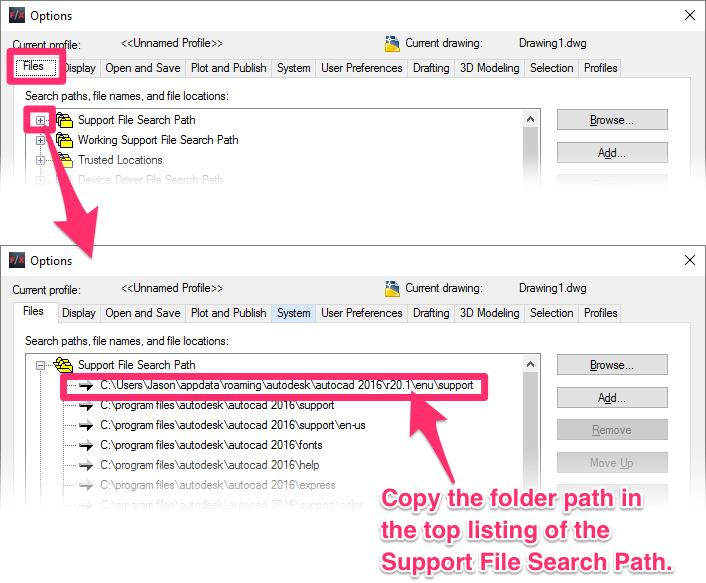
In the Options dialog box, select the Files tab. Locate the Support File Search Path (usually the first entry), and expand it by clicking the plus (+) sign to the left.
Click on the top listing in the Support File Search Path, and press Control + C to copy it. (This path is your primary AutoCAD Support folder.)
Open Windows Explorer by clicking the folder icon on your bottom taskbar or by selecting Computer from the Start menu.

Your Windows File Explorer will open.

Click within the Quick Access bar, and paste the folder path you just copied. (You can paste by pressing Control + V.) Then press Enter.
You'll be brought to the folder that contains the file acad.cuix.
We recommend pasting this folder location into a word-processing or note-taking document and saving that document in the same location where you save the file acad.cuix. In the event that you need to use the backup version of acad.cuix, you'll need to put it back into this folder.
Backing Up acad.cuix
Once you have located acad.cuix, we suggest making a copy of it and saving that copy in the location of your choice. We also recommend creating and saving an AutoCAD profile, which will keep your AutoCAD interface looking exactly the way you want it to look, whenever you open CAD.
We recommend creating a CAD Standards folder to store all your important CAD- and Land F/X-related backups. Along with your acad.cuix, that folder can store other important items such as your Preference Sets and custom details, effectively serving as a central storage location for your important CAD-related files you don't want to lose. For more information, see our CAD Standards Folder documentation.
Don't have a backup? Or your backup is corrupt or damaged? Solution >
Restoring acad.cuix
To restore the ACAD.cuix file to its default settings from installation, or to revert it to its previous saved version, follow our steps to revert/restore the file ACAD.cuix.
Don't have acad.cuix? Download ours.