Land F/X
  • Portal
  • Products
    • Detail F/X
      • Product
      • Features
      • Trial
      • Purchase
    • Planting F/X
      • Product
      • Features
      • Trial
      • Purchase
    • Irrigation F/X
      • Product
      • Features
      • Trial
      • Purchase
    • F/X CAD
    • Plugin for Revit®
    • Plugin for SketchUp®
    • Plugin for Rhino®
    • Site & Hardscape
    • Lighting
    • Manufacturer Connection
    • Academic
    • Purchase
  • Support
    • Knowledge Base
    • Documentation
    • Submit Ticket
    • Updates
    • Forum
    • Install
  • Videos
    • Power Tips
    • Webinars
    • Podcasts
  • Who We Are
    • Contact Us
    • Careers
    • Gallery
    • News
Land F/X
  • Portal
  • Products
    • Detail F/X
      • Product
      • Features
      • Trial
      • Purchase
    • Planting F/X
      • Product
      • Features
      • Trial
      • Purchase
    • Irrigation F/X
      • Product
      • Features
      • Trial
      • Purchase
    • F/X CAD
    • Plugin for Revit®
    • Plugin for SketchUp®
    • Plugin for Rhino®
    • Site & Hardscape
    • Lighting
    • Manufacturer Connection
    • Academic
    • Purchase
  • Support
    • Knowledge Base
    • Documentation
    • Submit Ticket
    • Updates
    • Forum
    • Install
  • Videos
    • Power Tips
    • Webinars
    • Podcasts
  • Who We Are
    • Contact Us
    • Careers
    • Gallery
    • News
  1. Home
  2. Knowledge Base
  3. F/X CAD & AutoCAD
  4. System Performance
  5. Knowledge Base
  6. F/X CAD & AutoCAD
  7. ACAD Ribbons, Menus & Palettes
  8. Locating, Backing Up, and Restoring acad.cuix

    Hatches Causing AutoCAD or F/X CAD to Freeze

    Updated on: August 27, 2024

    Issue

    You're working with hatches, and it seems to be causing CAD to freeze.


    For example, you may have selected an existing hatch in a drawing and attempted to scroll down the list of hatches, but CAD froze partway through your scroll.


    Cause

    This issue commonly results from the presence of DGN hatch pattern files.


    Solution

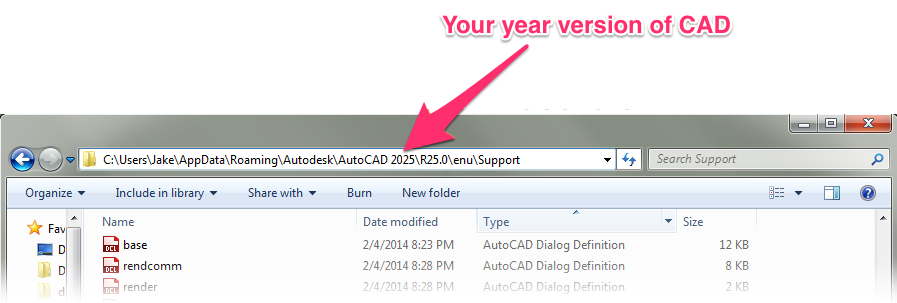
    Navigate to the following folder path C:\Users\(user)\AppData\Roaming\Autodesk\AutoCAD 20**\Rxx.x\enu\Support

    In this path:

    • (user) will be your computer username
    • 20** represents the year of your CAD installation
    • Rx.xx will vary with your version
    Your year of CAD


    So if you have AutoCAD or F/X CAD 2025, the path will be C:\Users\(user)\AppData\Roaming\Autodesk\AutoCAD 2025\R25.0\enu\Support.

    You will need to enable your hidden files and folders to be able to see and navigate to this folder path.


    Sort the files in that folder by "Type." Select all AutoCAD Hatch Pattern Definition (.pat) files that start with the letters DGN. Put these files in a separate folder, and restart CAD.
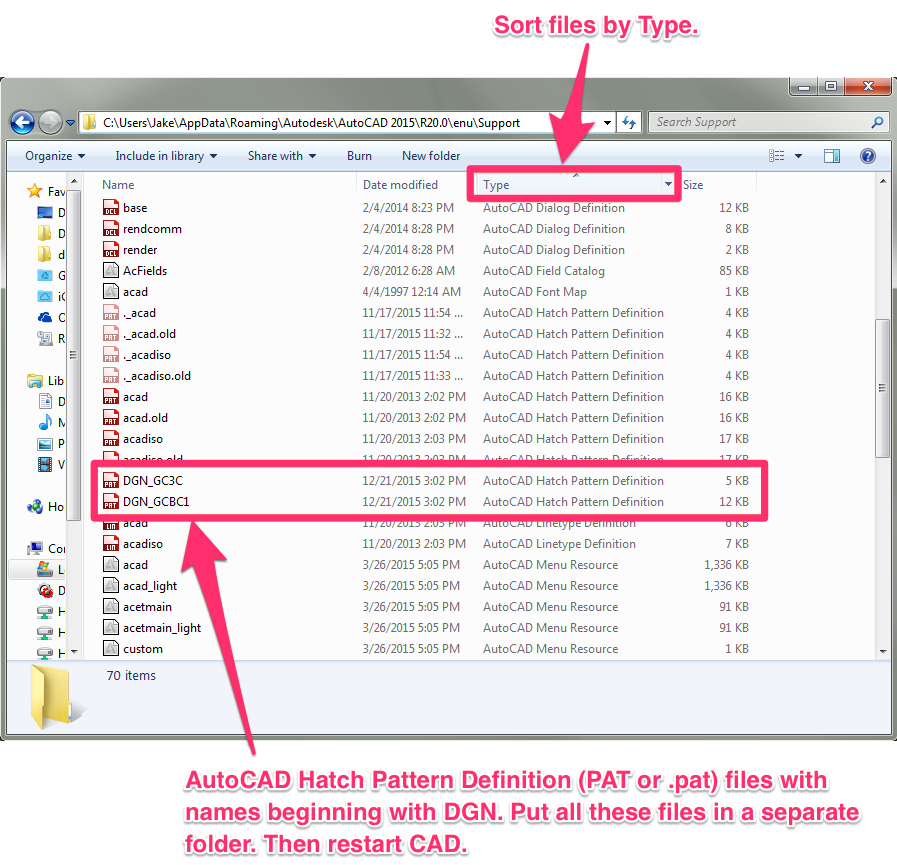
    Sort files by Type


    You should now be able to work with hatches without CAD freezing.

    Contact

    • Land F/X
    • PMB 351 3940 Broad St. STE 7
      San Luis Obispo, CA 93401
    • +1 805-541-1003
    Email Logo Facebook Logo Instagram Logo LinkedIn Logo
    Land F/X Logo

    Our software tailors AutoCAD®, Revit®, SketchUp®, and Rhino® to the needs of landscape architects, irrigation designers, and other professionals. We automate your most tedious tasks and ensure accuracy, giving you more time to design.

    • Portal
    • Products
    • Support
    • Videos
    • Who We Are