

Land F/X
  • Portal
  • Products
  • Support
  • Videos
  • Who We Are
  • Trial
  • Purchase
Land F/X
  • Portal
    • Dashboard
    • Account
    • Licenses
    • Data
    • Support
  • Products
    • Detail F/X
      • Product
      • Features
      • Trial
      • Purchase
    • Planting F/X
      • Product
      • Features
      • Trial
      • Purchase
    • Irrigation F/X
      • Product
      • Features
      • Trial
      • Purchase
    • F/X CAD
    • Plugin for Revit®
    • Plugin for SketchUp®
    • Plugin for Rhino®
    • Site & Hardscape
    • Lighting
    • Manufacturer Connection
    • Academic
    • Purchase
  • Support
    • Knowledge Base
    • Documentation
    • Submit Ticket
    • Updates
    • Forum
    • Install
  • Videos
    • Power Tips
    • Webinars
    • Podcasts
  • Who We Are
    • Contact Us
    • Careers
    • Gallery
    • News
  1. Knowledge Base
  2. F/X CAD & AutoCAD
  3. Viewing Your Drawing
  4. Unable to See Drawing Objects from a Consultant Drawing (Nothing Visible, or Only Boxes With Text Visible)

Poor Resolution, or Unable to See Linework Unless Zoomed In Extremely Closely

Issue

You're experiencing poor resolution in your CAD file. For example, you may:

  • Be unable to see linework unless zoomed in extremely closely, or
  • See zig zags in the color and leaders, and some of your linework may be missing. Then, as you zoom in or out, the zig zag goes away and the content shows up.


Cause

We've seen this issue result from the Display paper background setting being turned off in the CAD Options.


Here's an example of what Paper Space might look like when you have this option turned off:


Example of Paper Space when the Display paper background option is turned off


Solution

1. Open the Options dialog box:


Manage ribbon, Options button


Manage ribbon, Options button


type Options in the Command line


right-click in the Command line and select Options from the menu

Tools menu


Tools pull-down menu


2. In the Options dialog box, select the Display tab.


Select the option to Display paper background.


Click OK to save the change.
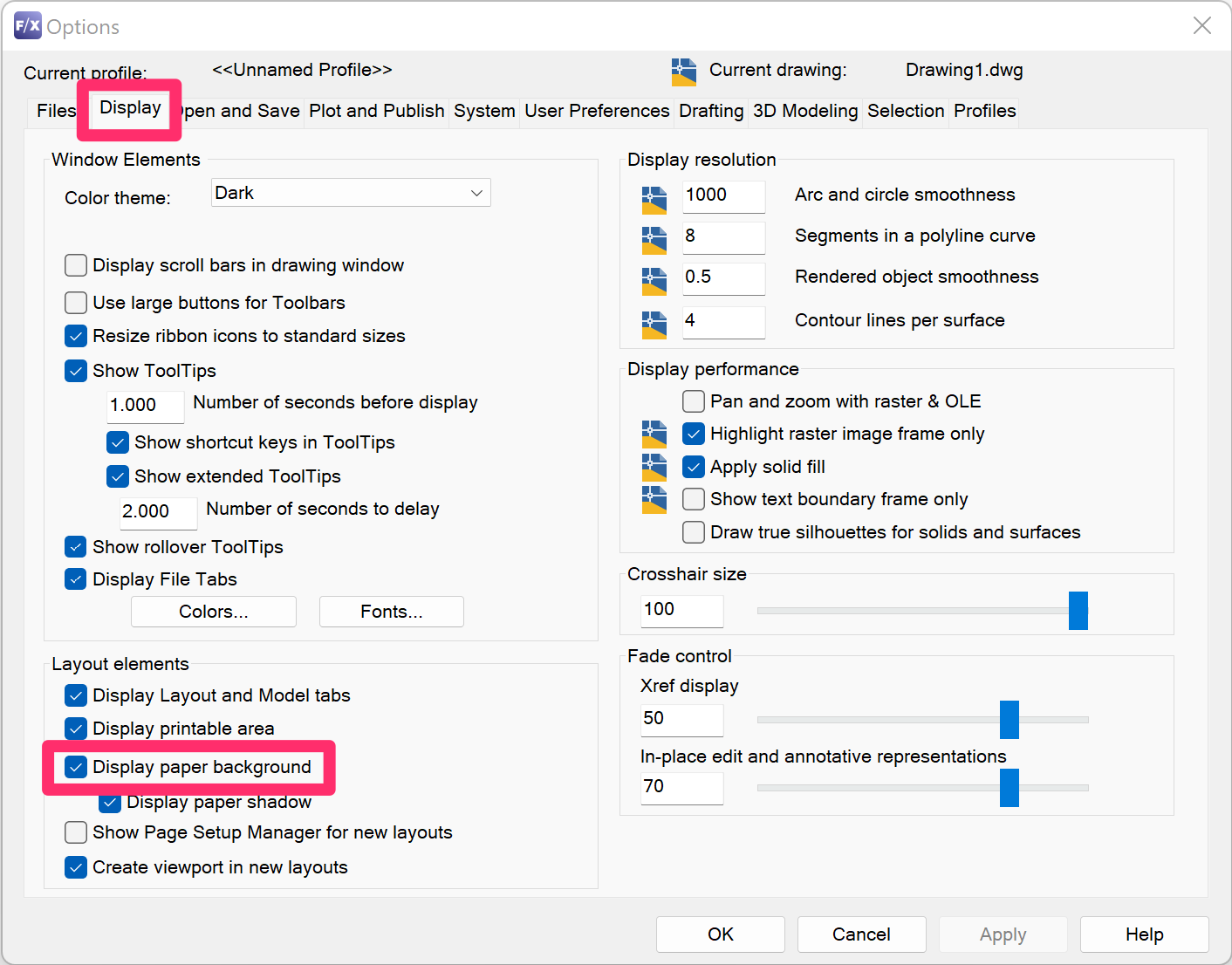
CAD Options, Display tab with Display paper background option turned on


Here's an example of what Paper Space might look like when you have the Display paper background option turned on:
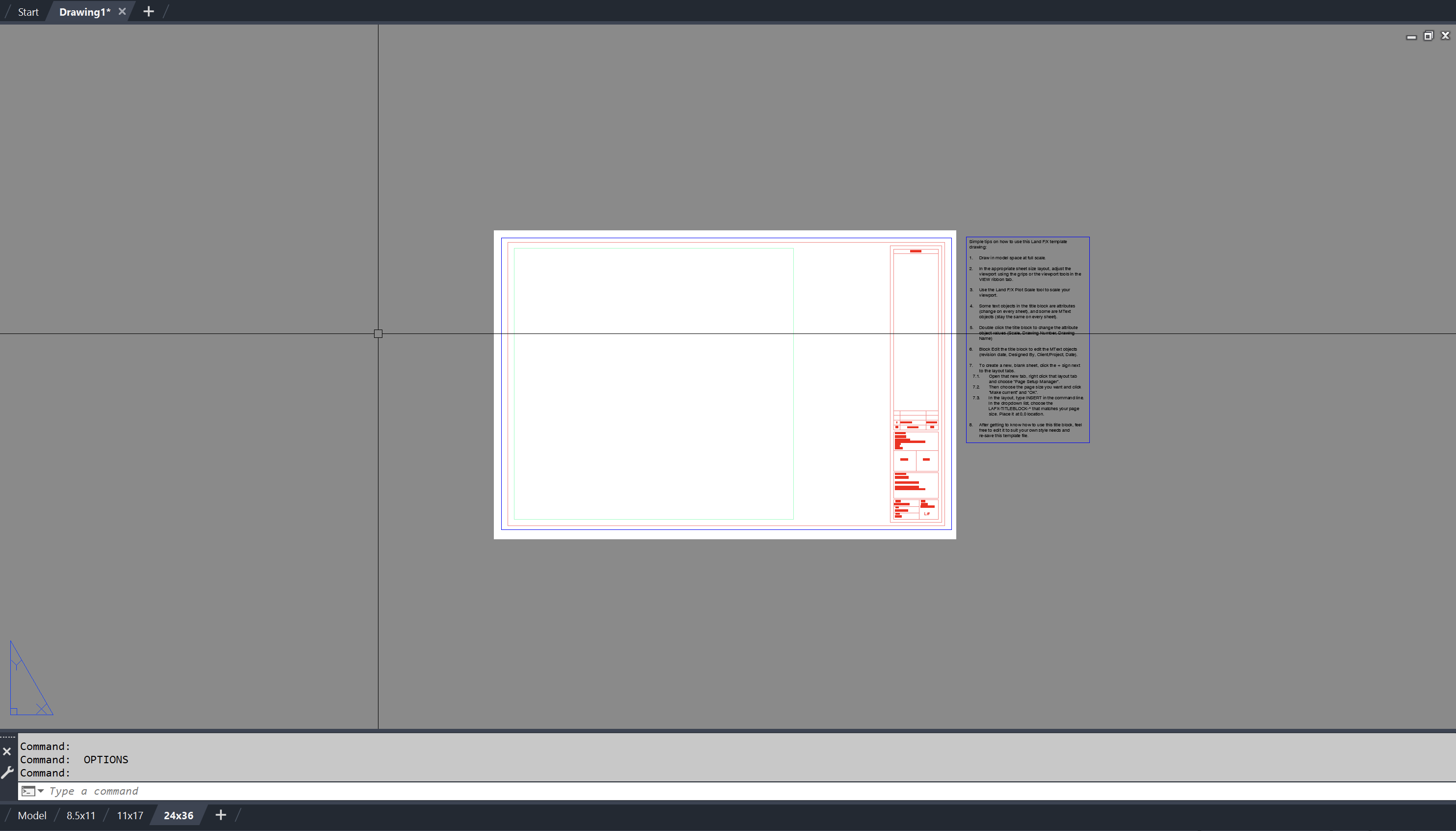
 

Example of Paper Space when the Display paper background option is turned on

If selecting the Display paper background option does not resolve your issue, you may be experiencing a graphics issue or another problem with your drawing. In this case, submit a technical support ticket describing your issue. Don't forget to include your drawing file and other necessary files, and mention that you tried the steps in this article.

Contact

  • Land F/X
  • PMB 351 3940 Broad St. STE 7
    San Luis Obispo, CA 93401
  • +1 805-541-1003
Email Logo Facebook Logo Instagram Logo LinkedIn Logo
Land F/X Logo

Our software tailors AutoCAD®, Revit®, SketchUp®, and Rhino® to the needs of landscape architects, irrigation designers, and other professionals. We automate your most tedious tasks and ensure accuracy, giving you more time to design.

  • Portal
  • Products
  • Support
  • Videos
  • Who We Are