

Land F/X
  • Portal
  • Products
  • Support
  • Videos
  • Who We Are
  • Trial
  • Purchase
Land F/X
  • Portal
    • Dashboard
    • Account
    • Licenses
    • Data
    • Support
  • Products
    • Detail F/X
      • Product
      • Features
      • Trial
      • Purchase
    • Planting F/X
      • Product
      • Features
      • Trial
      • Purchase
    • Irrigation F/X
      • Product
      • Features
      • Trial
      • Purchase
    • F/X CAD
    • Plugin for Revit®
    • Plugin for SketchUp®
    • Plugin for Rhino®
    • Site & Hardscape
    • Lighting
    • Manufacturer Connection
    • Academic
    • Purchase
  • Support
    • Knowledge Base
    • Documentation
    • Submit Ticket
    • Updates
    • Forum
    • Install
  • Videos
    • Power Tips
    • Webinars
  • Who We Are
    • Contact Us
    • Careers
    • Gallery
    • News
  1. Knowledge Base
  2. Site & Details
  3. Organizing Details & Detail Folders
  4. Change in Sheet Numbering Disassociates Placed Details

Advance a Project into a New Phase

Issue

You want a simple way to bring a project into a new phase – for example, from permit drawing to construction drawing – without having to:

  • Copy the details into the project's detail subcategory in the Detail Explorer
  • Place the details into the sheets again manually
  • Break the associations of the previous phases


Solution


1. Open our Projects (Project List) tool.


With the correct Land F/X project highlighted, click Backup.
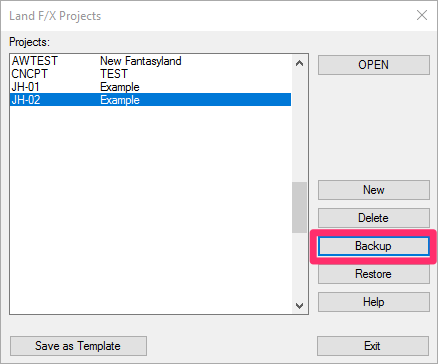
Land F/X Projects dialog box, Backup button


Backup Land F/X Project dialog box, Backup project to LFX file and Backup details options selected

2. Select both of the following options:

  • Backup project to LFX file
  • Backup details


Click OK.


3. The project will be saved as an LFX file, and your project details will be saved along with the project in a Details folder.


Save these items within the same folder that includes all the DWG files from the first phase. This folder will serve as your backup.


4. Mark that folder, along with all the DWG files within it, as Read-Only.


5. Continue working in the DWG files of the next phase.


You'll still be able to open any of the files from the first phase at any point, and they will still include the original details.

At any point, if the details from the second phase need to be reverted back to the level of the first phase, the best way to do so would be to copy the appropriate file from the backup folder. (Remember that it will still be marked as Read-Only, so you would need to change the permissions to Read-Write in order to complete work within that file.)

Contact

  • Land F/X
  • PMB 351 3940 Broad St. STE 7
    San Luis Obispo, CA 93401
  • +1 805-541-1003
Email Logo Facebook Logo Instagram Logo LinkedIn Logo
Land F/X Logo

Our software tailors AutoCAD®, Revit®, SketchUp®, and Rhino® to the needs of landscape architects, irrigation designers, and other professionals. We automate your most tedious tasks and ensure accuracy, giving you more time to design.

  • Portal
  • Products
  • Support
  • Videos
  • Who We Are