

Land F/X
  • Portal
  • Products
    • Detail F/X
      • Product
      • Features
      • Trial
      • Purchase
    • Planting F/X
      • Product
      • Features
      • Trial
      • Purchase
    • Irrigation F/X
      • Product
      • Features
      • Trial
      • Purchase
    • F/X CAD
    • Plugin for Revit®
    • Plugin for SketchUp®
    • Plugin for Rhino®
    • Site & Hardscape
    • Lighting
    • Manufacturer Connection
    • Academic
    • Purchase
  • Support
    • Knowledge Base
    • Documentation
    • Submit Ticket
    • Updates
    • Forum
    • Install
  • Videos
    • Power Tips
    • Webinars
    • Podcasts
  • Who We Are
    • Contact Us
    • Careers
    • Gallery
    • News
Land F/X
  • Portal
  • Products
    • Detail F/X
      • Product
      • Features
      • Trial
      • Purchase
    • Planting F/X
      • Product
      • Features
      • Trial
      • Purchase
    • Irrigation F/X
      • Product
      • Features
      • Trial
      • Purchase
    • F/X CAD
    • Plugin for Revit®
    • Plugin for SketchUp®
    • Plugin for Rhino®
    • Site & Hardscape
    • Lighting
    • Manufacturer Connection
    • Academic
    • Purchase
  • Support
    • Knowledge Base
    • Documentation
    • Submit Ticket
    • Updates
    • Forum
    • Install
  • Videos
    • Power Tips
    • Webinars
    • Podcasts
  • Who We Are
    • Contact Us
    • Careers
    • Gallery
    • News
  1. Home
  2. Knowledge Base
  3. Site & Details
  4. Text & Annotation
  5. Fonts Replaced with Simplex.shx When You Open a Drawing

    []

    Text Coming in With All Caps (Capital Letters)

    Updated on: May 20, 2022

    Issue

    When you place text in a drawing, the text is coming in as all capital letters (and you don't want it to).


    Cause

    Assuming you don't have Caps Lock enabled on your keyboard, you likely have the All CAPS setting turned on in the Text Editor. 


    Solution

    1. Check to verify that Caps Lock is not enabled on your keyboard.


    2. Open the Text Editor by double-clicking any existing text in your drawing.


    3. From the Text Editor ribbon, click the small-down-facing arrow in the Tools panel (see image below).


    On the menu that opens, the All CAPS option will be highlighted in blue if it's enabled. Click this option to disable it. When disabled, the All Caps option will only be surrounded by the black background of the menu, as pictured below.
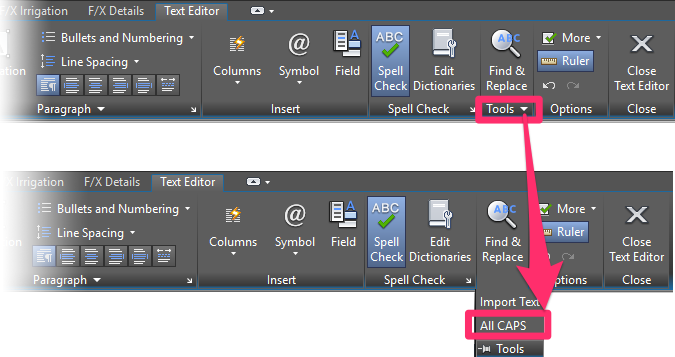
     

    ALL CAPS menu option


    Your text should no longer come in as all caps when you place it.

    Contact

    • Land F/X
    • PMB 351 3940 Broad St. STE 7
      San Luis Obispo, CA 93401
    • +1 805-541-1003
    Email Logo Facebook Logo Instagram Logo LinkedIn Logo
    Land F/X Logo

    Our software tailors AutoCAD®, Revit®, SketchUp®, and Rhino® to the needs of landscape architects, irrigation designers, and other professionals. We automate your most tedious tasks and ensure accuracy, giving you more time to design.

    • Portal
    • Products
    • Support
    • Videos
    • Who We Are