Land F/X
  • Portal
  • Products
    • Detail F/X
      • Product
      • Features
      • Trial
      • Purchase
    • Planting F/X
      • Product
      • Features
      • Trial
      • Purchase
    • Irrigation F/X
      • Product
      • Features
      • Trial
      • Purchase
    • F/X CAD
    • Plugin for Revit®
    • Plugin for SketchUp®
    • Plugin for Rhino®
    • Site & Hardscape
    • Lighting
    • Manufacturer Connection
    • Academic
    • Purchase
  • Support
    • Knowledge Base
    • Documentation
    • Submit Ticket
    • Updates
    • Forum
    • Install
  • Videos
    • Power Tips
    • Webinars
    • Podcasts
  • Who We Are
    • Contact Us
    • Careers
    • Gallery
    • News
Land F/X
  • Portal
  • Products
    • Detail F/X
      • Product
      • Features
      • Trial
      • Purchase
    • Planting F/X
      • Product
      • Features
      • Trial
      • Purchase
    • Irrigation F/X
      • Product
      • Features
      • Trial
      • Purchase
    • F/X CAD
    • Plugin for Revit®
    • Plugin for SketchUp®
    • Plugin for Rhino®
    • Site & Hardscape
    • Lighting
    • Manufacturer Connection
    • Academic
    • Purchase
  • Support
    • Knowledge Base
    • Documentation
    • Submit Ticket
    • Updates
    • Forum
    • Install
  • Videos
    • Power Tips
    • Webinars
    • Podcasts
  • Who We Are
    • Contact Us
    • Careers
    • Gallery
    • News
  1. Home
  2. Knowledge Base
  3. Installation Troubleshooting & Errors
  4. Errors: Installing Land F/X
  5. Unable to Establish an Internet Connection (Installing a Land F/X Plugin or F/X CAD)

    []

    Error 1500: Another Installation is In Progress (Installing a Land F/X Plugin or F/X CAD)

    Updated on: May 11, 2022

    Issue

    You saw the following error message when attempting to install our software:

    Error 1500. Another installation is in progress. You must complete that installation before continuing this one.


    Cause

    This error can result from:

    • Multiple MSI installers running simultaneously, or
    • An In-progress key left over from a previous installation


    Solution

    Step 1: Restart your computer.

    You can often resolve this issue quickly by simply restarting your computer.


    After restarting, try the installation again. Still seeing the error? Move on to the next step.


    Step 2: Close background processes.

    Right-click on the task bar at the bottom of your screen, and select Task Manager from the menu that opens.
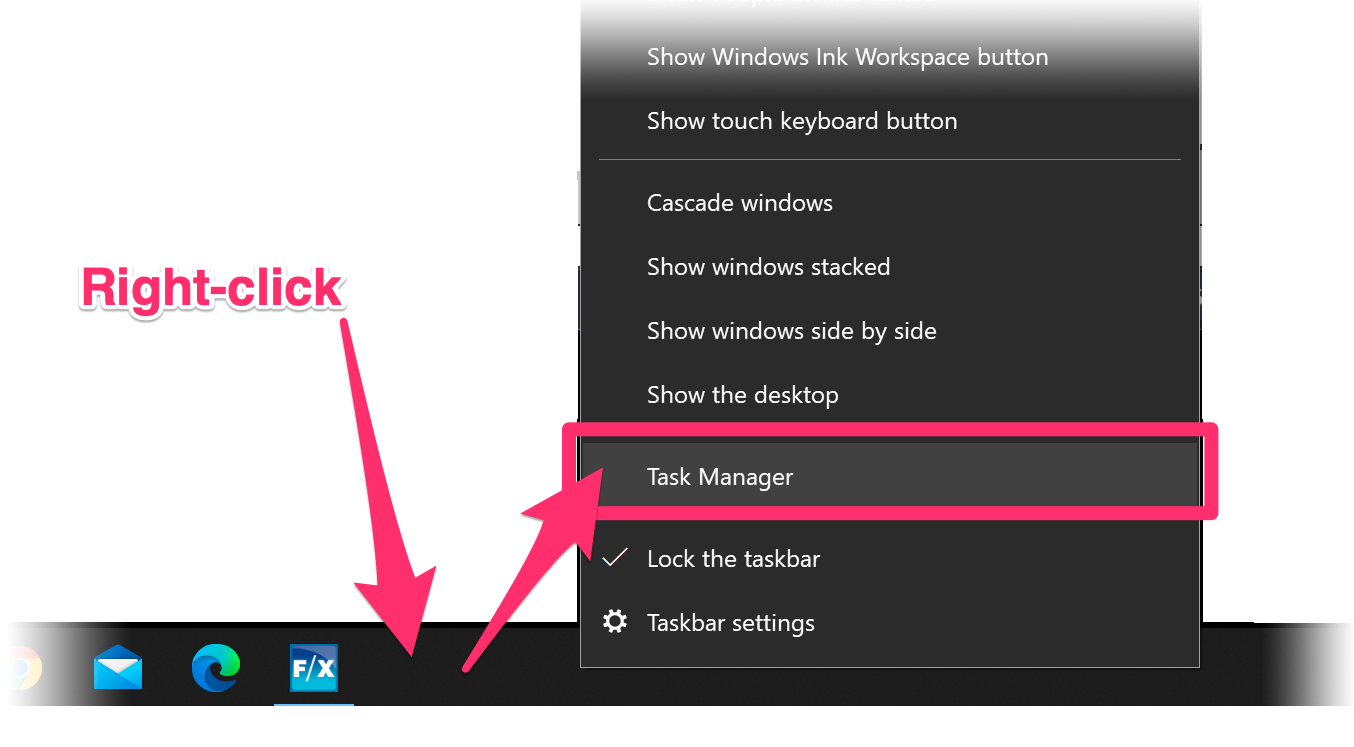
    Right-clicking on bottom task bar and selecting Task MAnager from the menu that opens


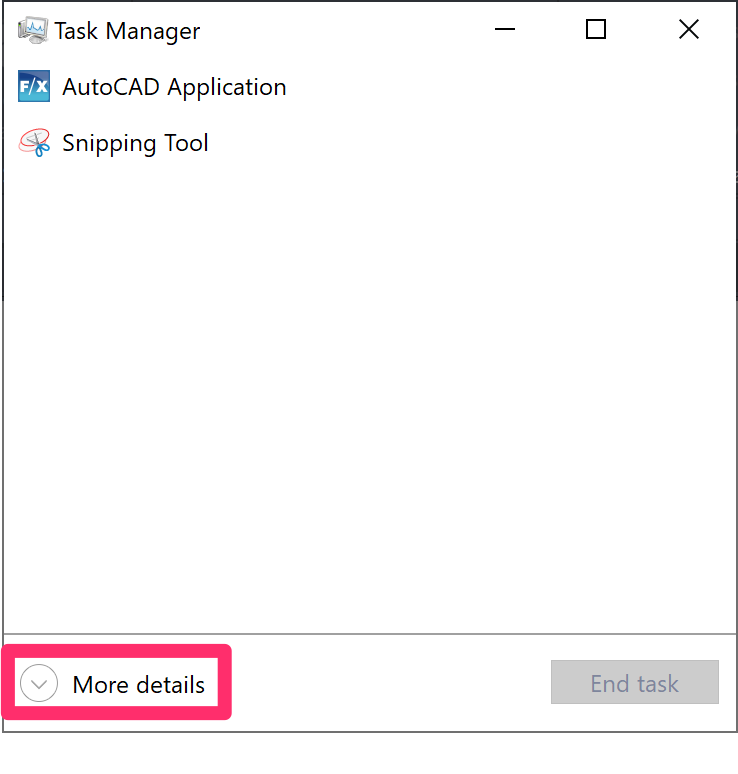
    Task Manager dialog box, More Details button

    Click More Details in the bottom left corner of the Task Manager dialog box.


    Select the Process tab at the top of the Task Manager dialog box.


    Locate the following process entries under Background processes:

    • msiexec.exe
    • installer.exe
    • setup.exe


    Select each of these processes and click the End Task button.

    You may also need to locate and end these same processes under the Details tab.

    Tadsk Manager dialog box, Process tab, End Task button


    Close the Task Manager and try the installation again. Still seeing the error? Move on to the next step.


    Step 3: Remove the installation reference from the Registry Editor.

    Open the Registry Editor and navigate to the subkey HKEY_LOCAL_MACHINE/Software/Microsoft/Windows/Current Version/Installer/InProgress.


    Select the InProgress subkey, then double-click on its (Default) string. In the Edit String dialog box, delete any text you see in the Value data field. Then click OK.


    Editing the registry subkey HKEY_LOCAL_MACHINE/Software/Microsoft/Windows/Current Version/Installer/InProgress and deleting the text in the Value Data field


    Close the Registry Editor and attempt the installation again. Still seeing the error? Move on to the next step.


    Step 4: Stop and restart the Windows Installer.
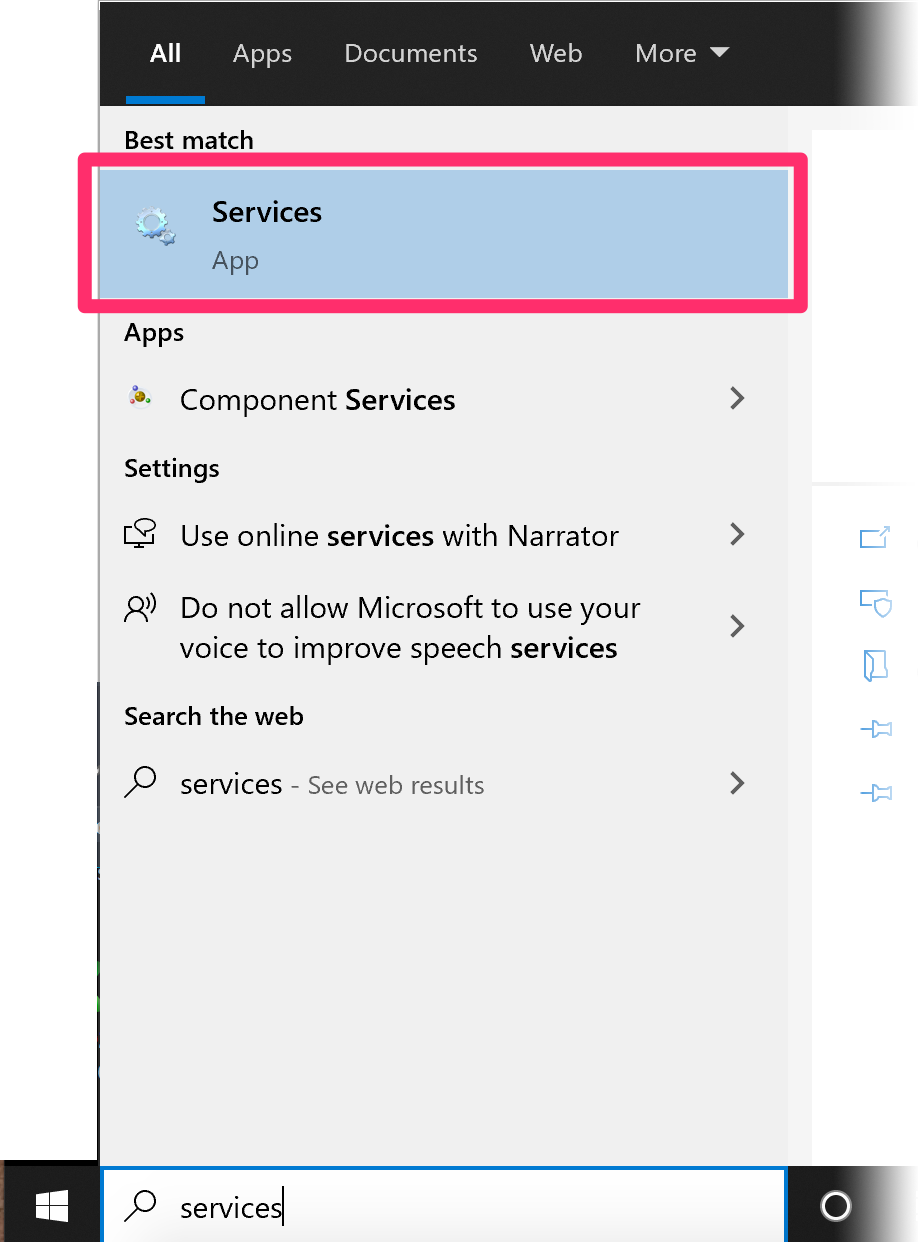
    Start menu, Services option

    Open the Windows Start menu and type Services in the search box.


    Select Services from the menu.


    In the Services screen, scroll down to the Windows Installer service and double-click it.

    Services screen, Windows Installer service


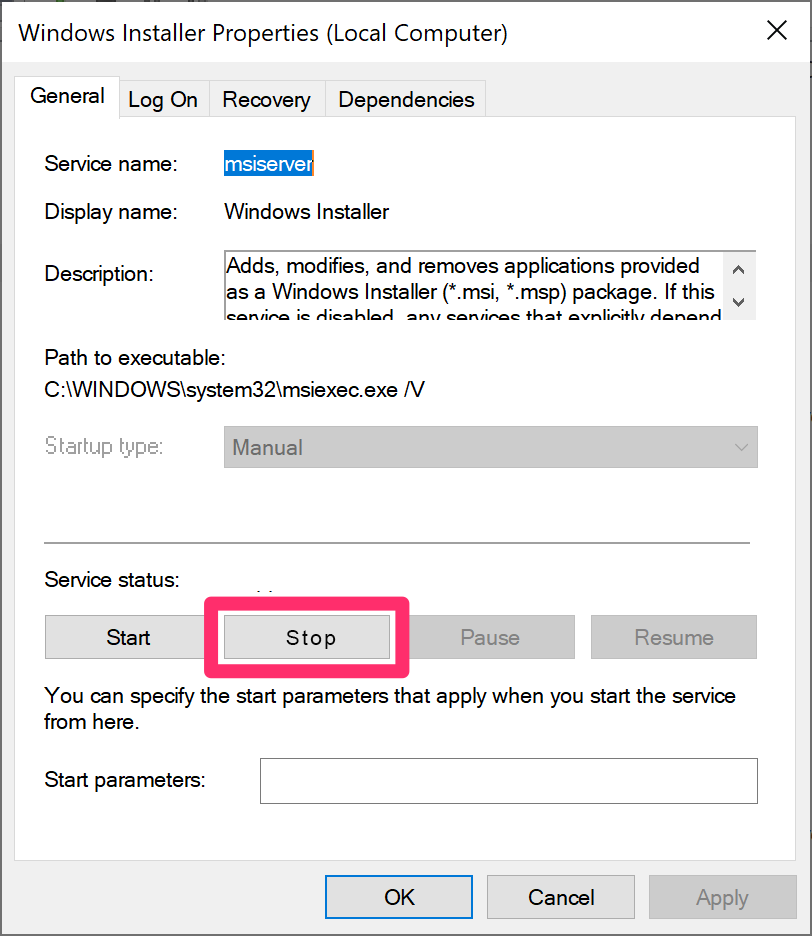
    Windows Installer Properties dialog box, Stop button and Apply button

    In the Windows Installer Properties dialog box, click Stop.


    Click Apply, then click OK.


    Now restart your Windows operating system.


    Open the Windows Installer Properties dialog box again as described above.


    Click Start.


    Click Apply, then click OK.
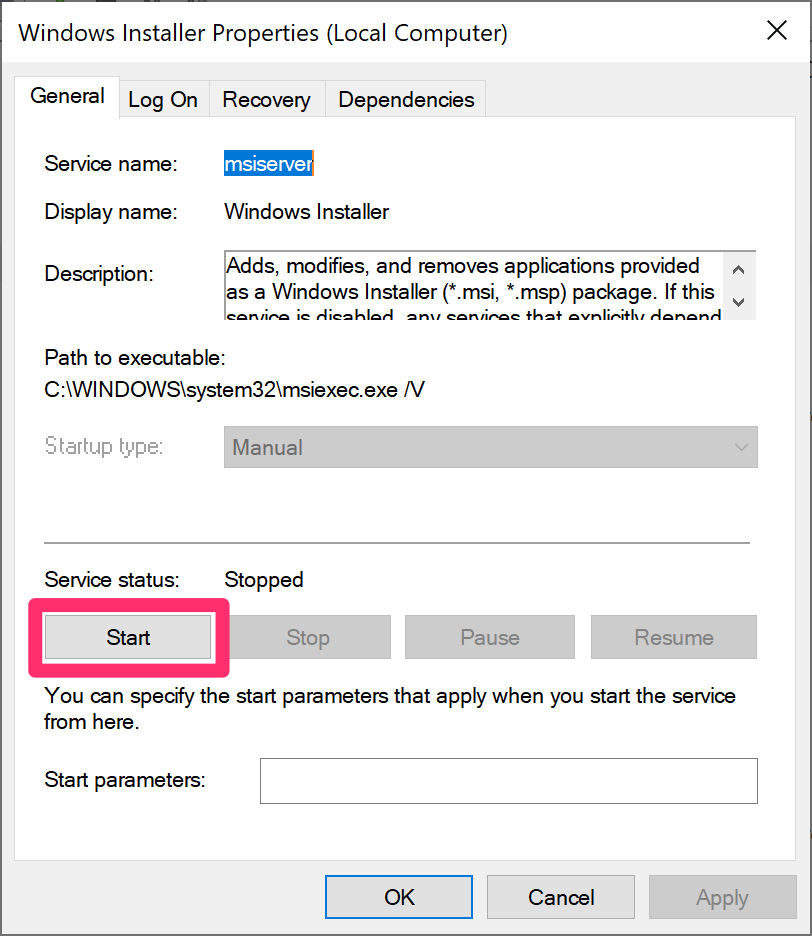
    Windows Installer Properties dialog box, Start and Apply buttons


    Attempt the installation again. Still seeing the error? Move on to the next step.


    Step 5: Run the System File Checker tool.

    Follow our steps to open the Windows Command Prompt.


    Typing sfc /scannow at the Command Prompt

    Type sfc /scannow at the Command Prompt and press Enter.


    Allow a few minutes for the System File Checker tool to scan your computer.


    After the scan is complete, attempt the installation again. Still seeing the error? Move on to the next step.


    Step 6: Reset the Windows Updates components.

    Follow our steps to open the Windows Command Prompt as an administrator.


    Copy each of the following commmands into the Command Prompt, one at a time. Press Enter after entering each command.

    net stop wuauserv

    net stop cryptSvc

    net stop bits

    net stop msiserver

    ren C:WindowsSoftwareDistribution SoftwareDistribution.old

    ren C:WindowsSystem32catroot2 Catroot2.old

    net start wuauserv

    net start cryptSvc

    net start bits

    net start msiserver


    Close the Command Prompt and restart your computer. Attempt the installation again. Still seeing the error? It's time to send us a technical support ticket letting us know that you're encountering this error. Let us know in the ticket that you've attempted these steps.

    More information on this error

    Contact

    • Land F/X
    • PMB 351 3940 Broad St. STE 7
      San Luis Obispo, CA 93401
    • +1 805-541-1003
    Email Logo Facebook Logo Instagram Logo LinkedIn Logo
    Land F/X Logo

    Our software tailors AutoCAD®, Revit®, SketchUp®, and Rhino® to the needs of landscape architects, irrigation designers, and other professionals. We automate your most tedious tasks and ensure accuracy, giving you more time to design.

    • Portal
    • Products
    • Support
    • Videos
    • Who We Are