

Land F/X
  • Portal
  • Products
    • Detail F/X
      • Product
      • Features
      • Trial
      • Purchase
    • Planting F/X
      • Product
      • Features
      • Trial
      • Purchase
    • Irrigation F/X
      • Product
      • Features
      • Trial
      • Purchase
    • F/X CAD
    • Plugin for Revit®
    • Plugin for SketchUp®
    • Plugin for Rhino®
    • Site & Hardscape
    • Lighting
    • Manufacturer Connection
    • Academic
    • Purchase
  • Support
    • Knowledge Base
    • Documentation
    • Submit Ticket
    • Updates
    • Forum
    • Install
  • Videos
    • Power Tips
    • Webinars
    • Podcasts
  • Who We Are
    • Contact Us
    • Careers
    • Gallery
    • News
Land F/X
  • Portal
  • Products
    • Detail F/X
      • Product
      • Features
      • Trial
      • Purchase
    • Planting F/X
      • Product
      • Features
      • Trial
      • Purchase
    • Irrigation F/X
      • Product
      • Features
      • Trial
      • Purchase
    • F/X CAD
    • Plugin for Revit®
    • Plugin for SketchUp®
    • Plugin for Rhino®
    • Site & Hardscape
    • Lighting
    • Manufacturer Connection
    • Academic
    • Purchase
  • Support
    • Knowledge Base
    • Documentation
    • Submit Ticket
    • Updates
    • Forum
    • Install
  • Videos
    • Power Tips
    • Webinars
    • Podcasts
  • Who We Are
    • Contact Us
    • Careers
    • Gallery
    • News
  1. Knowledge Base
  2. Planting
  3. Adding & Editing Plants
  4. Importing Plant Groups (Subcategories) from a Project Template

Importing Plant Groups (Subcategories) from a Project Template

Updated on: May 26, 2022

Issue

When importing plants from a project template, you also want to import groups (aka subcategories) you've created and assigned to those plants. The groups are available from the menu in the Plant Manager pictured below.


Plant Manager, plant groups


Solution

At present, Land F/X does not allow the importing of plant groups from a template along with the plants. Here's a workaround you can use until we can engineer this ability into our software:


1. Import all your desired plants from the template.


Importing plants from a template


2. In the Plant Manager, open the menu shown below. Select Add New to create your desired plant group.


Plant Manager, plant groups menu, Add New option


3. In the New Plant Group dialog box, enter a name for your plant group and click OK.


Entering a name for a new plant group in the New Plant Group dialog box


4. In the Plant Manager, select all the plants you want to move into the plant group. To select multiple plants at once, hold down the CTRL key (Windows) or the Command key (Mac).
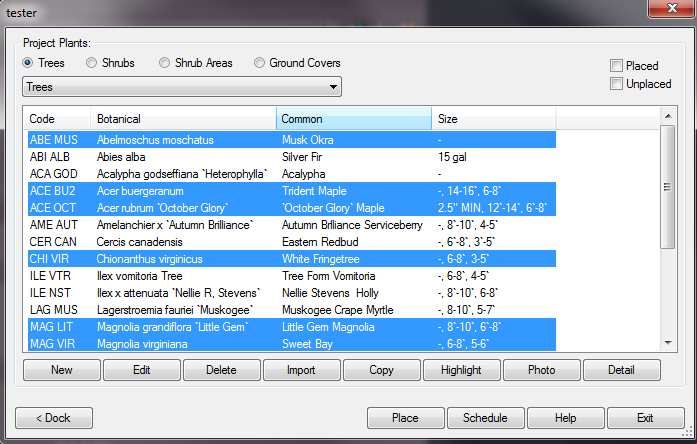
 

Selecting multiple plants in the Plant Manager


5. Select your plant group from the menu in the Plant Manager shown below.


Selecting a plang group in the Plant Manager


6. When asked "Move the selected plants to the new group?" click Yes.
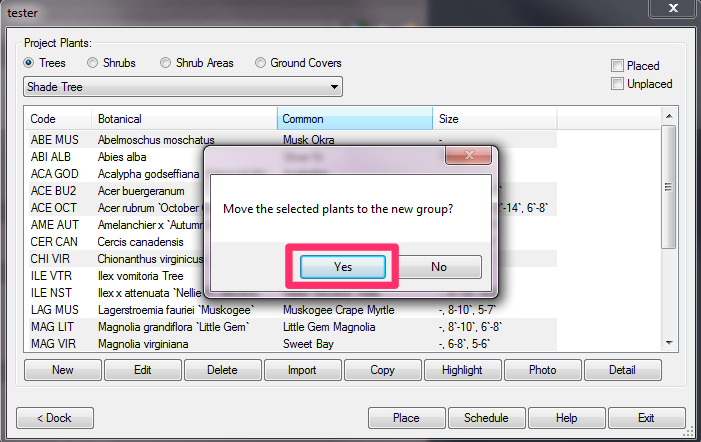
 

Move the selected plants to the new group?


7. The plants you selected will be moved to your plant group.


Selected plants moved to plant group

Contact

  • Land F/X
  • PMB 351 3940 Broad St. STE 7
    San Luis Obispo, CA 93401
  • +1 805-541-1003
Email Logo Facebook Logo Instagram Logo LinkedIn Logo
Land F/X Logo

Our software tailors AutoCAD®, Revit®, SketchUp®, and Rhino® to the needs of landscape architects, irrigation designers, and other professionals. We automate your most tedious tasks and ensure accuracy, giving you more time to design.

  • Portal
  • Products
  • Support
  • Videos
  • Who We Are