

Land F/X
  • Portal
  • Products
    • Detail F/X
      • Product
      • Features
      • Trial
      • Purchase
    • Planting F/X
      • Product
      • Features
      • Trial
      • Purchase
    • Irrigation F/X
      • Product
      • Features
      • Trial
      • Purchase
    • F/X CAD
    • Plugin for Revit®
    • Plugin for SketchUp®
    • Plugin for Rhino®
    • Site & Hardscape
    • Lighting
    • Manufacturer Connection
    • Academic
    • Purchase
  • Support
    • Knowledge Base
    • Documentation
    • Submit Ticket
    • Updates
    • Forum
    • Install
  • Videos
    • Power Tips
    • Webinars
    • Podcasts
  • Who We Are
    • Contact Us
    • Careers
    • Gallery
    • News
Land F/X
  • Portal
  • Products
    • Detail F/X
      • Product
      • Features
      • Trial
      • Purchase
    • Planting F/X
      • Product
      • Features
      • Trial
      • Purchase
    • Irrigation F/X
      • Product
      • Features
      • Trial
      • Purchase
    • F/X CAD
    • Plugin for Revit®
    • Plugin for SketchUp®
    • Plugin for Rhino®
    • Site & Hardscape
    • Lighting
    • Manufacturer Connection
    • Academic
    • Purchase
  • Support
    • Knowledge Base
    • Documentation
    • Submit Ticket
    • Updates
    • Forum
    • Install
  • Videos
    • Power Tips
    • Webinars
    • Podcasts
  • Who We Are
    • Contact Us
    • Careers
    • Gallery
    • News
  1. Home
  2. Knowledge Base
  3. Planting
  4. Plant Labels
  5. Nothing Happens After Selecting a Shrub Area or Groundcover Hatch (Plant Label – Group, Connecting Line, or Arc)

    Plant Labels Not Appearing

    Updated on: May 26, 2022

    Issue

    When you attempt to label plants, the labels are not coming in at all.


    Cause

    This issue can occur because of a problem with the drawing file that contains your preferred plant label block.


    It can also be the result of a DVIEW twist – a problem with a User Coordinate System (UCS) that's been set in your drawing.


    Solution

    Step 1: Ensure that Annotation Visibility is Enabled

    In the Status Bar Toggles in the lower right corner of your AutoCAD interface, locate and enable the tool named Annotation Visibility / Show Annotation Objects.


    Click the "hamburger button" in the bottom right corner to open the Status Bar Toggles menu. (This button consists of three horizontal lines.)


    Verify that the Annotation Visibility option on the menu is selected. If not, click this option to select it.

    Status bar toggles menu, Annotation Visibility option selected


    You should now see the Annotation Visibility button on the Status Bar.


    Annotation Visibility button is gray

    The button will be gray if the tool is turned off. If so, click the button to turn on Annotation Visibility.


    The button will be blue if the tool is enabled. If you hover the cursor over this button, you should see the words Show annotation objects – Always, as pictured to the right.

    Annotation Visibility button is blue


    Step 2: Change the Label Style Temporarily

    Open the Planting Preferences screen, and select a new label style.


    Selecting a new plant label style from the Planting Preferences screen

    To select a new label style, click the thumbnail box under Plant Label.


    In the Callouts dialog box, select any label style other than the one you currently have selected. Click OK.
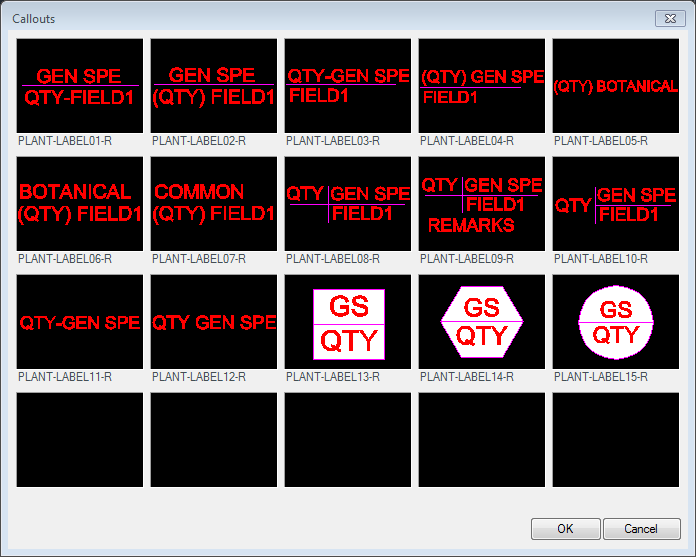
    Callouts dialog box, selecting a label style


    Planting Preferences screen, OK button

    Click OK in the Planting Preferences to select the new style.


    Step 3: Purge Out the Old Labels

    Type PRG in the Command line, and press Enter.


    Step 4: Select Your Preferred Label Style Again

    Open the Planting Preferences again, and select your preferred label style, as described in Step 2 above.


    Place your labels again. If they come in correctly, you've resolved the issue.


    Labels still not coming in correctly? You may have a DVIEW twist in your drawing:


    1. Follow our steps to remove a DVIEW twist and apply a correct UCS.


    2. Also apply the UCS to any viewports where you might be having an issue with labeling.


    If you're able to place your labels correctly, you've resolved the issue.

    Contact

    • Land F/X
    • PMB 351 3940 Broad St. STE 7
      San Luis Obispo, CA 93401
    • +1 805-541-1003
    Email Logo Facebook Logo Instagram Logo LinkedIn Logo
    Land F/X Logo

    Our software tailors AutoCAD®, Revit®, SketchUp®, and Rhino® to the needs of landscape architects, irrigation designers, and other professionals. We automate your most tedious tasks and ensure accuracy, giving you more time to design.

    • Portal
    • Products
    • Support
    • Videos
    • Who We Are