

Place Generic Content: Planting F/X for SketchUp Plugin
Updated on: June 11, 2026
Quick video

Our Place Generic Content tool allows you to insert objects from our content libraries into your SketchUp models without attaching data to those objects, much like the Plan Graphics and Elevation Graphics tools in our CAD plugins.
Place Generic Content Overview
To begin placing generic content in SketchUp, open our Place Generic Content tool:

LandFX toolbar, Place Generic Content button
The Place Generic Component dialog box will open.
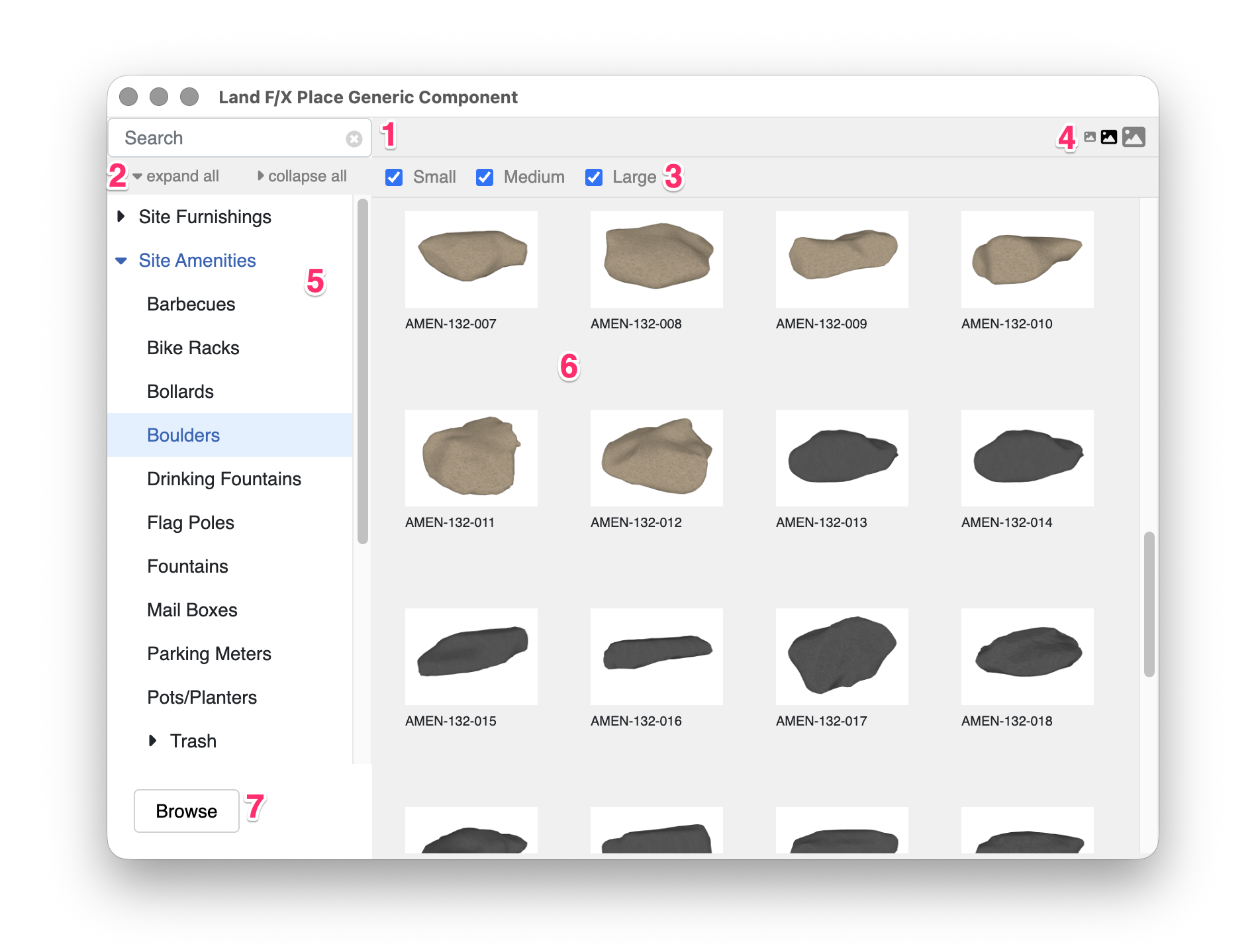
1. Use this search field to search by name for generic content to place.
2. Click the expand all and expand all options to expand or collapse the visible categories of generic content.
3. If the selected category has any additional filters, they're listed as checkboxes here.
4. Use these buttons to toggle between small, medium, and large thumbnails of the selected category's content.
5. Select a category and subcategory of generic content to view.
6. Preview thumbnails of the generic content in the selected category. Click an object's preview image to select that object and begin placing it in your SketchUp model.
7. Click Browse to select a custom object from your local file system.
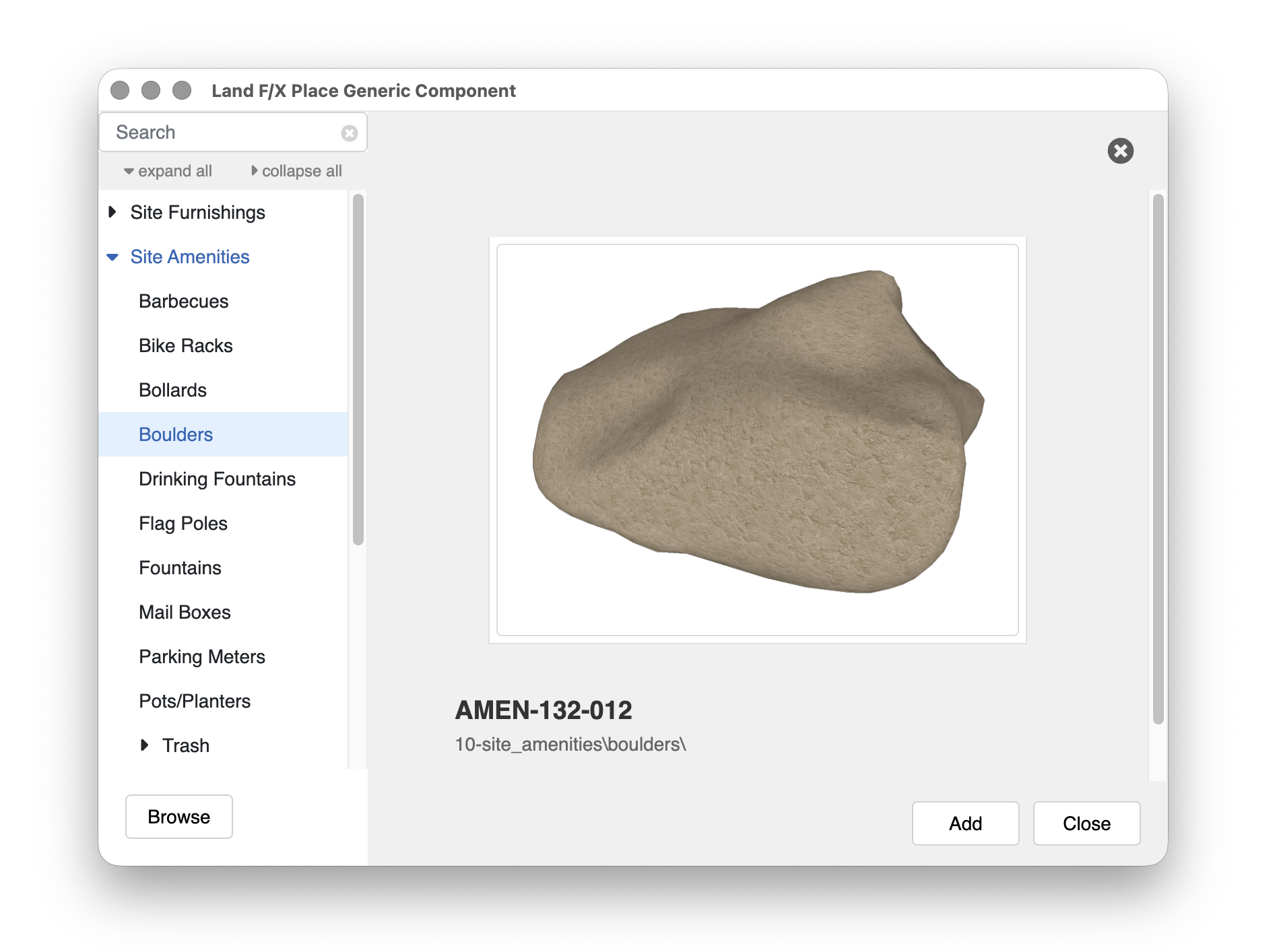
Detailed view of a selected object in the Place Generic Content dialog box
The placement tool will activate when you select an object, and you can begin clicking to place that object throughout your Sketch Up model.
You can use the following keyboard commands at this point:
- Press Alt (Windows keyboard) or Command (Mac keyboard) to toggle scale randomization mode. When scale randomization mode is on, the scale of each placed object will be assigned a random scale between 90% and 110% of its original scale.
- Press Ctrl (Windows keyboard) or Option (Mac keyboard) to toggle between random rotation and manual rotation modes. In random rotation mode, click once to place an object. It will have a randomized rotation. In manual rotation mode, click once to set the position of the object, then move the mouse and click once more to set its rotation.
- At any point when the tool is active, press Enter to reopen the Place Generic Content dialog box and browse for another generic object to place.
Converting Generic Objects into Smart Objects
After placing generic objects in your SketchUp model, you can use our Convert to Smart Object tool to attach Land F/X data to those objects.
Troubleshooting
SketchUp: Basic troubleshooting (adding, placing, importing objects)
Issue: You are unable to select a 3D symbol in SketchUp
Issue: Our Planting F/X Plugin for SketchUp freezes or becomes unresponsive
Issue: Clicking one of the Land F/X tool buttons in SketchUp does nothing