Land F/X
  • Portal
  • Products
    • Detail F/X
      • Product
      • Features
      • Trial
      • Purchase
    • Planting F/X
      • Product
      • Features
      • Trial
      • Purchase
    • Irrigation F/X
      • Product
      • Features
      • Trial
      • Purchase
    • F/X CAD
    • Plugin for Revit®
    • Plugin for SketchUp®
    • Plugin for Rhino®
    • Site & Hardscape
    • Lighting
    • Manufacturer Connection
    • Academic
    • Purchase
  • Support
    • Knowledge Base
    • Documentation
    • Submit Ticket
    • Updates
    • Forum
    • Install
  • Videos
    • Power Tips
    • Webinars
    • Podcasts
  • Who We Are
    • Contact Us
    • Careers
    • Gallery
    • News
Land F/X
  • Portal
  • Products
    • Detail F/X
      • Product
      • Features
      • Trial
      • Purchase
    • Planting F/X
      • Product
      • Features
      • Trial
      • Purchase
    • Irrigation F/X
      • Product
      • Features
      • Trial
      • Purchase
    • F/X CAD
    • Plugin for Revit®
    • Plugin for SketchUp®
    • Plugin for Rhino®
    • Site & Hardscape
    • Lighting
    • Manufacturer Connection
    • Academic
    • Purchase
  • Support
    • Knowledge Base
    • Documentation
    • Submit Ticket
    • Updates
    • Forum
    • Install
  • Videos
    • Power Tips
    • Webinars
    • Podcasts
  • Who We Are
    • Contact Us
    • Careers
    • Gallery
    • News
  1. Home
  2. Knowledge Base
  3. Admin
  4. Files, Folders, Projects & Data
  5. Transfer Your Land F/X Project Data Between Computers (Local Data)

    Transfer Your Land F/X Project Data Between Computers (Local Data)

    Updated on: May 07, 2025

    USB drive image

    Do you need to bring work home with you? Transfer a drawing from your office computer to a laptop and back again? Or share files with a co-worker in an office without a central server?


    If so, you'll need to do more than just copy a DWG file if you have Local Data. You'll also need to back up and transfer the Land F/X project associated with that drawing file.

    With our Cloud Data option, you won't have to go through this process to move between computers. Your Land F/X data will be available online. Learn more about Cloud Data.

    Backing Up (Saving and Exporting) a Project


    With your drawing open in CAD, click the Projects button on the F/X Admin ribbon to open our Projects feature.


    In the Land F/X Projects dialog box, highlight the project associated with your drawing, and click Backup.


    Click OK to back up the project.

    Select the e Transmit project and drawings option to create a folder that includes all necessary files to share with another firm or office.

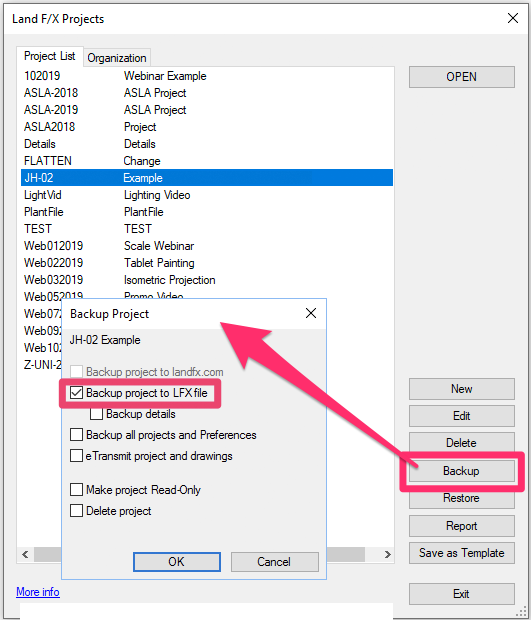
    e tTransmit option in the Backup Project dialog box
    Land F/X Projects dialog box, Backup options


    Save your project file to a folder on a USB drive, external hard drive, Dropbox – whichever medium you choose. Save your DWG in the same folder, and you'll have everything you need to transfer your drawing and project.


    Project-specific folder on USB drive containing DWG files and Land F/X data files


    Restoring (Importing) a Project


    With CAD open, click the Projects button on the F/X Admin ribbon to open our Projects feature.


    In the Land F/X Projects dialog box, click Restore, then click Import.
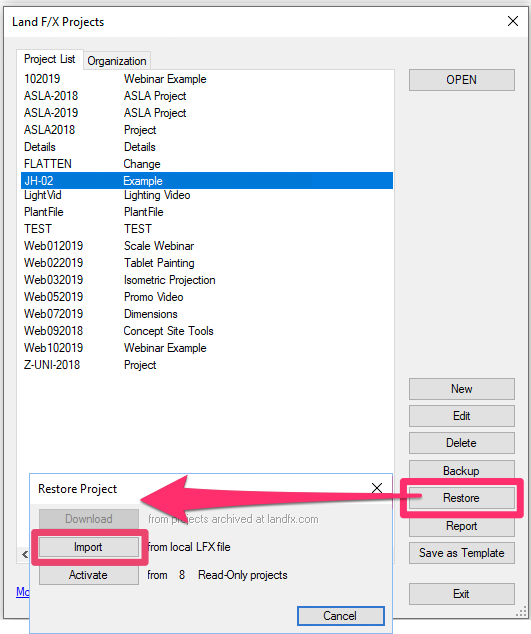
    Land F/X Projects dialog box, Restore button, Import option


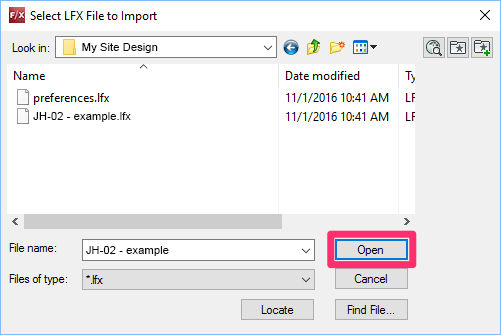
    Selecting a file to restore

    Select the project file on your external medium, and click Open.


    You'll now have your saved version of that project open, and can continue working on your drawing.


    When you're ready to move back to the original computer, repeat the Backup and Restore process.

    Contact

    • Land F/X
    • PMB 351 3940 Broad St. STE 7
      San Luis Obispo, CA 93401
    • +1 805-541-1003
    Email Logo Facebook Logo Instagram Logo LinkedIn Logo
    Land F/X Logo

    Our software tailors AutoCAD®, Revit®, SketchUp®, and Rhino® to the needs of landscape architects, irrigation designers, and other professionals. We automate your most tedious tasks and ensure accuracy, giving you more time to design.

    • Portal
    • Products
    • Support
    • Videos
    • Who We Are