

Buttons and Options Are Grayed Out in Preferences, and You Are Unable to Make Changes
Updated on: May 17, 2022
Issue
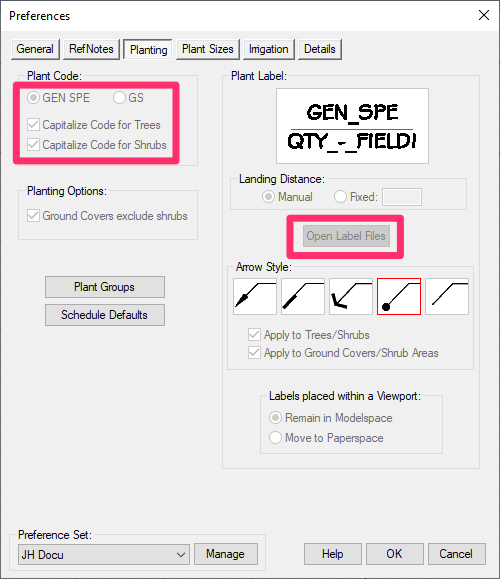
You attempted to make a change to the Land F/X Preferences, but you noticed that buttons and options are grayed out, which is preventing you from making a change.
The example to the right shows several options grayed out and unusable in the Planting Preferences screen.
Cause
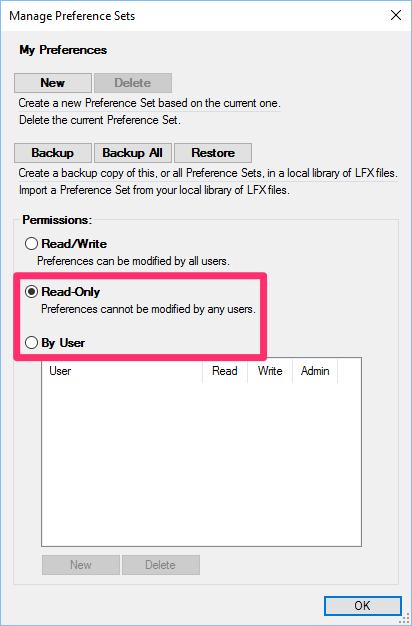
We've built in the ability for offices to block access to specific Preference Sets at their discretion. You are likely attempting to change a Preference Set that has been marked as Read-Only for all users in your office, or for specific users (By User).
For more information, see our Preference Set permissions documentation.
Solution
If one of your office's Preference Sets has been marked as Read-Only or By User, there's a good chance that it's happened for a reason. However, someone may have selected one of these options by mistake. To be sure, ask your office's CAD manager.
If you ARE your office's CAD manager and you're not sure who set the Preference Set to Read-Only (or why), you can investigate and resolve the issue using the following steps:
Open any of the Preferences screens. The Preference Set you're trying to use should be already selected from the Preference Set menu in the bottom left corner of the dialog box.
With that Preference Set selected, click the Manage button.

You should now see the details of how the Preference Set is blocked from changes.
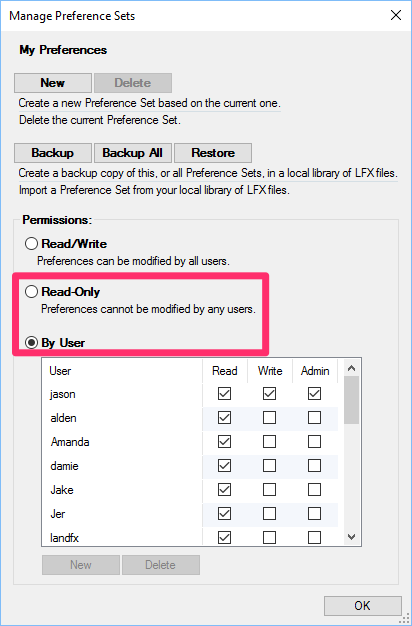
Preference Set Marked as Read-Only
If the Preference Set is marked as Read Only – and, again, if you are your office's CAD manager – you have two options for enabling yourself to make changes to the Preference Set:
Read/Write
Select the Read-Write option to make the Preference Set available for everyone in your office to change. Click OK to save your changes.
You should be able to make changes to the Preference Set immediately.
By User
Select By User to control the permissions settings for individual users in your office.If you select By User, you'll need to take a few extra steps to give yourself Write permission for the Preference Set.
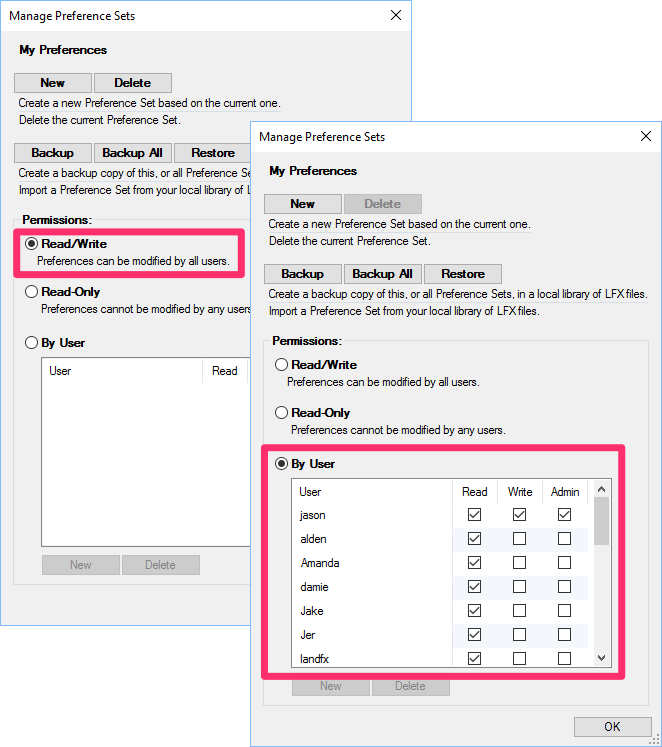
Preference Set Marked as By User
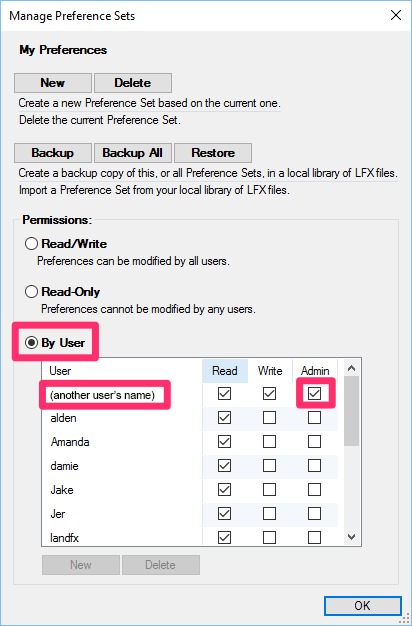
If the Preference Set is marked as By User (or if you've just selected this option), examine the user names in the area below that option.
In this example, another user is set as the Admin on this Preference Set. As such, only that user may make changes to the Preference Set – including the permission status.
If this is the case, you'll need to go to the computer of the user who is marked as Admin in order to make yourself an Admin.
From the computer of the user who is currently set as an Admin, place a check in the Admin column next to your name.
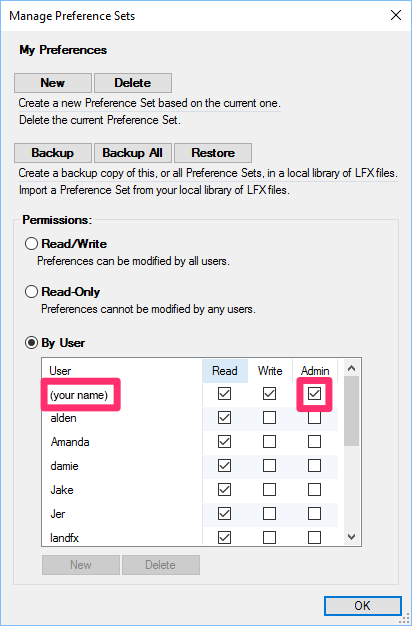

While still on the computer of the user who was originally set as Admin, uncheck that user's name in the Admin column.
You'll now be the sole Admin of that Preference Set. The buttons and options will no longer be grayed out for you, and you should be able to make any necessary changes to it from your computer, including:
- Marking it as Read-Write, so everyone can make changes to it
- Keeping it marked as By User and setting each individual user's Write status.
Can't remove the user as administrator because he or she is no longer at your firm, or you no longer have his or her computer? Here's what to do.
If you choose to retain the By User status, make sure to check Write next to your name, which will allow you to make changes to the Preference Set
It's not possible to remove a user's Read status for a Preference Set.