

Disassociate a Land F/X Project from an AutoCAD Drawing Template (DWT)
Updated on: April 25, 2022
Issue
You created an AutoCAD drawing template (.dwt) based on a drawing that mistakenly had a Land F/X project assigned. You now need to disassociate the drawing template from the project.
You should never create a drawing template with a Land F/X project assigned to it. If you do, you'll open the same project automatically each time you open that template to start a drawing. As a result, if the project is ever deleted or edited, all drawings created based on that template will be affected. Possible problems run the gamut: deleted plants or irrigation equipment, blocks disassociated with data, plants or equipment disassociated with symbols, etc. That's why it's incredibly important to avoid using the same Land F/X project for multiple drawings.
Need to create a master plant palette or otherwise centralize the data you typically add to projects? Create a Land F/X project template, then base future projects on that template.
Solution
Step 1: Determine Whether Your Drawing Template Has a Project Associated
If you're experiencing an issue similar to those listed in the yellow note above, it's a good idea to find out whether your drawing template has a Land F/X project associated with it.
Open your drawing template (.dwt). Then open the Project Manager:

F/X Admin ribbon, Project Manager button
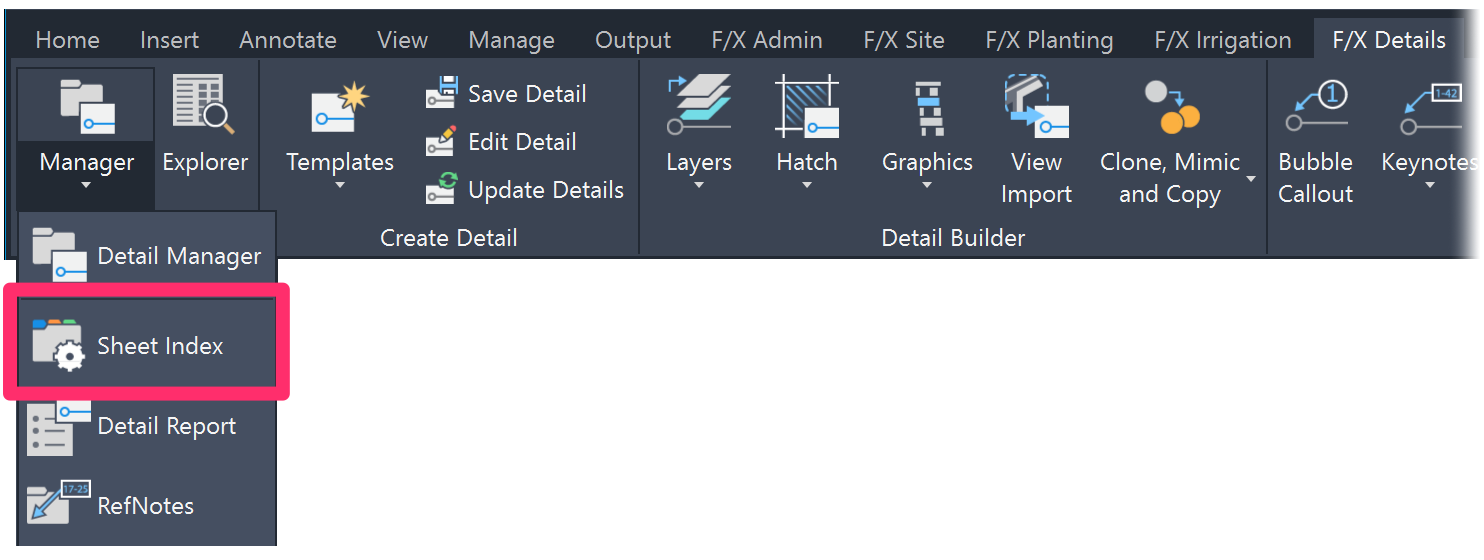
F/X Details ribbon, Sheet Index flyout

Admin Data toolbar

F/X Admin toolbar
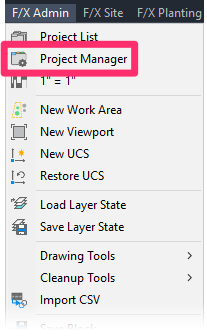
F/X Admin pull-down menu
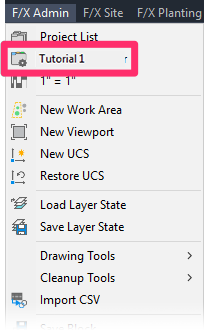
Once you've set the current project, the Project Manager option on this menu will change to the name of the project, as pictured to the right.
or type ProjectManager in the Command line
Scenario 1: No Project Associated (Good)
If the Projects dialog box opens, you do not have a project associated with your template – and that's a good thing.
No further action is required.


Scenario 2: Project Associated (Bad)
If the Project Manager dialog box opens, you know you have a project associated with your drawing template. You'll need to disassociate the project from the template.
In general, you'll want to have a different project associated with each your drawings (.dwg files). That's how Land F/X works. It's your drawing template (.dwt file) that shouldn't have a project associated with it.
Step 2 (If Necessary): Disassociate the Project from Your Drawing Template
It's easy to disassociate a Land F/X project from a drawing template. Just open the template and type HYPERLINKBASE in the Command line.
You'll be prompted to Enter new value for HYPERLINKBASE, or . for none. Type a period (.). The Land F/X project will be removed from the drawing template.
Save the template. Now, when you open and base a drawing on it, a project won't be associated with it. You can then create a new project and begin drawing.