Move All Land F/X Projects and Preference Sets to a New Computer or Server (Local Data)
Updated on: May 08, 2026
Issue
You need to move all your Land F/X projects and Preference Sets to a new computer or server.
Multi-User Land F/X with Local Data (MySQL) is officially deprecated.
We've officially deprecated Local Data (MySQL) installs as of May 2026. For optimal Land F/X performance, we recommend switching to Cloud Data.
Your office has a minimal number of Land F/X projects (fewer than 20 or so), and has not created a large amount of custom content, such as custom blocks (plant symbols, site amenities, etc.)
If your office does have a larger number of projects and/or custom blocks or other custom content, you will likely be better off using our server migration steps.
With our Cloud Data option, you won't have to go through this process to move your Land F/X data between computers. Instead, your data will be available online. Learn more about Cloud Data.
Solution
Step 1: Back Up All Your Projects and Preference Sets
Step 1: Back Up All Your Projects
Complete the following steps on your old computer or server.
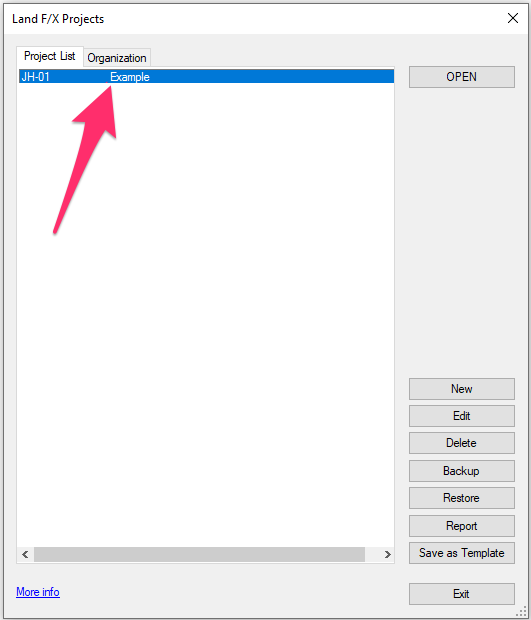
1A. Open our Projects tool from the F/X Admin ribbon.
Click Backup.


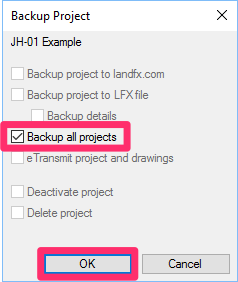
1B. The Backup Project dialog box will open.
Select the Backup all projects option, then click OK.
Allow a few minutes for Land F/X to back up your projects.
1C. When the backup is complete, you'll see a message that all projects and Preference Sets have been backed up to a folder bearing today's date (example: January 10, 2017) within the folder LandFX/data/backup.
Take note of the name of this folder.


1D. Navigate to the folder LandFX/data/backup. Copy the folder containing your backed-up projects and Preference Sets to an external medium, such as a USB drive.
In our example, the folder is named 2017-01-10 because we performed the example backup on January 10, 2017. (You can also just copy the folder LandFX/data/backups onto your external medium.)
This example shows the location of this folder with a single-user installation, which means the LandFX folder is located on the C: drive. If your office uses a central server to store your Land F/X data, this folder will be on your server. Need help finding it? Ask your IT Adimistrator.
Step 2: Restore All Your Projects and Preference Sets on Your New Computer or Server
If you're using these steps to move your Land F/X data to a new computer or server, complete Step 2: Restore All Your Projects and Preference Sets from your new computer or server.
2A. Insert the external medium, such as a thumb drive, that contains your backed-up projects and Preference Sets, into your new computer or server.
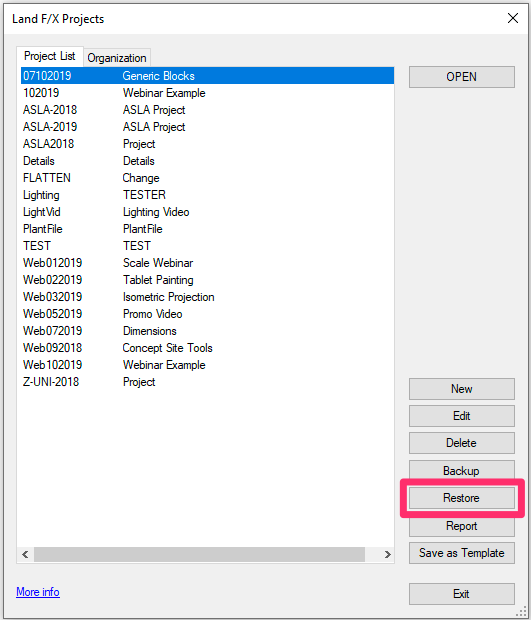
2B. Open the Land F/X Projects dialog box again.
Your list of projects will be blank because you're on a new computer. Don't fret! These next steps will import all your projects and populate this list.
Click Restore.
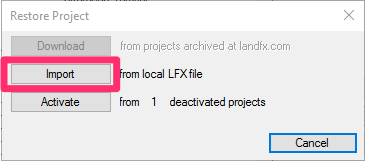
2D. The Select LFX File to Import dialog box will open.
Navigate to the folder containing your backed-up projects and Preference Sets on your external medium.
Select a project and click Open.


2E. Enter a project number for the project you're importing. We recommend using that project's original number.
Click OK.
2F. The project will appear in your list of projects on the new computer or server.
Click Restore again, and repeat steps 3 through 5 for each project or Preference Set you want to import.
You'll need to restore each project or Preference Set individually. Fortunately, because your office has fewer than 20 projects and only a few Preference Sets, these steps won't take long.