Locate Your LandFX Folder & Project Data Server (Land F/X Database)
Updated on: January 25, 2023
Issue
You need to locate your LandFX folder and/or Project Data Server. You may also need to find out whether or not you have Land F/X installed and, if so, whether your office is using Cloud or Local Data.
Definitions:
LandFX folder: The LandFX folder is created automatically when you install our software. It contains all the files that the software needs to use, as well as everything from custom plant blocks to hatches, linetypes, layer settings, and details.
Data Server: Your Land F/X Data Server is the location of your Land F/X database, which stores your project data (including your plant palettes and your site amenity and equipment inventories), Preference Sets, and other important items. If you need to find out whether your office is on Cloud or Local Data, as well as whether you have a Single- or Multiple-User installation, you can find out by checking your Project Data Server information.
- The location of your LandFX folder
- Whether your office is on Cloud or Local Data
- Your server name (if applicable)
Solution
1. From CAD, open the General Preferences screen from the F/X Admin ribbon.
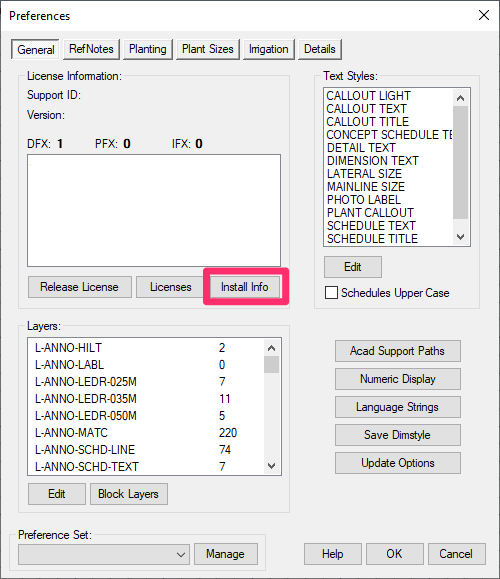
2. Click the Install Info button.


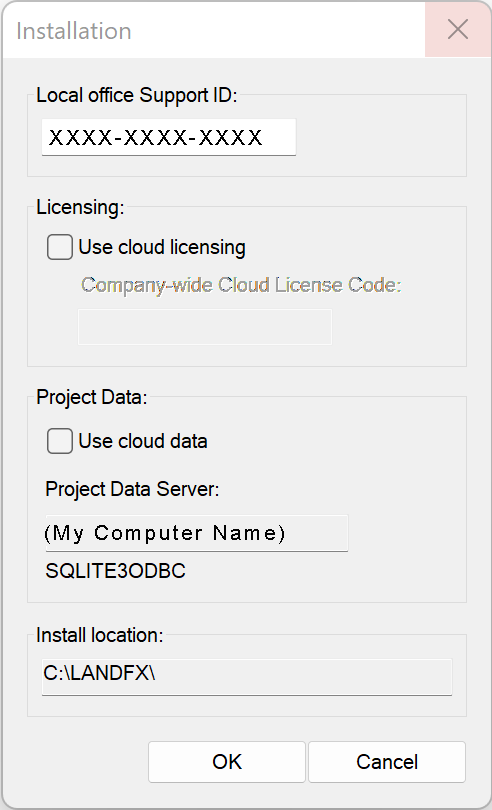
3. The Installation dialog box will open. Here, you'll see the locations of:
- Your LandFX folder (Location entry)
- Your Project Data Server (Project Data Server entry)
These locations will vary, depending on your:
- Type of installation: Multi-User with a server or shared online folder, or Single-User, and
- Database setup: Cloud or Local
See the Installation & Database Types section below for more information.
Installation & Database Types
The Project Data Server information can tell you whether you have a Single- or Multi-User installation, as well as whether your office is using Local or Cloud Data. Here are the possible combinations:
Multi-User installation, Cloud Data
Location: In most cases, your LandFX folder will be mapped to a letter drive (example: L:).
If your LandFX folder isn't currently mapped to a letter drive, we highly recommend it. Here's how.
Project Data Server: Because you have Cloud Data, you should see a geographic server location here (example: US-West California: A1), which represents our closest available data server to your location. More information on Cloud Data

Multi-User installation, Local Data
In most cases, your LandFX folder will be mapped to a letter drive (example: L:).
If your LandFX folder isn't currently mapped to a letter drive, we highly recommend it. Here's how
Project Data Server: You should see the name of your office server here – that is, the name of the computer where your Land F/X database is stored.

Single-user installation, Cloud Data
Location: Here, you'll see the location of the LandFX folder on your computer. In most cases, it will be located directly on your C: drive.
Project Data Server: Because you have Cloud Data, you should see a geographic server location here (example: US-West California: A1), which represents our closest available data server to your location. More information on Cloud Data

Single-user installation, Local Data
Location: Here, you'll see the location of the LandFX folder on your computer. In most cases, it will be located directly on your C: drive.
Project Data Server: You should see the name of your computer here.