

Land F/X
  • Portal
  • Products
  • Support
  • Videos
  • Who We Are
  • Trial
  • Purchase
Land F/X
  • Portal
    • Dashboard
    • Account
    • Licenses
    • Data
    • Support
  • Products
    • Detail F/X
      • Product
      • Features
      • Trial
      • Purchase
    • Planting F/X
      • Product
      • Features
      • Trial
      • Purchase
    • Irrigation F/X
      • Product
      • Features
      • Trial
      • Purchase
    • F/X CAD
    • Plugin for Revit®
    • Plugin for SketchUp®
    • Plugin for Rhino®
    • Site & Hardscape
    • Lighting
    • Manufacturer Connection
    • Academic
    • Purchase
  • Support
    • Knowledge Base
    • Documentation
    • Submit Ticket
    • Updates
    • Forum
    • Install
  • Videos
    • Power Tips
    • Webinars
  • Who We Are
    • Contact Us
    • Careers
    • Gallery
    • News
  1. Knowledge Base
  2. Admin
  3. Preferences & Customization
  4. Only Able to Select the Preference Set "Default"

Only Able to Select the Preference Set "Default"

Issue

You're only able to select the Preference Set named Default. Even if you attempt to select another one, your project will only accept Default as the active Preference Set.


Default Preference Set shown in Preferences screen


Cause

This issue is the result of a quirk in some Cloud Data installations of our software.


Solution

Use our Restore feature to restore either the Imperial or Metric Preference Set from the folder LandFX\Tutorials.


Open our Project List tool from the F/X Admin ribbon.

 

F/X Admin ribbon, Project List button


In the Land F/X Projects dialog box, click Restore.
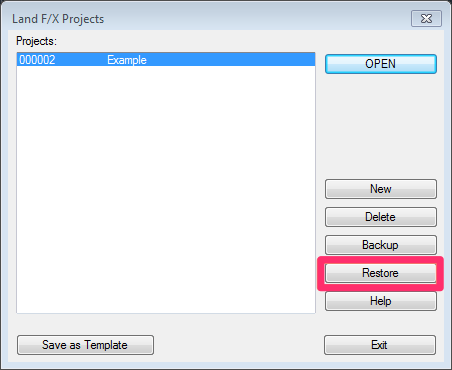
 

Land F/X Projects dialog box, Restore button


In the Restore Project dialog box, click Import.


Restore Project dialog box, Import button


In the Select LFX File to Import dialog box, navigate to and open the folder LandFX/Tutorial.
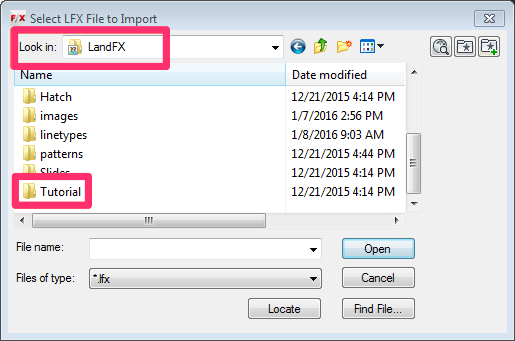
 

Browsing to the folder LandFX/Tutorial in the Select LFX File to Import dialog box


The Tutorial folder will contain two Preference Sets: Imperial.lfx and Metric.lfx. Select the one that applies to the measurement system you use when drafting. Then click Open.
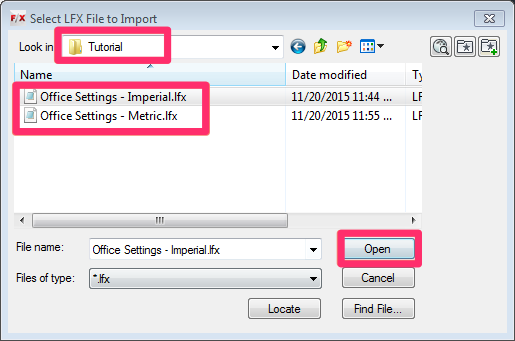
 

Selecting a Preference Set in the Tutorial folder


Open the General Preferences, and select either the Imperial or Metric Preference Set from the menu.


General Preferences screen, selecting a Preference Set


Your projects should now accept the Preference Set you selected.

You can also create a new Preference Set at this point, basing it on the one you've set as active.

Contact

  • Land F/X
  • PMB 351 3940 Broad St. STE 7
    San Luis Obispo, CA 93401
  • +1 805-541-1003
Email Logo Facebook Logo Instagram Logo LinkedIn Logo
Land F/X Logo

Our software tailors AutoCAD®, Revit®, SketchUp®, and Rhino® to the needs of landscape architects, irrigation designers, and other professionals. We automate your most tedious tasks and ensure accuracy, giving you more time to design.

  • Portal
  • Products
  • Support
  • Videos
  • Who We Are