

Plan Graphics
Updated on: December 22, 2025
Quick video

- Plan Graphics Overview
- Plan Graphics Library
- Placing a Block from the Plan Graphics Library
- Saving a Block into the Plan Graphics Library
- Editing Your Custom Plan Graphics Blocks
- Assigning Data to Plan Graphics You've Already Placed
- Block Libraries, Dynamic Blocks & Colored Blocks
- Related Webinars
- Troubleshooting
The Plan Graphics library contains blocks that exist on your site design outside the realm of buildings, plants, and irrigation equipment. Our Plan Graphics library is a series of DWG files, each of which contains a rendering of one of these blocks – also known as Site Amenity blocks. These blocks include site amenities (benches, bike racks, etc.), rocks, pagodas, vehicles, people, and anything else you could possibly imagine that could be included in your site plan.
The existing Plan Graphics library is included in your installation and stored in your LandFX folder under Blocks\Plan_Graphics. This folder contains a number of subfolders containing different types of Plan Graphics. You can place these Plan Graphics in your drawing quickly when, for example, you want to place a bench or a rock. You can also customize this library by adding your own blocks and subfolders or editing the existing Plan Graphics blocks.
As of October 2019, we've made some major updates to both our Plan Graphics and Elevation Graphics block libraries, with tons of new blocks and an updated source block folder organization. See our Updated Blocks and Block Folder Structure article to earn more about these updated blocks, how to get them, and how to integrate your custom blocks into the new folder structure.
Did you know you can quickly convert generic blocks into Amenity Reference Notes with data, costs, etc.? Find out how!
Plan Graphics Overview
Open the Plan Graphics library:

F/X Site ribbon, Plan Graphics flyout
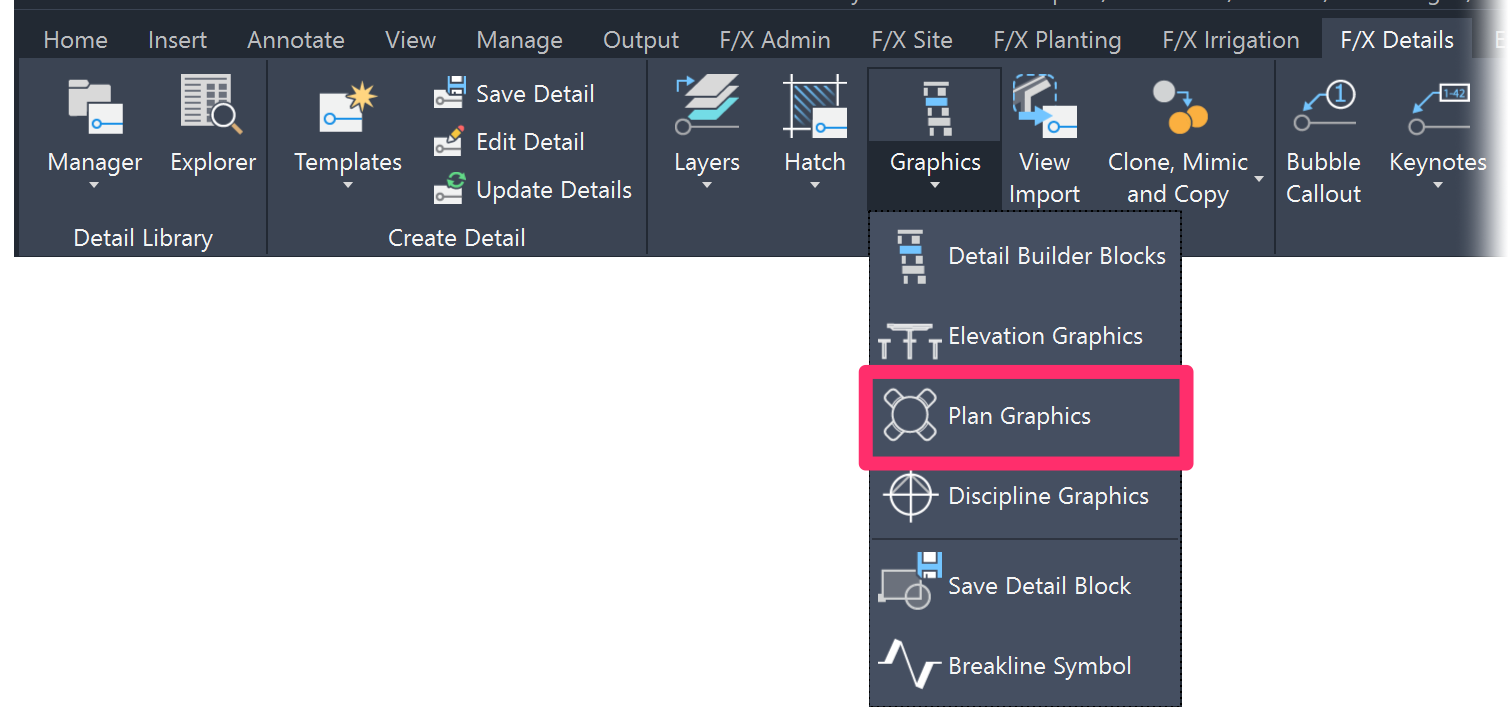
F/X Details ribbon, Plan Graphics flyout
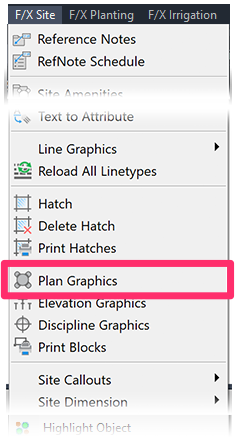
F/X Graphics menu, Plan Graphics option
or type PlanGraphics in the Command line
The Plan Graphics dialog box will open.

1. Use this search box to search for a block in the Plan Graphics library.
2. The left panel of the dialog box shows the Plan Graphics library categories. Click the arrow next to a category to expand it and show its subcategories, or to collapse it and hide its subcategories. Seeing duplicate categories here? Here's why, and what to do.
Click a subcategory to select it and show previews of the blocks it contains.
3. Use these options to Expand all categories to show their subcategories, or Collapse all categories to hide their subcategories.
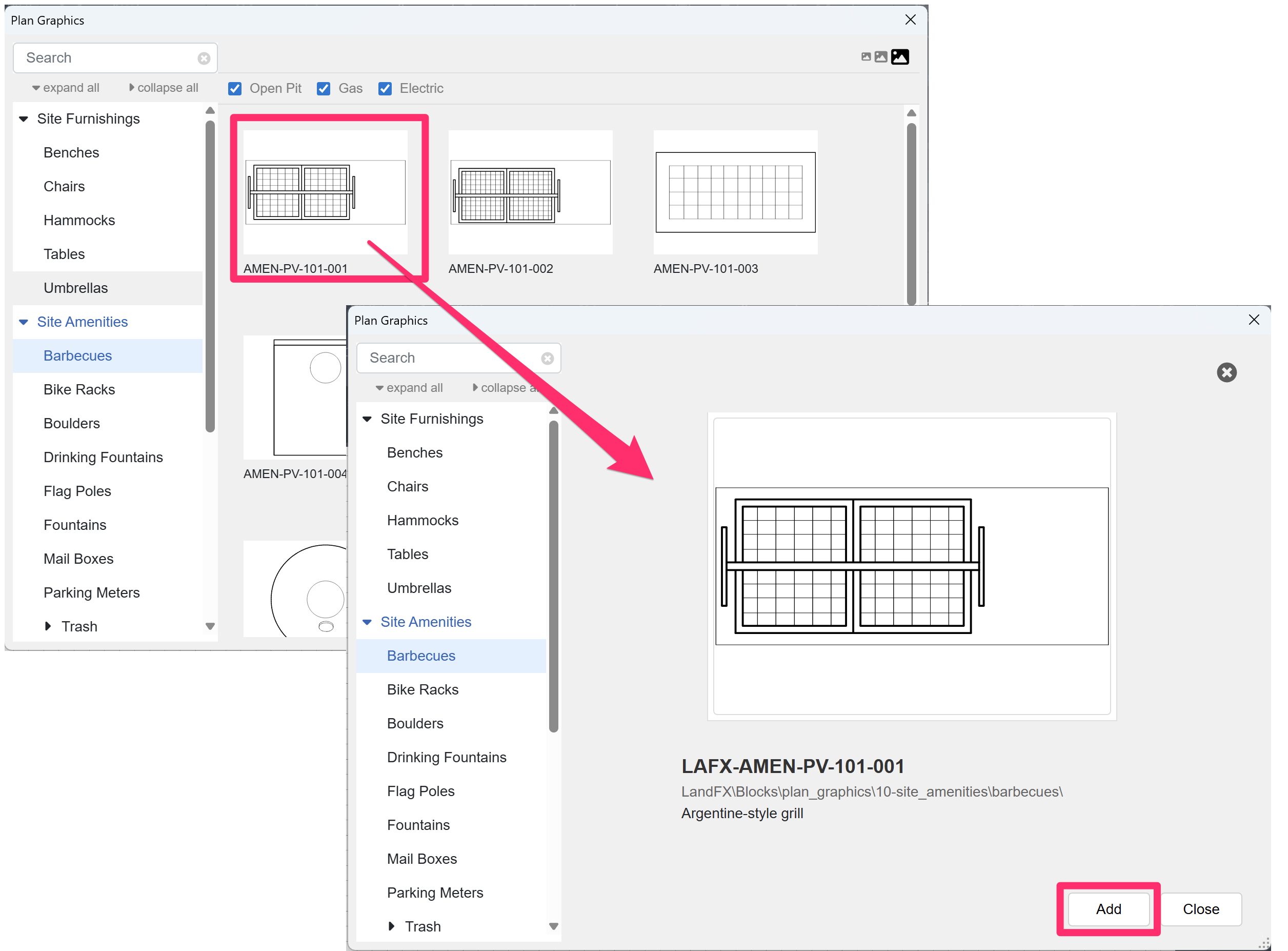
4. The blocks within the selected subcategory appear as thumbnails in the area on the right side of the dialog box. Click a thumbnail to see an enlarged view of the block, then click Add to place that block in your drawing, or click Close to return to the Plan Graphics library to continue browsing..
5. After selecting a block subcategory, use these checkboxes to filter the list of blocks. Each subcategory will have its own specific filter checkboxes.
6. Use these buttons to toggle between available views of the selected block. If the view options are grayed out, it means no alternative view is available for that block. The view you have active will be the version of the selected block that places in your plan when you click Add.
The Plan Graphics Library
The list of categories and subcategories in the Plan Graphics dialog box is a mirror image of the contents of the Plan_Graphics folder in your LandFX folder. (The full path to this folder is LandFX > Graphics> Plan Graphics).
Because we now store all our default blocks and their folders on the Cloud, these folders may not appear until you select one or more blocks they contain.

Here's an example of one of the Site Amenities categories in the Plan Graphics library:
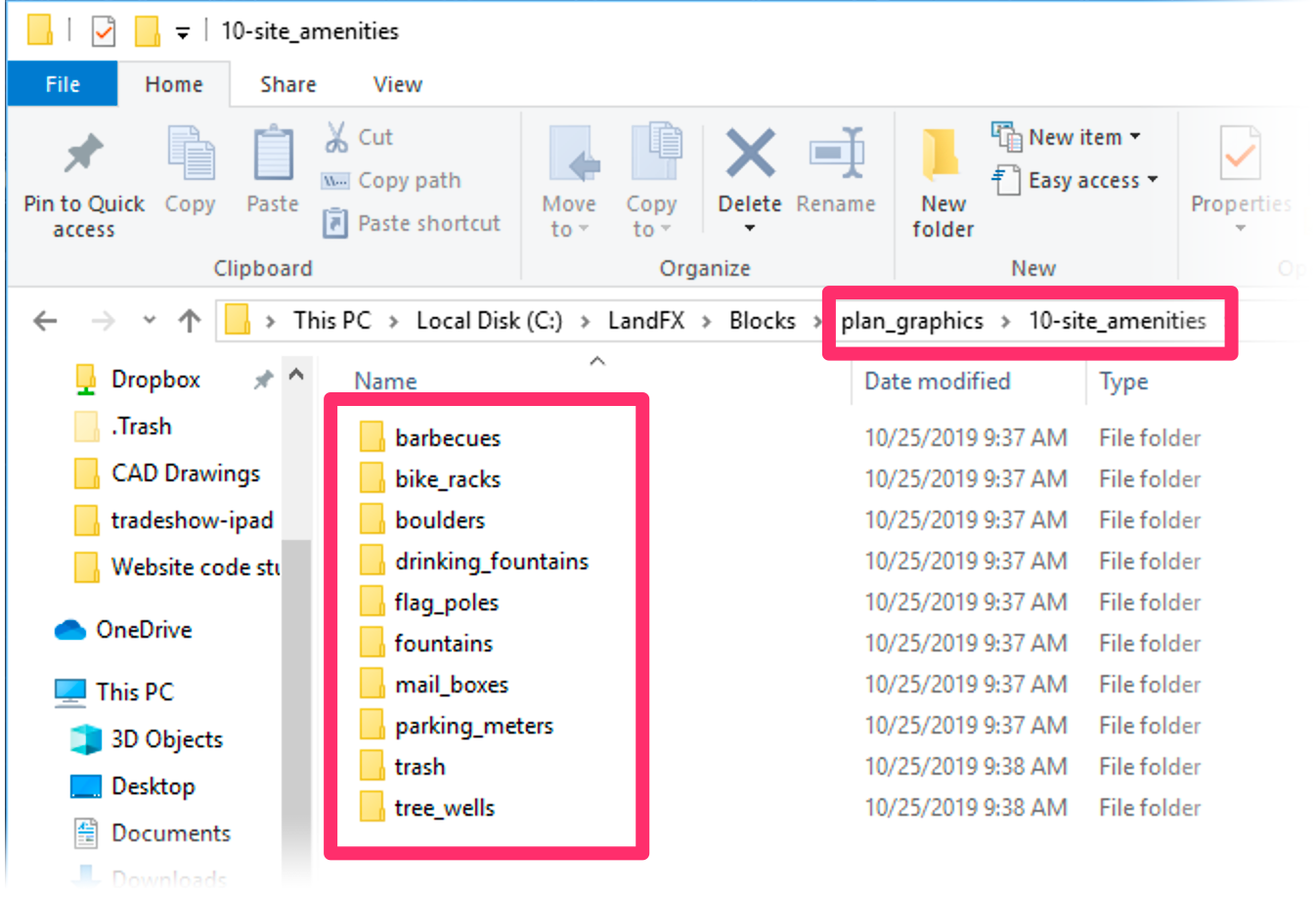
The Site Amenities Plan Graphics library in the LandFX folder
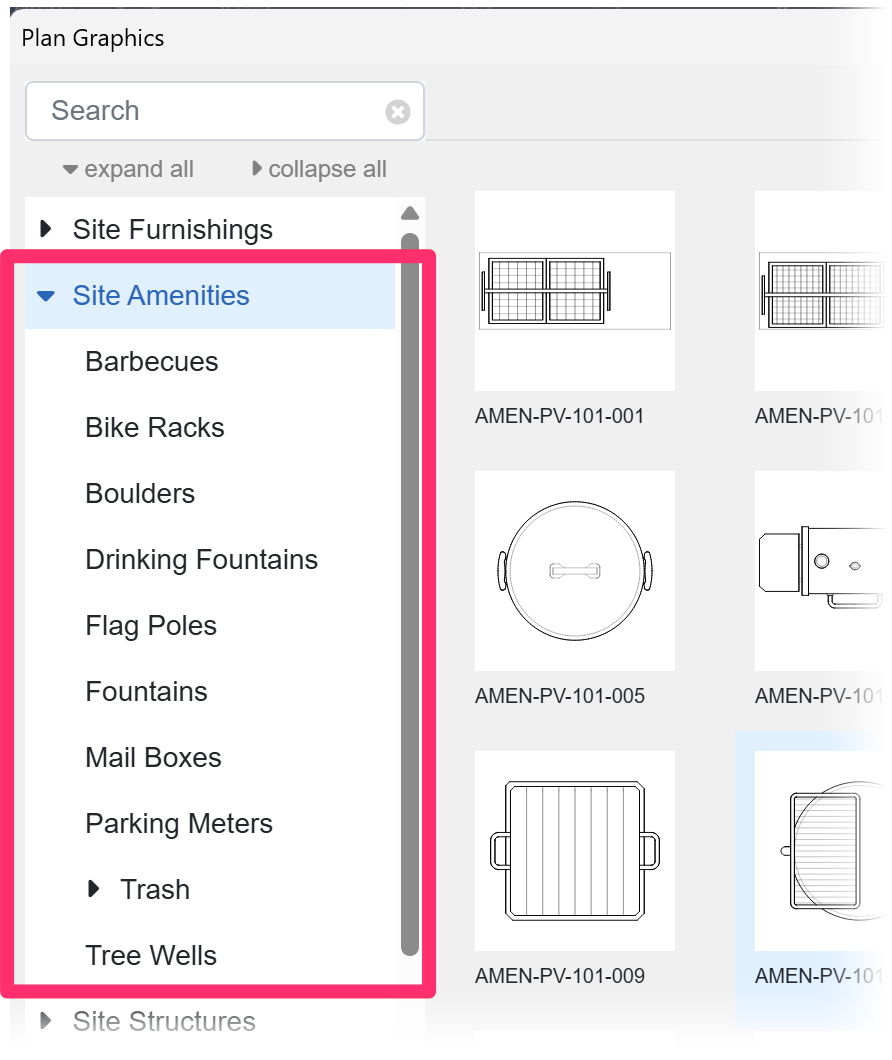
The Site Amenities Plan Graphics library in the Plan Graphics dialog box
Seeing duplicate folders here? Here's why, and what to do.
Because all our default blocks are now stored on the Cloud, you may not see each of these subfolders until you have selected one or more blocks contained in that subfolder.
The Plan Graphics tool is simply a block manager. As such, it provides a location and file system for this type of block.
Placing a Block from the Plan Graphics Library
To place a block from the Plan Graphics library, select the block preview from its subcategory, then click Add to begin placing the block.
Keyboard Commands for Placing Plan Graphics
Our keyboard commands for placing objects now apply to generic blocks, such as Plan Graphics. Use these easy, intuitive keyboard commands to toggle between blocks, block categories, and views of the selected block on the fly, as well as enter our Copy along tools. More information
Saving a Plan Graphic
If you have a graphic you've created that you want to save within the Plan Graphics library, you can use our Save Block tool. Save Block will automatically create a thumbnail preview of your new block.
If you choose to save a block into the Plan Graphics library, you'll save it within the Plan_Graphics folder to allow our software to recognize it as one of the Plan Graphics.
You can also create a new subfolder.

Editing Your Custom Elevation Graphics Blocks
If a custom block you've added to the Plan Graphics library is not scaled correctly or is not set to proper rotation, or if you want to open the block's source file to customize it, select the block's thumbnail preview in the Plan Graphics dialog box and click Edit to make changes to that block.

You can then view and edit information about the block.

1. Larger preview of the selected block
2. If you want, type a Description for the block.
3. Set a Scale for the block. In this example, the item is set for Actual Size, meaning it will go into the drawing at full size rather than Manual or Dim Scale.
4. The Rotation that will be applied to the block when placed in a drawing. In this example, the Rotation is set to Manual will allow you to rotate the block to your desired angle when you place it in the drawing.
5. Use this menu to select the Units assigned to the block: Inches, Feet, Meters, etc.
6. Click Save to save your changes.
If you change the Units of a block in the Elevation Graphics library and then add the block as a Reference Note, you will then need to change the units in the Reference Note as well.
Assigning Data to Plan Graphics You've Already Placed
Quick video

What if you've already placed several Plan Graphics in your drawing, but you now want to assign those objects with data (such as cost) and call them out in a materials schedule? We've engineered a quick and simple way to do just that – by converting them into Amenity (Object) Reference Notes. For instructions, see our Assign Data to Generic Blocks documentation.
Block Libraries, Dynamic Blocks & Colored Blocks
We're constantly expanding our block libraries, updating our blocks, and adding dynamic block support. We've also added color fills to most of the blocks in our Plan Graphics and Elevation Graphics block libraries. For more information, see our documentation on:
- Our Site Block Libraries
- Colorizing Site & Hardscape Blocks (both ours and yours)
- Dynamic Blocks
Related Webinars
- Fundamentals of Blocks: Take a tour of the streamlined process for proper block creation and management brought to you by Land F/X. We’ll cover the dos and don’ts of creating and saving blocks, and demonstrate how our numerous block library locations work with different parts of the software. (1 hr 2 min)
- Working with Blocks: We go over the role played by blocks within our software, showing the various types of blocks you have access to and how they all function. We'll also show you how to integrate your personal set of custom blocks into our system. (51 min)
Troubleshooting
Issue: Plan Graphics are missing, not installed, or unavailable
Issue: You are experiencing a significant delay when attempting to add or place Plan Graphics
Issue: Bad DXF group (10) error when placing a Plan Graphic
Issue: You saw a Missing File Error when attempting to place a Plan Graphics block
Issue: Your custom blocks are not showing up as options in the Plan Graphics dialog box
Issue: The list of block categories list is missing from the left pane of the Plan Graphics dialog box
Issue: The Plan Graphics dialog box is not loading completely
Contact
- Land F/X



Our software tailors AutoCAD®, Revit®, SketchUp®, and Rhino® to the needs of landscape architects, irrigation designers, and other professionals. We automate your most tedious tasks and ensure accuracy, giving you more time to design.